What is Swap Space in Linux Systems?
Swap space in Linux acts as a safety net when RAM is full, enabling smoother multitasking, preventing crashes, and supporting hibernation. Learn why it is crucial for system stability, especially under high memory pressure.
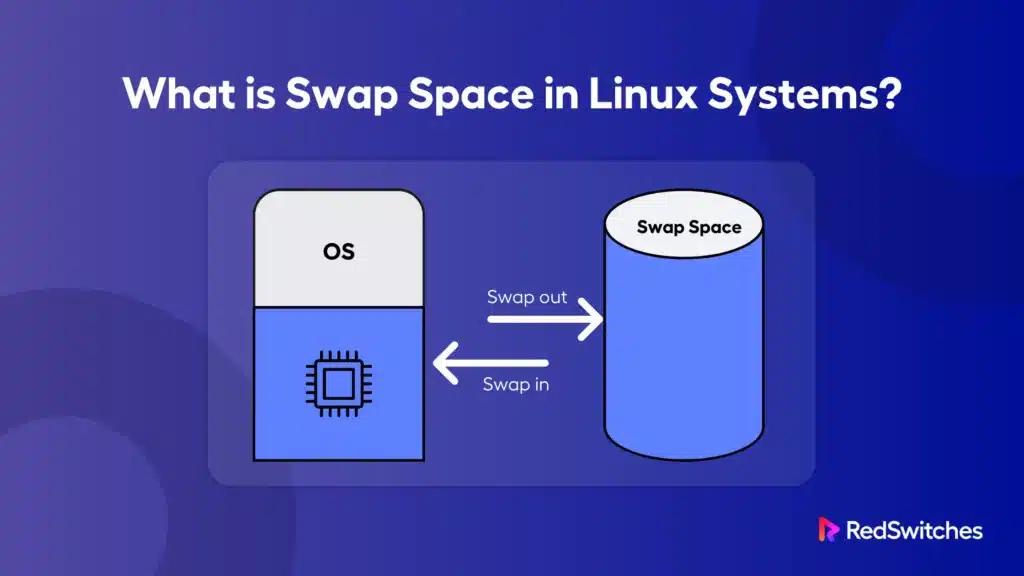
Imagine you are running a Linux workstation. You’ve got a few browser tabs open, a virtual machine running in the background, a large dataset loading into a Python script, and you’re writing documentation notes in a markdown editor, all at once.
Suddenly, your system becomes sluggish. Your applications take longer to respond, and your terminal is lagging, due to the lack of available memory.
This is not a hypothetical situation. In fact, this can happen to anyone at any time with little warning.
The question is, how do you deal with this?
Swap space, a dedicated area on your disk that acts as virtual memory when your system’s physical RAM is full, is the solution to sluggish and slow-responding systems.
In this article, I will discuss what swap space is, its types, and how it stacks against comparable solutions. Let’s start with a quick overview of swap space.
What is Swap Space in an Operating System?
Swap space is a designated area on your system’s storage (either a hard drive or SSD) that the operating system uses as an extension of physical memory (RAM).
When your system’s RAM is full, the OS moves inactive or less-used data from RAM into swap space, freeing up RAM for active processes. This process is called swapping or paging.
In my years of experience, I have lost the count of times when swap space became the savior of system performance. If you are monitoring a production server and see memory usage climbing toward 100 percent, then you should know that the kernel is preparing to start moving less frequently accessed pages from RAM to swap space.
In my experience, the most common misconception I have seen is that swap space is some kind of RAM replacement or RAM accelerator, which, by now, you understood is absolutely not meant to act as the main memory.
Note that swap is much slower than RAM, so if your system is constantly using swap, you’ll notice a big performance hit. This is called thrashing.
A few other misconceptions about swap space that I have come across are:
- Disabling swap improves performance: Without swap, your system may crash or kill processes when RAM runs out
- Swap should always be double your RAM: That’s outdated advice. The right size depends on your workload and system needs.
- Swap is useless if you have lots of RAM: Even with plenty of RAM, swap helps optimize memory usage and can prevent out-of-memory errors
Types of Swap Space in Linux
In Linux, you can implement swap in two main ways: swap partitions and swap files.
Let us discuss each of these:
Swap Partitions: The Traditional Approach
A swap partition is a dedicated section on the hard drive or SSD that is formatted specifically for use as swap space. It functions as an extension of the system’s physical memory (RAM) to provide additional virtual memory when the RAM becomes full.
The swap partition is isolated from other data, ensuring efficient and reliable management of virtual memory. Its primary role is to temporarily hold data when the RAM usage is 100 percent.
Advantages of Swap Partitions
- Raw performance: Swap partitions have slightly better I/O performance since there’s no filesystem overhead
- Kernel efficiency: The kernel can directly manage the partition without going through filesystem layers
- Reliability: Swap partitions are less prone to corruption issues due to its separate, dedicated position on the physical media
- Simplicity: Once created, swap partitions require minimal maintenance
- Boot-time availability: Typically, swap partitions are always accessible during system startup. This means the system can always have support in terms of RAM usage
Disadvantages of Swap Partitions
- Fixed size: You can’t easily resize without repartitioning, which requires downtime or rebooting the system
- Disk space commitment: The space on the disk is permanently allocated, even when not needed
- Complex setup: Requires partition table modifications that I prefer to avoid on production systems
- Inflexibility: Moving to a different disk requires significant reconfiguration of the target disk’s filesystem
Swap Files: The Flexible Alternative
A swap file is simply a regular file created within the existing filesystem and configured as swap space. I’ve seen system administrators increasingly adopt this approach, especially in virtualized environments and cloud deployments where access to physical disk is not always available.
Advantages of Swap Files
Let us see some of the advantages of swap files.
- Dynamic sizing: You can easily resize swap by recreating the file without touching the partition tables
- No repartitioning: Swap files can be added to any existing filesystem with enough available space
- Multiple swap areas: You can create several swap files across different filesystems for load distribution
- Easy management: Standard file operations, backup policies, and migration processes apply on swap files
- Quick deployment: Perfect for emergency situations when swap space is required immediately
Disadvantages of Swap Files
- Slight performance overhead: The filesystem layer adds minimal but measurable latency
- Fragmentation concerns: On heavily used filesystems, the swap file might become fragmented
- Filesystem dependency: If the underlying filesystem has issues, swap can become unavailable
- Security considerations: Swap files are regular files that can be accidentally accessed if permissions are misconfigured, causing security issues.
The following table summarizes the difference between a swap partition and swap files.
| Feature | Swap Partition | Swap File |
|---|---|---|
| Definition | A dedicated partition on a disk formatted specifically for swap | A special file stored within an existing filesystem used for swap |
| Setup Complexity | More complex, requires partitioning during installation or disk management | Easier; it can be created or resized while the system is running |
| Location | Dedicated disk partition | File within existing filesystem |
| Flexibility | Less flexible; resizing requires repartitioning | Highly flexible; resized dynamically without repartitioning |
| Performance | Slightly better, as it’s dedicated and does not involve filesystem overhead | Slightly slower, due to filesystem layer access |
| Resizing | Resizing involves repartitioning, which can be time-consuming | Resizing is straightforward and can be done on the fly |
| Management | Harder to change after setup | Simple to manage dynamically |
| Hibernation | Preferred for hibernation | May have issues with hibernation |
Now on to the real question: when to choose one over the other.
I always prefer swap partitions when:
- Setting up dedicated servers where performance is critical
- Working with systems that have predictable, stable memory requirements
- Managing bare-metal installations where I need to control the entire disk layout
- Dealing with high-I/O workloads where every microsecond matters
Alternatively, I choose swap files when:
- Working in cloud environments where flexibility is paramount
- Managing virtual machines that might need memory adjustments
- Dealing with systems where I can’t easily repartition disks
- Setting up development or testing environments that require frequent changes
Swap Space vs. Virtual Memory: What’s the Difference?
One of the most frequent questions I noticed system administrators get from junior administrators is about the relationship between virtual memory and swap space.
I believe that understanding this hierarchy is crucial for effective system management.
What is Virtual Memory?
Virtual memory is a system that allows your computer to use more memory than is physically available by combining RAM and swap space. In other words, virtual memory allows the operating system to use disk storage as an extension of RAM, enabling memory-intensive applications to run even when physical memory is limited.
How Does Virtual Memory Use Swap Space?
The OS divides the memory into fixed-size blocks called pages. In addition, the OS keeps track of which pages are in RAM and which are in swap.
When your system runs out of RAM, the OS moves less-used data (pages) from RAM to swap space. This process is called paging.
If a program needs data that’s been swapped out, the OS brings it back into RAM, possibly swapping something else out to make room. This is called a page fault.
Now, if the system is constantly swapping pages in and out, performance drops sharply. This is called memory overflow or thrashing. If the system needs to swap in and out pages constantly, it is a sign that you need more RAM or optimize your workload in-memory data distribution.
How Swap Space Works
As someone who has closely worked with sysadmins, I’ve seen how swap space acts as a safety net for Linux systems when memory usage starts going into red.
The kernel, the core part of the operating system, is responsible for managing memory through swapping or paging. When the system detects that memory resources are running low, it initiates a series of steps to free up RAM:
- Monitoring Memory Usage: The kernel continuously tracks the amount of free RAM and other memory states.
- Identifying Pages to Move: It identifies less-active or unused memory pages that can be safely moved to swap space without affecting ongoing processes.
- Swapping Out Pages: These pages are temporarily moved/written to the swap space on disk, freeing up RAM for more recent data storage requirements.
- Swapping In Pages: When a process requires data stored in swap that is no longer in RAM, the kernel reads these pages back into RAM.
However, you need to keep in mind that when many pages are swapped frequently, you will notice the following effects:
- Performance Degradation: When the system is swapping heavily, applications slow down dramatically
- Disk I/O Bottlenecks: Heavy swap usage increases disk activity, which can bottleneck the system, especially on slower disks or in cloud environments with I/O limits
- System Responsiveness: The system may become sluggish or unresponsive as it spends more time swapping than running applications
- Thrashing: If both RAM and swap are full, the system can enter a state called thrashing, where it spends most of its time swapping pages in and out, rather than doing useful work.
How Much Swap Space Do You Need?
In my interactions with senior system administrators, this is the most frequently asked system management question I get. The interesting thing here is that the answer has evolved significantly over my career.
During the late 1990s, RAM was expensive and limited. A typical server had 128MB-512MB of RAM, and therefore, the old rule of swap was to have at least 2x disk space of the RAM.
However, in the modern systems with 32GB, 64GB, or 1TB of RAM, the 2x rule is overkill and can even be counterproductive because of the following reasons:
- RAM is abundant: Modern systems have 100x more RAM than systems from 20 years ago
- Workloads have changed: Applications are designed for high-memory environments with appropriate memory management components
- Storage implications: 128GB of swap space on a 64GB RAM system is rarely justified
- Performance expectations: Users expect systems to perform well, not just survive
Therefore, consider the following factors to calculate how much swap space you need:
- Workload type: Memory-intensive applications (databases, scientific computing) may need more swap as a buffer.
- Available RAM: The more RAM you have, the less swap you typically need.
- Hibernation needs: If you use hibernation, you need at least as much swap as your RAM to store the system state
The following table illustrates how much swap you need.
| System Type | RAM Size | Swap (No Hibernation) | Swap (With Hibernation) |
|---|---|---|---|
| Low-end/Legacy | ≤ 2GB | 2x RAM | 3x RAM |
| Desktop/Laptop | 2–8GB | 1x RAM | 2x RAM |
| Workstation/Server | 8–64GB | 4GB minimum | 1.5x RAM |
| High-end Server | >64GB | 4GB minimum | Hibernation not advised |
How to Check Swap Space in Linux
I always recommend regularly checking your swap usage, especially if you suspect performance issues.
The following are some of the common commands you can use to check swap space.
Use swapon –show
If you want to display detailed information about active swap areas, including name, type, size, and used space, execute the following command:
# swapon –show
Check /proc/swaps
If you want to know the details about all swap areas currently configured, check the /proc/swaps file. Use the cat command to view the file and see which swap areas are in use on your system:
# cat /proc/swaps
Use free -h for a Complete Memory Snapshot
If you want to display the total, used, free, shared, buffer/cache, and swap memory in a human-readable format, run the following command:
# free -h
Monitor Swap Usage with top or htop
If you want to display real-time system info, including swap usage, towards the top of the output, run the top command:
# top
Now, if you want an enhanced version of top with a more user-friendly interface, use the htop command:
# htop
The following table summarizes these common swap commands:
| Commands | Description |
|---|---|
| swapon –show | Lists all active swap areas with details |
| swapon -s | Provides a summary of swap usage |
| cat /proc/swaps | Shows low-level details of all swap devices/files |
| free -h | Gives a human-readable snapshot of total, used, and free memory, including swap |
| top | Real-time system monitor; shows swap usage at the top and per-process swap usage if configured |
| htop | Enhanced version of top with a more user-friendly interface; swap usage is shown in the summary bar |
| vmstat | Reports memory, swap, and process statistics over time. |
| grep SwapTotal /proc/meminfo | Shows the total swap space available |
How to Add or Remove Swap Space
Managing swap space in Linux involves adding new swap areas, resizing existing ones, or disabling swap when necessary.
You can either make temporary changes (swap space for the current session) or permanent changes (same after reboots).
Follow the steps below to add swap space.
Step #1: Check Existing Swap Space
Start by checking the current swap space and identifying the swap partition.
# swapon –show
Step #2: Turn Off the Swap
Before resizing, I recommend turning off the swap space.
# sudo swapoff -v /[swap_path]
Replace **[swap_path]**with the partition path.
Step #3: Resize the Partition
Once you have disabled the swap space, use a partitioning utility such as fdisk or parted to decrease or increase the swap partition.
# sudo fdisk /dev/sdX
Important: Resizing partitions with fdisk can cause data loss. Back up data first and verify disk paths with lsblk.
Step #4: Update the Partition Table
Once the swap partition is resized, update the partition table with the following command:
# sudo mkswap /[swap_path]
Step #5: Enable the Swap Space
Now, enable the resized swap space.
# sudo swapon /[swap_path]
Replace **[swap_path]**with the appropriate partition path.
Now, you need to remember that increasing the size of an existing swap partition is not possible if the maximum storage space is already occupied. In such cases, you need to create a new swap file.
Advantages of Using Swap Space
The following are some of the advantages of swap space that I have noticed:
Provides an Overflow Buffer
When RAM is full, swap acts as an overflow, allowing the system to keep running by moving inactive data to disk. This prevents out-of-memory errors and keeps critical applications running.
Enables Hibernation
Hibernation requires saving the entire contents of RAM to disk. Swap space is used to store this data, making it possible to power down and resume exactly where you left off.
Prevents System Crashes
Without swap, running out of RAM can cause the kernel to kill processes or the system may crash. Swap provides a buffer that helps prevent these situations, especially under unexpected memory requirement spikes.
Improves Multitasking
By freeing up RAM for active processes, swap allows more applications to run concurrently, improving multitasking and overall system stability
Extends Usable RAM for Resource-Limited Devices
For older hardware or devices with limited RAM, swap provides an affordable way to extend usable memory capacity, improving usability and application compatibility.
Helps in System Maintenance and Troubleshooting
Swap can be useful during system upgrades or troubleshooting, providing extra space for processes that need temporary buffers or disk-based memory for diagnostics.
Disadvantages of Swap Space
While swap is essential, it’s not without drawbacks. These are some of the drawbacks that I have noticed:
Slower Than RAM
Accessing swap is much slower than RAM. If your system is using swap heavily, you’ll notice sluggish performance, increased latency, and longer application response times.
SSD Wear
On SSDs, frequent swap usage can contribute to wear, as SSDs have a limited number of write cycles. Modern SSDs have good wear leveling, but it’s still best to minimize unnecessary swap writes.
Poor Swap Management Can Lead to Sluggish Systems
If swap is overused or not sized/tuned properly, the system can become unresponsive, especially if it enters a state called thrashing, where it spends more time swapping than doing useful work
Disk I/O Bottlenecks
Heavy swap usage increases disk I/O, which can slow down other processes and degrade overall system performance
Possible Misconception of Adequate Memory
Heavy swap usage might give a false impression that the system has enough RAM because the system appears functional, but in reality, performance degrades because of the slow disk-based memory.
Conclusion
Swap space is a vital part of Linux memory management. It acts as a safety net when RAM is exhausted, supports hibernation, and helps prevent crashes. However, because swap is much slower than RAM and can impact SSD lifespan, it’s important to size and tune swap appropriately for your workload.
Always remember that swap is not a RAM replacement.
FAQs
How does the file system impact swap space performance?
The file system type affects how efficiently swap files are accessed. While swap partitions bypass the file system for faster performance, swap files depend on the underlying file system, which can introduce slight overhead.
Can swap space wear out my hard disk over time?
Yes, excessive swap usage on traditional hard disks (HDDs) can lead to faster wear, especially during sustained memory pressure. On SSDs, although performance is better, frequent writes to swap can reduce the drive’s lifespan. It’s important to allocate enough RAM and optimize applications to minimize reliance on swap.
Does the amount of RAM affect whether I need swap space?
Absolutely. The more RAM your system has, the less likely it is to use swap space under normal conditions. However, swap is still recommended even on high-RAM systems as a safety net for rare memory spikes or when running memory-intensive applications like virtual machines or databases.
Is swap space used to store data permanently?
No, swap space is not meant for permanent data storage. It temporarily holds inactive memory pages from RAM to free up space for active processes. Data in swap is volatile and cleared on reboot; it doesn’t replace or supplement your hard disk’s long-term storage function.
Manasa M
Technical Content Editor
Manasa is a Technical Content Editor at RedSwitches, known for turning complex technical concepts into clear, engaging content. With a background in copy editing, sub-editing, and technical writing, she shapes the blog's guides for accuracy, readability, and search performance.
Ubuntu vs Linux: Key Differences Explained
Linux is the kernel, while Ubuntu is a complete operating system built on it. This guide breaks down their key differences, use cases, and when to choose each.

Reduce Docker Image Size: Best Practices to Slim Your Images
Docker image size can become a serious issue as you add more code to the image. Learn how to reduce Docker image size and optimize Dockerfiles for production to speed up CI/CD pipelines and improve container efficiency.

Best Linux Distros 2026, Full Guide for Beginners, Developers, Gamers & Servers
Match your hardware, workflow, and skill to the right Linux distro in 2026. Compare 23 top picks, Mint, Ubuntu, Fedora, Arch, Bazzite, covering beginners, developers, gamers, and servers.
Power Your Next Project With Bare Metal
10 min delivery, zero setup fees, and 24/7/365 human engineers across 20+ global locations.