How to Create a Database in PostgreSQL (With CLI and SQL Examples)
From powering fintech platforms to driving social networks, databases are at the core of almost everything we interact with online.
One such powerful database is PostgreSQL.
PostgreSQL is a powerful, open-source relational database management system that supports complex queries, high concurrency, and advanced features.
Understanding how to create a database in PostgreSQL is an essential skill, no matter whether you are a novice or an experienced developer.
TL;DR: You can create a PostgreSQL database in two main ways:
- SQL Method: Use CREATE DATABASE mydb; inside the psql shell for fine-grained control.
- CLI Method: Use createdb mydb directly in the terminal for quick automation.
- Always verify with \l or \c mydb in psql.
- Common issues include permission errors, duplicate names, encoding conflicts, and connection limits.
In this tutorial, we will discuss how to create a database in PostgreSQL. However, before we move on to that, let us have a quick look at the prerequisites.
The Prerequisites
Before creating a database in PostgreSQL, ensure you have the following:
- PostgreSQL installed (locally or on a remote server)
- A PostgreSQL user with privileges to create databases (usually a superuser or a role with the CREATEDB privilege).
- Basic SQL knowledge
- Familiarity with the command-line interface (CLI) or a graphical tool like pgAdmin.
How to Create a Database in PostgreSQL
Primarily, there are two methods to create databases in PostgreSQL:
- Using the SQLCREATE DATABASEstatement.
- Utilize the createdb CLI Command
Method #1: Create Database Using SQL (CREATE DATABASE)
In this method, you can create a database directly inside the PostgreSQL interactive terminal (psql) using the CREATE DATABASE statement.
The basic syntax of the CREATE DATABASE statement is:
CREATE DATABASE database_name;
To create a database using SQL, first log in to PostgreSQL with the following command:
# sudo -i -u postgres

Next, run the CREATE DATABASE statement:
CREATE DATABASE mydb1
WITH OWNER = myuser
ENCODING = ‘UTF8’
CONNECTION LIMIT = 10;

Once executed, verify the database by listing all databases:
\l
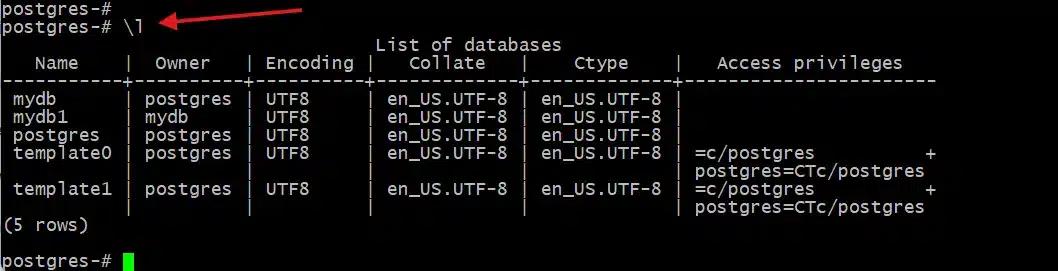
The \l command lists all databases, their owners, encodings, and collations. If the output displays the database created, you have successfully created a PostgreSQL database.
Method #2: Create Database Using the createdb CLI Command
The createdb utility is a convenient wrapper for the CREATE DATABASE SQL command. It’s a quick way to create a database directly from your system’s terminal without needing to enter the psql shell.
The basic syntax of the createdb command is:
# createdb mydb
For instance, if you want to create a new database named salesdb, assign sales_useras its owner, and set its character encoding to UTF8, run the following command:
# createdb -O myuser -E UTF8 -T template0 -l en_US.UTF-8 mydb1

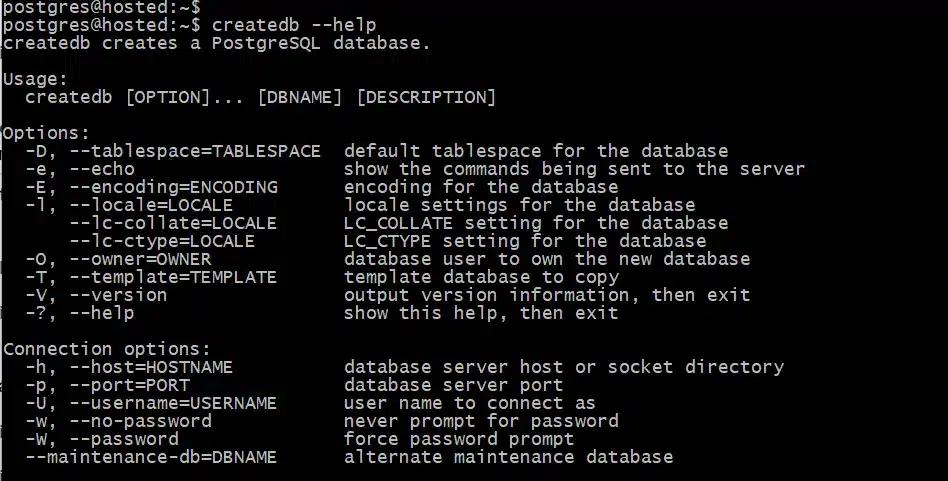
Flags for createdb (Command-Line Tool)
The createdb command-line utility supports various flags to customize the database. These options let you define the owner, encoding, and other properties at the time of creation.
The following table summarizes some of the flags available:
| Flag | Description |
|---|---|
| -D tablespace | Specifies the default tablespace |
| -e | Echoes the SQL command that createdb generates |
| -E encoding | Sets the character encoding for the database |
| -l locale | Sets locale for collation and C type |
| -T template | Specifies a template database |
| –help | Displays usage information |
| -h host | Specifies the host name |
| -p port | Specifies the port |
| -U username | Specifies the database user |
| -w | Never prompt for password |
| -W | Force password prompt |
Creating a Database with Common Parameters
When you create a PostgreSQL database, you can use optional parameters to control its behavior and properties. These parameters are set using the CREATE DATABASESQL command.
| Parameter | Purpose |
|---|---|
| OWNER | Specifies the database owner. The owner has full control over the database, including the ability to manage its schema and permissions. |
| TEMPLATE | Defines a template database to copy. This is useful for creating a new database with a predefined schema and initial data. By default, PostgreSQL uses template1. |
| ENCODING | Sets the character encoding, which determines the type of characters that can be stored in the database. UTF8 is the most common and recommended choice for its support of a wide range of characters. |
| LC_COLLATE | Defines the sort order for string data, affecting operations like ORDER BY. |
| LC_CTYPE | Determines character classification, such as which characters are considered uppercase, lowercase, or digits. |
| TABLESPACE | Specifies a physical directory on disk where the database files will be stored. |
| CONNECTION LIMIT | Sets the maximum number of concurrent connections allowed to the database. |
To better understand, the following is an example of a CREATE DATABASE command with multiple common parameters.
CREATE DATABASE analytics
WITH OWNER = analyst
ENCODING = ‘UTF8’
TABLESPACE = analytics_space
CONNECTION LIMIT = 50;

Manage and Verify the Created Database
Once a database is created, you can use the psql interactive terminal to manage and inspect it.
If you want to list all databases on the PostgreSQL server with their name, owners, and encodings, run the following command: # \l
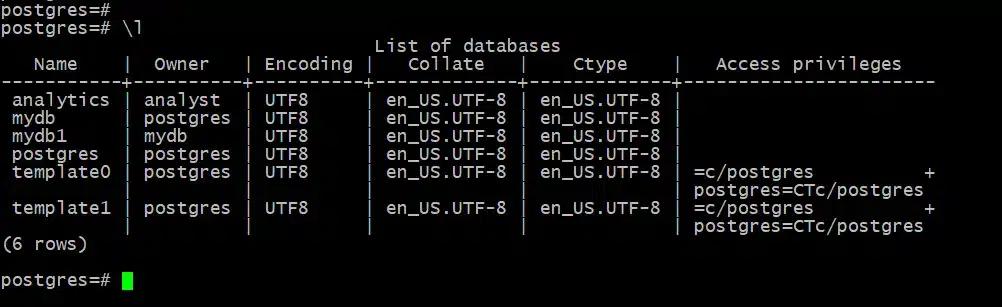
If you want to connect to a specific database like, execute the following command:
# \c mydb

Replace mydb with the database name.
If you want to check how strings are sorted and compared, use the SHOW statement: SHOW lc_collate;

Similarly, if you want to display the character classification setting for a database, use the following statement:
SHOW lc_ctype;
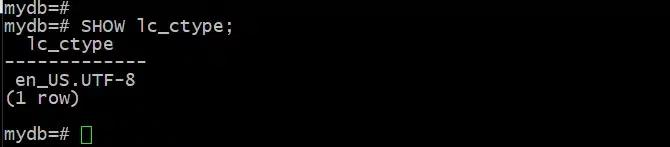
If you want to display detailed information about your current connection, including the database, user, and port, run the following command: \conninfo

Troubleshooting PostgreSQL Database Creation
When creating PostgreSQL, you may encounter issues that may break your processes.
Troubleshooting TL;DR:
- Permission denied → Grant CREATEDB privilege (ALTER USER myuser CREATEDB;).
- Database already exists → Use a new name or drop the old one (DROP DATABASE mydb;).
- Encoding/locale conflict → Use -T template0 with correct encoding.
- Connection limit error → Raise limit with ALTER DATABASE mydb CONNECTION LIMIT 100;.
. The following section discusses some of the common issues and solutions for it.
Issue #1: Permission Denied Error
This error occurs when the user or role you’re using lacks the necessary privileges to create a database. By default, only superusers and roles with CREATEDB privileges can perform this action.
In such cases, grant the CREATEDB privilege to the user with the following statement:
ALTER USER myuser CREATEDB;

This SQL command modifies the myuser role, allowing it to create new databases.
Issue #2: Database Already Exists Error
This is a straightforward error that indicates you’re trying to create a database with a name that is already in use on the server.
In such cases, you have two options:
- Choose a unique name for your new database
- If the existing database is no longer needed, you can delete it to free up the name.
If you choose the second option, execute the following statement:
DROP DATABASE mydb;

Issue #3: Encoding or Locale Conflicts
This issue arises when there is a mismatch between the character set and sorting rules of the new database and the template database it’s being copied from. This is often caused by trying to create a database with a different encoding than the default template1.
In such cases, specify a clean template and the desired encoding and locale.
# createdb -E UTF8 -l en_US.UTF-8 -T template0 mydb
By using -T template0, you bypass the default template1, which may have locale settings that conflict with your desired encoding.
Issue #4: Connection Limit Errors
This error happens when the total number of active connections to a database or the server reaches its maximum limit. This prevents any new clients from connecting.
To fix this, increase the connection limit for the database.
ALTER DATABASE mydb CONNECTION LIMIT 100;

This command increases the maximum number of simultaneous connections for my_db to 100.
Conclusion
PostgreSQL provides two powerful ways to create databases:
- CREATE DATABASE in SQL for interactive control inside psql
- createdb CLI command for quick scripting and automation.
When creating databases, always check for these:
- Locale and encoding settings for compatibility
- Ownership and permissions for security.
- Access limits for performance.
By understanding both methods and the available parameters, you’ll be able to create, configure, and manage PostgreSQL databases efficiently for development, testing, and production environments.
FAQ
Q: What is the easiest way to create a PostgreSQL database?
The fastest way is to use the createdb CLI command: createdb mydb. It creates a new database without entering psql.
Q: What’s the difference between CREATE DATABASE and createdb in PostgreSQL?
Both do the same thing. CREATE DATABASE is an SQL statement used inside psql, while createdb is a command-line wrapper that simplifies scripting.
Q: Do I need to be a superuser to create a PostgreSQL database?
Yes, only superusers or roles with the CREATEDB privilege can create databases. Otherwise, you’ll get a permission denied error.
Q: How do I set the owner of a PostgreSQL database?
Use CREATE DATABASE mydb WITH OWNER = myuser; in SQL or createdb -O myuser mydb in the CLI.
Q: How do I check if my PostgreSQL database was created successfully?
Run \l in psql to list databases, or**\c mydb** to connect. You should see your new database in the output.
Q: Can I create a PostgreSQL database with specific encoding or locale?
Yes, use -E UTF8 -l en_US.UTF-8 with createdb or include ENCODING and LC_COLLATE parameters in CREATE DATABASE.
Ishwar Shinde
Systems Administrator
Ishwar Shinde is a systems administrator specializing in Linux (RedHat, CentOS, Ubuntu, Debian), virtualization with VMware ESXi and Proxmox, and cloud and container tooling across AWS, Docker, and Kubernetes. He contributes PostgreSQL and Docker tutorials to the RedSwitches blog, drawn from hands-on server work.
Ubuntu vs Linux: Key Differences Explained
Linux is the kernel, while Ubuntu is a complete operating system built on it. This guide breaks down their key differences, use cases, and when to choose each.

Reduce Docker Image Size: Best Practices to Slim Your Images
Docker image size can become a serious issue as you add more code to the image. Learn how to reduce Docker image size and optimize Dockerfiles for production to speed up CI/CD pipelines and improve container efficiency.

Best Linux Distros 2026, Full Guide for Beginners, Developers, Gamers & Servers
Match your hardware, workflow, and skill to the right Linux distro in 2026. Compare 23 top picks, Mint, Ubuntu, Fedora, Arch, Bazzite, covering beginners, developers, gamers, and servers.
Power Your Next Project With Bare Metal
10 min delivery, zero setup fees, and 24/7/365 human engineers across 20+ global locations.