Top 20 Linux Network Commands You Must Know (With Practical Examples)
A practical reference guide covering 20 essential Linux networking commands. This is perfect for all professionals managing connections, diagnostics, routing, and remote access.

Do you truly understand what’s happening on your Linux network, or are you merely hoping everything works?
A system administrator does not just hope for everything to work or wait for expensive monitoring software to solve issues. They act decisively, identifying, diagnosing, and resolving network problems before they escalate into critical failures.
For this, you need to know the foundational Linux network commands that help manage network interfaces, troubleshoot problems, and improve operations.
In this guide, I will discuss the top 20 Linux network commands that you should know in 2026.
Before diving into the Linux commands, let’s quickly review the prerequisites.
The Prerequisites
Before you move on to the commands, ensure you have the following:
- Terminal or command line access
- Basic knowledge of the Linux shell
- A user account with sudo or root access
Top 20 Linux Network Commands
Before I move to the Linux network commands, there are a few key things you need to know.
Some commands and package managers can vary slightly across distributions like Ubuntu, Debian, or CentOS. Therefore, check your system version with the following command:
# cat /etc/os-release
Now, most tools like ping, ip, and curl come preinstalled. If missing, install with the following command:
For Ubuntu/Debian-based systems, run the following command:
# sudo apt install toolname
For CentOS-based systems, execute the following command:
# sudo yum install toolname
Now, ensure all the essential networking services are active with the following command:
# systemctl status NetworkManager
Once the network services are active, make sure to enable SSH for remote access.
# sudo systemctl enable –now ssh
Now that you have all the essential requirements, let us look at the top 20 Linux networking commands.
Command #1: ssh
If you want to establish a connection to remote Linux systems using the SSH (Secure Shell) protocol for an encrypted connection, run the ssh command.
Syntax
The basic syntax of the ssh command is as follows:
# ssh [user]@[host]
Replace, user with the username on the remote system, and the host with the IP address or domain name of the remote server.
For instance, if the username is root and the IP address is 184.107.122.7, the ssh command would be:
# ssh [email protected]
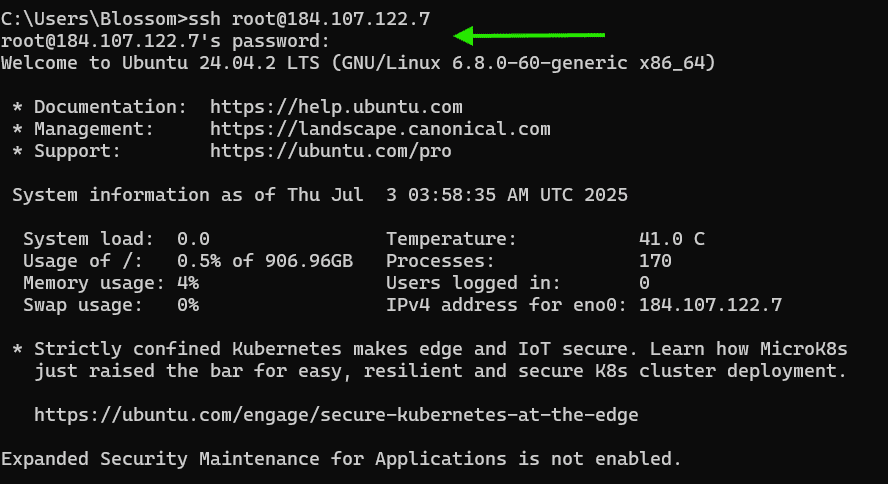
SSH usually connects through port 22. However, some servers use different ports for extra security or to prevent conflicts. In such cases, you can use the -p flag to use a different port.
The command would be:
# ssh -p [port_number] username@host
Here, the -p flag sets a different port number.
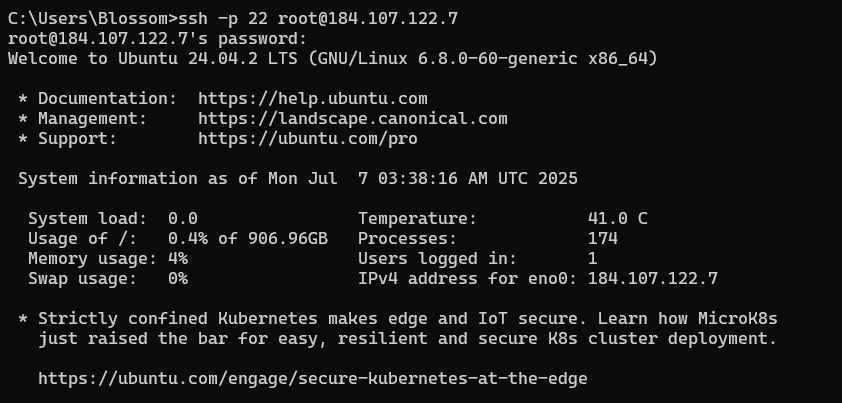
For instance, to connect to the remote server 184.107.122.7 using the root account via port 22, which is the default SSH port, run the following command:
# ssh -p 22 [email protected]
Command #2: ss
The ss command is an all-around utility to print relevant network performance statistics on the terminal. It is generally utilized for the purpose of viewing network socket details.
These sockets act as communication endpoints that applications use to send and receive data over a TCP connection.
Syntax
The default syntax of the ss command is:
# ss [options][filters]
For instance, to list all TCP sockets, execute the following command:
# ss -tuln
Here,
- -t: Displays TCP sockets
- -u: Shows UDP sockets
- -l: Displays only listening sockets
- -n: Shows numerical addresses and ports
Important: Avoid running the ss command without filters, as it can produce an overwhelming amount of output.

ss Command Options
The ss command offers various optional flags you can combine to filter the outputs:
| Command Option | Description |
|---|---|
| -a, –all | Display all sockets (listening and non-listening) |
| -l, –listening | Display only listening sockets |
| -t, –tcp | Show TCP sockets only |
| -u, –udp | Show UDP sockets only |
| -x, –unix | Show Unix domain sockets |
| -w, –raw | Show raw sockets |
| -n, –numeric | Show numerical addresses and ports instead |
| -r, –resolve | Resolve numeric addresses/ports to names |
| -H, –no-header | Suppress header line |
| -O, –oneline | Print each socket on a single line |
| -p, –processes | Displays PID and process name |
| -i, –info | Show internal TCP information |
| -e, –extended | Show detailed socket information |
| -m, –memory | Show socket memory usage |
| -o, –options | Show timer information |
| -s, –summary | Print summary statistics |
| -H, –no-header | Does not print the header line |
Command #3: ping
The ping command is one of the most essential network diagnostic tools in Linux. Most Linux users are familiar with the ping command, as it is used to test whether a domain or IP address is reachable. However, ping is more than just a simple connectivity tester for the network.
Sysadmins employ it as an easy method to measure latency between two nodes within the network. The command sends an ICMP packet to the target, which indicates the TTL and round-trip time for the action.
Syntax
The basic syntax of the ping command is as follows:
# ping [options] [target IP address/hostname]
Note: Always include the**-c**flag with the ping command to prevent an infinite number of requests. If you happen to forget to use the flag, type ctrl + cto exit the command on the terminal.
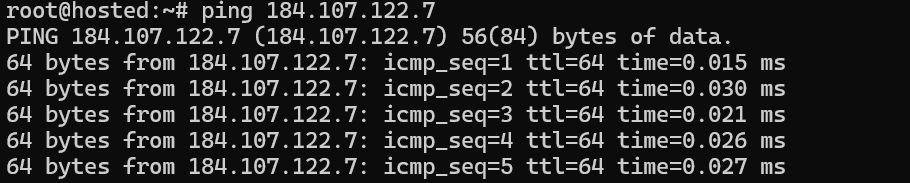
For instance, if you run the following command without the -c flag, the command continuously sends ICMP packets as shown in the screenshot below:
# ping 184.107.122.7
Using the -c (count) option allows you to specify the number of ICMP Echo Request packets to send before stopping.
# ping -c [number] [destination]
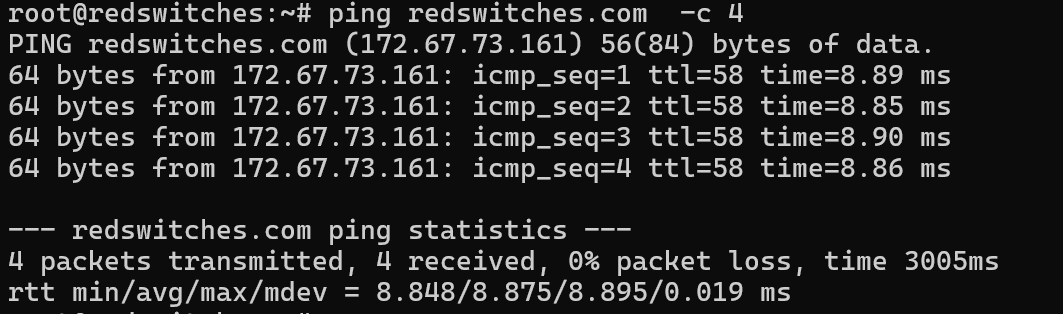
For instance, consider the following command
# ping redswitches.com -c 4
Here, the command sends exactly 4 ICMP Echo Request packets to redswitches.comand then stops, providing a summary of the response times and packet loss.
ping Command Options
Use the following options with the ping command:
| Command Option | Description |
|---|---|
| -c [count] | Send only the specified number of packets, then stop. |
| -i [interval] | Set the interval (in seconds) between sending each packet. |
| -t [TTL] | Set the Time To Live (TTL) value for packets. |
| -s [size] | Specify the size in bytes of the ICMP data payload. |
| -q | Quiet output; only show summary after completion. |
| -v | Provide more detailed information. |
| -a | Audible; beep when a reply is received. |
| -D | Print timestamps for each reply. |
| -W [timeout] | Specify the timeout (in seconds) for each reply. |
| -4 | Use IPv4 for the pings |
| -6 | Use IPv6 for the pings |
Command #4: hostname
The hostname command is used to display and modify the system’s hostname.
You should be aware that the modification in the hostname is temporary, and the original name will revert to the original hostname upon system restart unless made persistent.
Syntax
The command syntax of the hostname command is as follows:
# hostname [options] [new hostname]
For instance, simply run the hostname command to print out the current hostname:
# hostname

Use the command to temporarily change the system’s hostname (until the next reboot):
# hostname

Since the command does not display any status, I recommend running the hostname command again. This confirms whether the hostname was updated successfully.
Now, if you want to set the hostname permanently (persists across reboots), use the hostnamectl command:
# hostnamectl set-hostname redswitches

If you want to display the IP address associated with your system’s hostname, run the following command:
# hostname -i

hostname Command Options
The following table summarizes the hostname command options.
| Command Option | Description |
|---|---|
| -f or –fqdn | Display the Fully Qualified Domain Name (FQDN) |
| -d | Show the domain name of the system |
| -s | Show the short hostname (without domain) |
| -i | Show the IP addresses associated with the hostname |
| -I | Show all network addresses assigned to the host |
| –version | Display the version information of the hostname utility |
Command #5: cURL
curl is a powerful command-line tool for transferring data between local systems and remote servers using various protocols. It is compatible with numerous protocols, such as FTP, TELNET, SCP, SMTP, and HTTP/HTTPS.
Users usually employ cURL in scripts for content transfers. Apart from downloading, developers employ cURL for testing endpoint access and functionality.
Syntax
The standard syntax of the cURL is:
# curl [options] [URL]
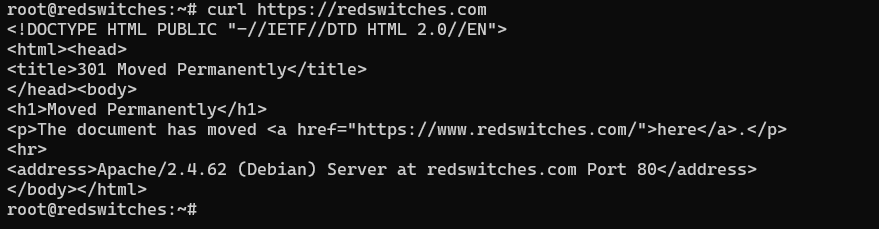
For instance, run the following command:
# curl https://redswitches.com.
Here, the output displays a 301 Moved Permanently HTTP response, indicating a redirect. It also shows that the server is running Apache/2.4.62 (Debian) on port 80.
If you want to download a file, run the following curl command:
# curl -o [local file name] [remote URL]
curl Command Options
I suggest using the following options with the curl command:
| Command Option | Description |
|---|---|
| -O | Save the file with the same name as on the server |
| -o [filename] | Save to a specified filename |
| -L | Follow redirects |
| -C, –continue-at | Sends the specified data in a POST request to HTTP server |
| -#, –progress-bar | Make curl display a simple progress bar |
| –limit-rate [value] | Limit transfer speed |
| -v | Verbose output |
| –silent or -s | Silent mode (hide progress and errors) |
Command #6: traceroute
The traceroute command is a diagnostic tool that traces the path packets take from your system to a specified destination, typically a domain name or IP address. Its output displays each intermediate server (referred to as a hop) that the packet passes through on its way to the destination.
Syntax
The basic syntax of the traceroute command is:
# traceroute [options]
Here, is the domain name or an IP address, and [options] are optional flags.
For instance, to trace the route to the IP address 1.1.1.1, run:
# traceroute 1.1.1.1
This command sends packets to 1.1.1.1 (Cloudflare DNS) and shows each hop (router) along the path, with response times.
Each line in the output includes:
- The IP address or hostname of the router.
- The time (in milliseconds) it took for packets to reach that hop.
traceroute Command Options
The following table summarizes some of the common traceroute command options:
| Command Options | Description |
|---|---|
| -m [max_hops] | Set the maximum number of hops (default is 30) |
| -p [port] | Specify the starting UDP port number |
| -q [nqueries] | Set the number of probes per hop (default is 3) |
| -s [size] | Set the packet size in bytes (default is 60 for IPv4) |
| -4 | Use IPv4 protocol |
| -6 | Use IPv6 protocol |
| -n | Display IP addresses numerically, avoiding hostname lookups |
Command #7: arp
Note that this command is considered deprecated in modern distributions. I recommend ip neigh instead.
The arp command is used to view and manipulate the IPv4 network neighbor cache, also known as the ARP (Address Resolution Protocol) table. This cache stores mappings between IP addresses and their associated MAC (hardware) addresses, enabling local network communication.
Syntax
The basic syntax for the arp command is as follows:
# arp [options] [hostname/IP]
For instance, if you run the command:
# arp
The output displays:
- Address: The IP address of your device.
- HWaddress: The MAC (hardware) address of your device.
- Flags: Typically C for complete (resolution successful).
- Iface: The network interface employed (eno0 in this case).
Here, “(incomplete)” indicates the system hasn’t resolved the MAC address yet for the given IP.
When you execute the command without any options, it will display the ARP cache table.
arp Command Options
Here are some options you can use to extend the output of the arp command:
| Command Options | Description |
|---|---|
| -a | Display the current ARP cache table, including all entries |
| -d [hostname/IP] | Delete the ARP entry for the specified hostname or IP address |
| -s [hostname/IP] [hw_address] | Add a static (permanent) ARP entry with a specific MAC address |
| -v | Enable verbose output, providing more detailed information during command execution |
| -n | Display IP addresses and MAC addresses numerically, avoiding hostname lookups for faster output |
Command #8: mtr
The mtr command is a powerful network diagnostic tool that combines features of both ping and traceroute. It provides continuous, real-time tracking of network performance metrics, making it an essential tool for sysadmins and network engineers.
Many users begin network troubleshooting with the mtr command to observe real-time network performance. It is often used to detect latency issues and packet loss.
Syntax
The basic syntax for the mtr command is:
# mtr [options] [target IP address/hostname]
For instance, if you want to trace the route to yahoo.com, the command would be:
# mtr yahoo.com

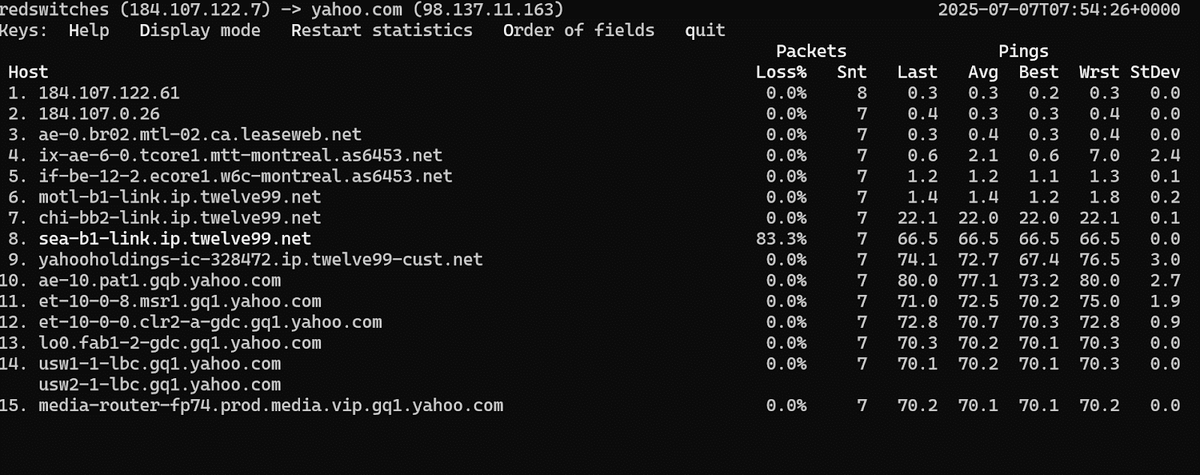
The command displays:
- Each hop (router) on the path from source to target
- Latency at every hop
- Packet loss, if any
mtr Command Options
The following table summarizes the mtr command options.
| Command Options | Description |
|---|---|
| -c [count] | Send a specified number of packets, then stop |
| -r | Report mode; generates a single report, then exits |
| -n | Show IP addresses instead of resolving hostnames, for faster output |
| -u | Use UDP packets instead of ICMP (default) |
| -p | Use a specific source port (requires root privileges) |
| -s [size] | Set the size of packets in bytes (default varies) |
| -m [max_hops] | Define maximum number of hops to trace |
| -w | Wide output; increase column width for more detailed info |
Command #9: whois
Experienced internet users often use the whois command to gather domain ownership information. It is the go-to command for discovering information about domains and IP addresses.
The most common use of the command is to find out domain ownership information, such as the name of the owner and the expiration date. It is often embedded in web interfaces that provide a user-friendly experience for domain queries.
Syntax
The basic syntax of the command is:
# whois [options] [query]
Here,
- [options]: optional flags to modify output or specify servers
- [query]: The domain name, IP address, or ASN you want information about.
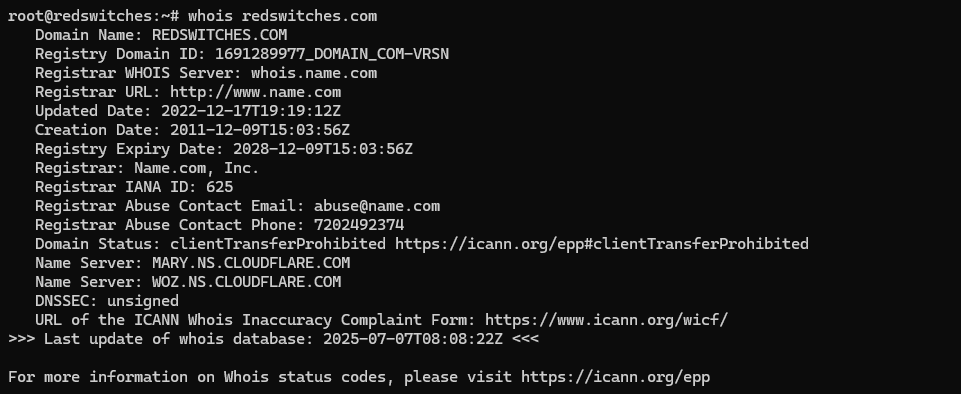
For instance, if you run the following command:
# whoisredswitches.com
The output displays domain information such as owner, registrar, and important dates.
whois Command Options
The following are some of the optional flags available for the whois command:
| Command Options | Description |
|---|---|
| -h [host] | Specify an alternate WHOIS server to query |
| -v | Verbose output, providing additional details |
| -p [port] | Connect to a custom port on the WHOIS server |
| -t [type] | Set the query type |
| -a | Retrieve all available data |
Command #10: iftop
The iftop utility displays real-time bandwidth usage for a specific network interface. It provides a dynamic view of network traffic, showing which IP addresses are consuming the most bandwidth at any given moment.
Syntax
The command syntax for iftop is:
# iftop [options]
(Note: iftop generally requires root privileges to access network interfaces.)
To start monitoring traffic on your active network interface, run the following command:
# sudo iftop
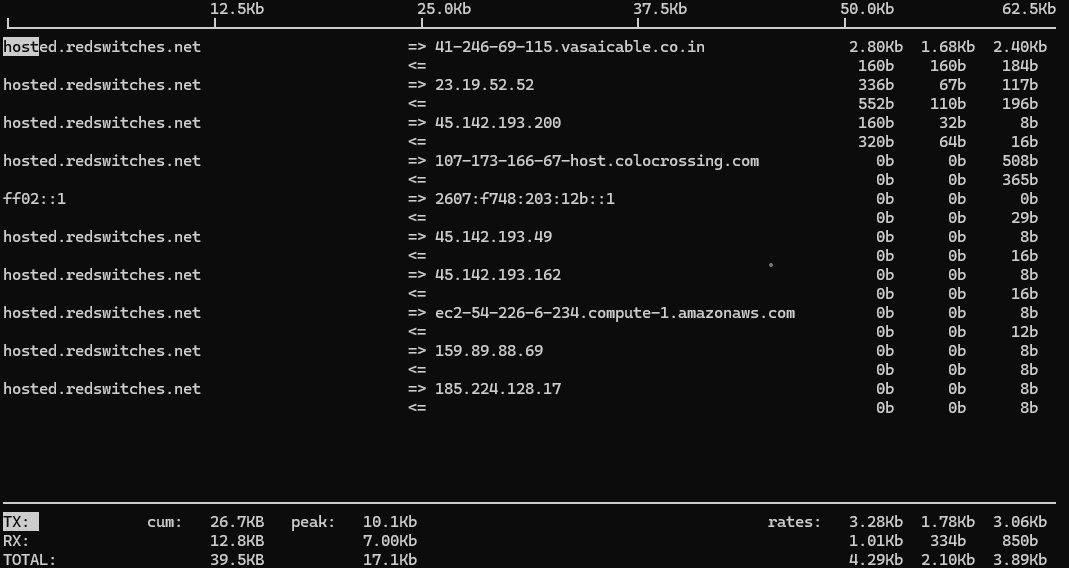
This command automatically detects your primary interface (e.g., eth0, wlan0). The output shows live traffic metrics, sorted by bandwidth usage. The <= symbol indicates data flowing from a specific IP address.
Most Linux distributions do not include iftop by default. You may need to install it:
On Debian or Ubuntu-based systems, run the following command:
# sudo apt install iftop
On RHEL or CentOS-based systems, use the following command instead:
# sudo yum install iftop # RHEL/CentOS
Command #11 dig
The dig command is a powerful and flexible DNS lookup utility used to query DNS servers for information about domain names and IP addresses. It is widely used for troubleshooting DNS resolution issues, testing DNS configurations, and retrieving specific DNS record types.
Syntax
The basic syntax of the command is as follows:
# dig [options] [target domain] [record type][target DNS server]
Here,
- [target domain]: The domain name or IP address to query.
- [record type] (optional): The type of DNS record to retrieve. Defaults to A if omitted.
- [@ DNS server] (optional): Specify a particular DNS server to query.
Here’s how you can use the dig command to query a domain name or IP address:
# dig reswitches.com
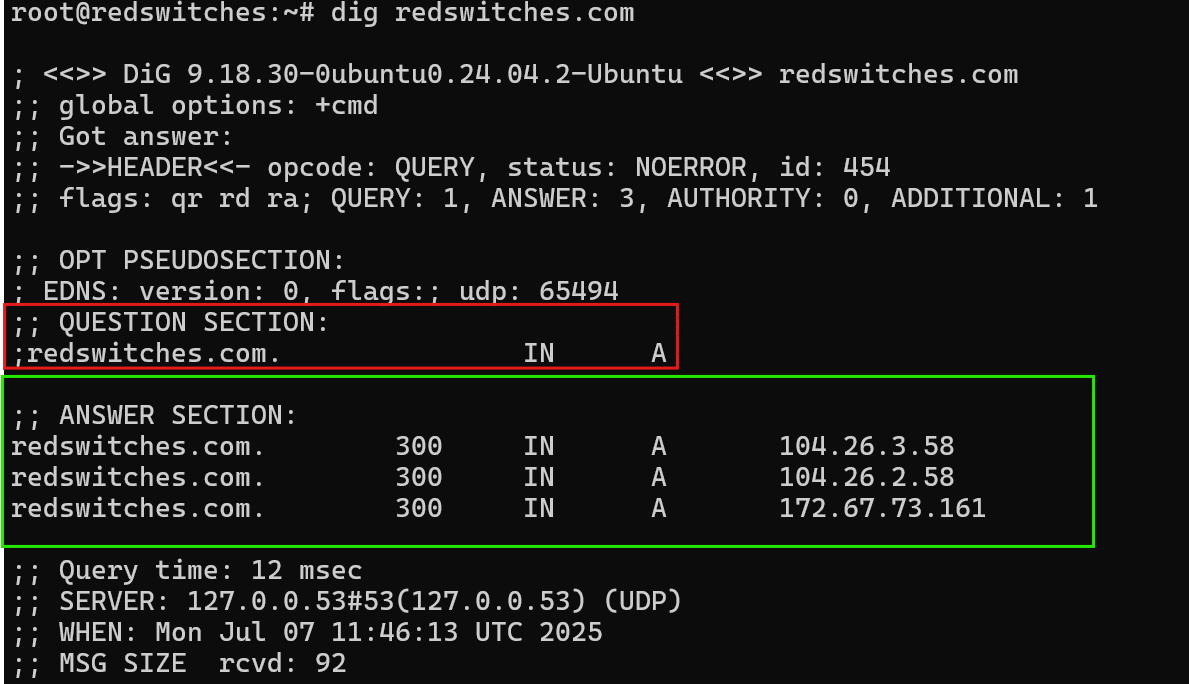
Here, in the question section:
- redswitches.com: The Domain you are asking about
In the answer section:
- 104.26.3.58: The IP address of redswitches.com
- 300: Time-to-live (in seconds) for caching this result
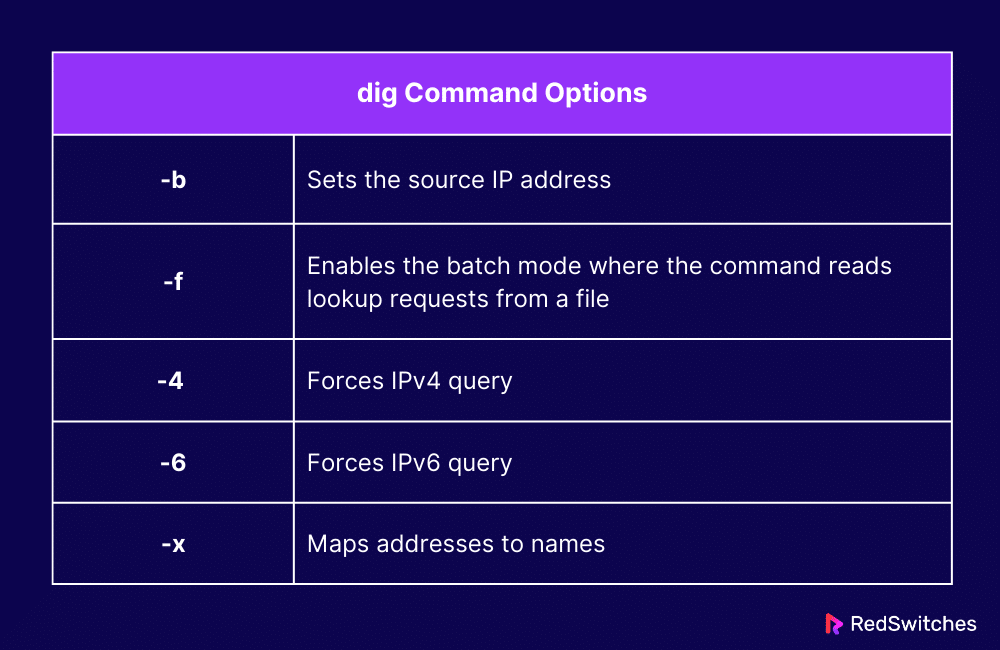
dig Command Options
The following are some of the dig command options available:
Command #12: nslookup
nslookup is a command-line utility used for querying DNS servers to obtain domain name or IP address mapping, as well as other DNS records.
Sysadmins prefer nslookup due to its interactive mode. This mode is employed for querying DNS information that you can utilize in the troubleshooting process of DNS resolution issues. Therefore, nslookup is usually one of the first commands sysadmins execute to begin the troubleshooting process.
Syntax
The basic syntax of the nslookup command is as follows:
# nslookup [target domain] [DNS server]
For instance, consider the following command that converts an IP address to the associated domain name:
# nslookup 1.1.1.1

Here, the output produces the following:
- 1.1.1.1.in-addr.arpa: Reverse DNS format used for IP lookup.
- name = one.one.one.one: The domain name associated with the IP 1.1.1.1. This IP is owned by Cloudflare’s DNS service.
- Authoritative answers: These indicate which DNS servers provided the answer.
Likewise, you can utilize the following command to query DNS servers for the IP address associated with a domain:
# nslookup google.com
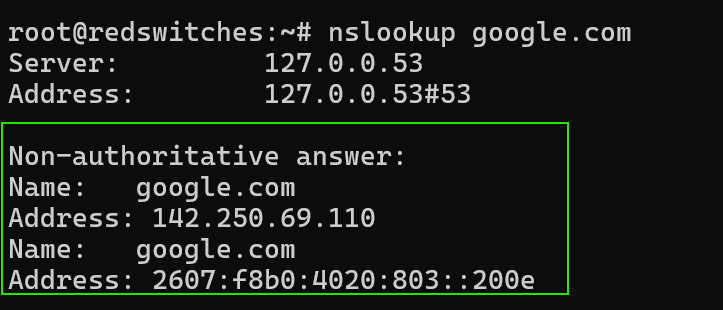
The output includes:
- Non-authoritative answer: The info is from a DNS cache, not directly from Google’s official DNS server.
- Address (IPv4): 142.250.69.110: This is one of the IPs used by google.com.
- Address (IPv6): 2607:f8b0:4020:803::200e: This is Google’s IPv6 address.
Command #13: netstat
This command is now deprecated in most distributions. Please use ip route or ss instead.
The netstat command is used to print network-related statistics to the terminal. The tool remains popular due to its many flags and options, which allow users to gather detailed network information. These enable users to obtain various information from the network.
The command is included in the net-tools package but has declined in popularity in favor of modern alternatives like ss and ip. System admins nowadays use the ss command instead and use the ip command for functionalities that ss cannot offer.
Syntax
The basic syntax of the netstat command is given below:
# netstat [options]
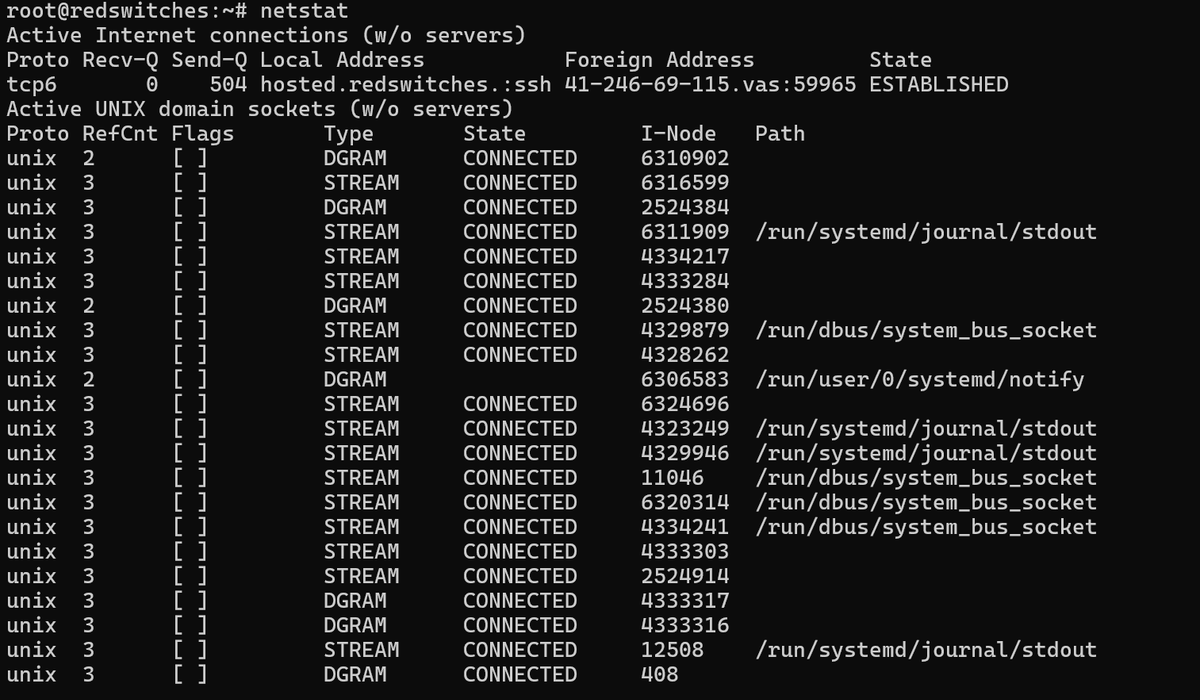
The default use is to invoke the command without flags to obtain a list of all active sockets:
# netstat
netstat Command Options
The following table summarizes some of the optional flags available with the netstat command:
| Command Options | Description |
|---|---|
| -a | Show all active connections and listening ports |
| -t | Show TCP connections |
| -u | Show UDP connections |
| -n | Show numerical addresses instead of resolving hostnames |
| -l | Show only listening sockets |
| -p | Show the PID and program name of each socket |
| -r | Display the kernel routing table |
| -s | Show per-protocol statistics |
| -c | Continuously display stats |
| -e | Show extended information |
Command #14: route
Note that this command is now deprecated in many distributions. Please use ip route instead.
The route command displays the IP routing table on a Linux system. While it is largely replaced by the ip route command in modern systems, it remains available and useful for many administrative tasks.
Syntax
The route command syntax is as follows:
# route [options] [subcommand] [arguments]
Here, **[subcommands]**are used to add, remove, or modify routing information..
The command displays the current routing table when it is invoked without any flags or options:
# route

route Command Options
Here are some popular command options you can use with the route command:
| Command Options | Description |
|---|---|
| add | Add a new route to the routing table |
| del | Delete an existing route |
| -n | Show numerical addresses, avoiding DNS resolution |
| -ee | Show extended output with additional details |
| -host | Specify a route for a single host |
| -net | Specify a route for a network |
Command #15: wget
wget is a widely used open-source utility for retrieving files and archives from remote sites. It comes with nearly all popular Linux distributions.
The utility operates on HTTP/HTTPS and FTP protocols. Its ability to run in the background and resume interrupted downloads makes it a favorite among system administrators and developers.
This command is often used to schedule downloads directly or via a cron job.
Syntax
The wget command syntax is straightforward:
# wget [options] [URL]
For instance, this command form is frequently employed to download a file from a remote URL:
# wget https://my-download-site.com/example_archive.zip
Alternatively, use the following command to download from an FTP server:
# wget ftp://username:[email protected]/public/example_archive.zip

Next, check the size and details of the downloaded file with the following command:
# ls -lh sample-zip-file.zip

wget Command Options
You can use the following options to extend the default wget capabilities:
| Command Options | Description |
|---|---|
| -O [filename] | Save the downloaded content with a specific filename |
| -c | Continue an interrupted download |
| -r | Download files recursively |
| -l [level] | Limit the depth of recursion |
| –limit-rate=[amount] | Limit download speed |
| -P [directory] | Save all downloads to a specific directory |
| -A [list-of-extensions] | Accept only files with specified extensions during recursive download |
| –reject=[patterns] | Reject files matching patterns during recursive download |
| –no-clobber | Do not overwrite existing files |
| -q | Quiet mode |
| -nv | Non-verbose mode, less output |
| -b | Run in background (daemon mode) |
| –timestamping | Download only if remote file is newer |
| –user=[username] and –password=[password] | Specify FTP or HTTP auth credentials |
| –no-check-certificate | Ignore SSL certificate validation |
Command #16: tcpdump
tcpdump is a powerful command-line packet analyzer used to capture and display network packets in real time.
It is widely used by network administrators and security professionals for monitoring and troubleshooting network traffic and resolving congestion problems.
Syntax
The basic syntax of the command is as follows:
# tcpdump [options] [filter]
Here,
- [options]: Modify behavior, specify output details, capture limits, etc.
- [filter]: Expression to filter specific packets
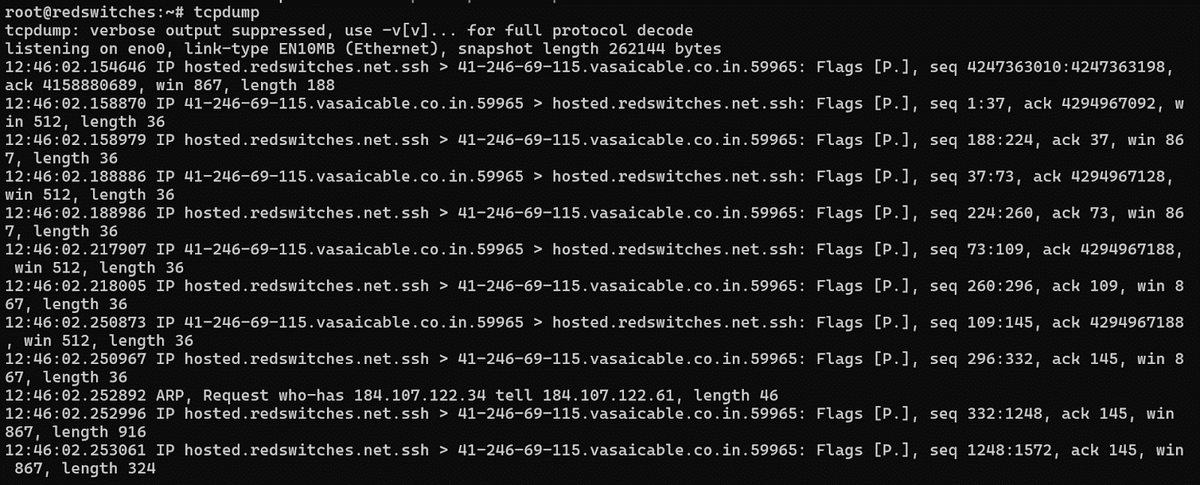
When run without any options, the command displays all packets on the network interface in a verbose format.
# tcpdump
tcpdump Command Options
Use the following options to configure special filters for the tcpdump command.
| Command Options | Description |
|---|---|
| -i [interface] | Specify the network interface to listen on |
| -w [file] | Write raw packets to a file for later analysis |
| -r [file] | Read packets from a saved pcap file |
| -n | Don’t resolve hostnames; show IP addresses |
| -v, -vv, -vvv | Increase verbosity for more detailed output |
| -c [count] | Capture only the specified number of packets |
| -A | Print each packet in ASCII |
| -X | Print each packet in hex and ASCII |
| -XX | Print packet contents in hex, ASCII, and link-layer header |
| -e | Show the link-layer header |
| -s [snaplen] | Set the snapshot length |
| -tttt | Human-readable timestamp with date and time |
Command #17: nmcli
nmcli (NetworkManager CLI) is the CLI used to manage network interfaces, connections, and device states on systems running NetworkManager.
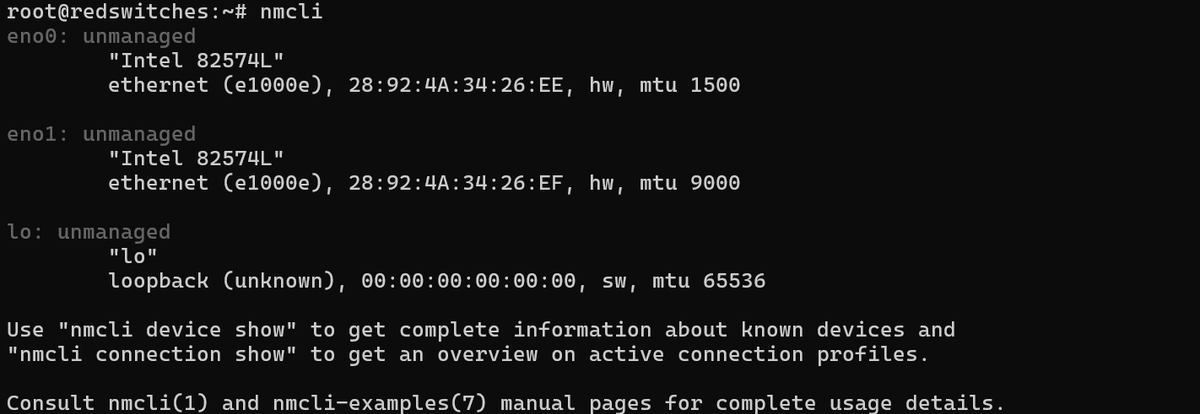
It is commonly used to display device status and change the state of network interfaces (add, delete, activation/deactivation). Sysadmins tend to use it in scripts. They often extract specific information to automate network configuration tasks.
Syntax
The basic syntax of nmcli is as follows:
# nmcli [OPTIONS] [Target] [COMMAND]
For instance, a typical usage of the command is to inspect network connection availability:
**#nmcli
nmcli Command Options
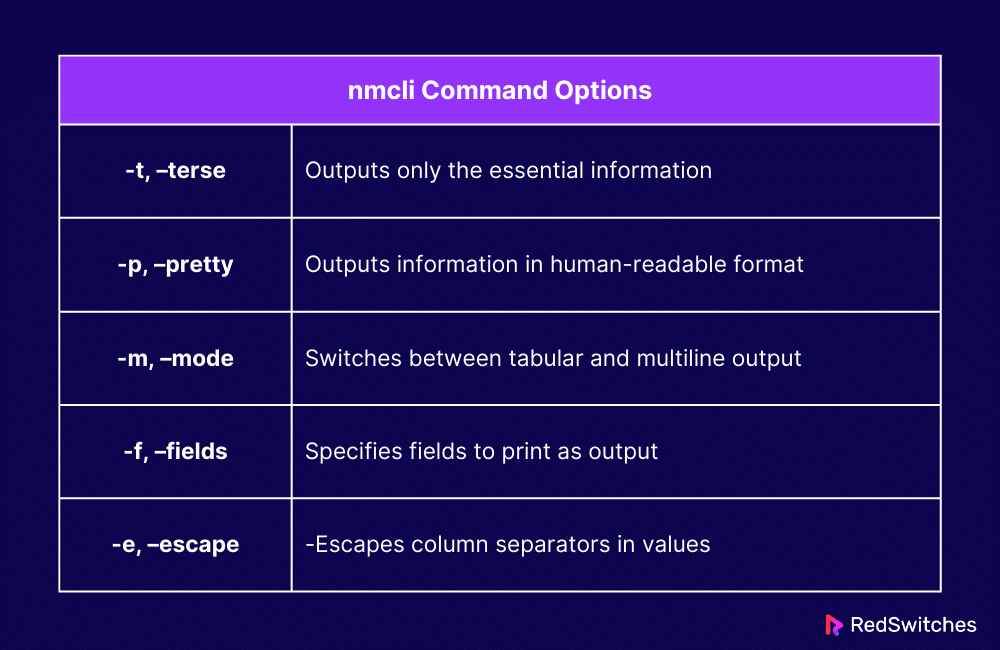
The following are some of the nmcli command options available:
Command #18: iwconfig
This utility is considered dec
iwconfig is a command-line utility used to configure wireless network interfaces. It allows you to view and modify key wireless interface parameters, such as network mode, frequency, quality, and power management.
Syntax
The default syntax of the command is:
# iwconfig [interface] [options]
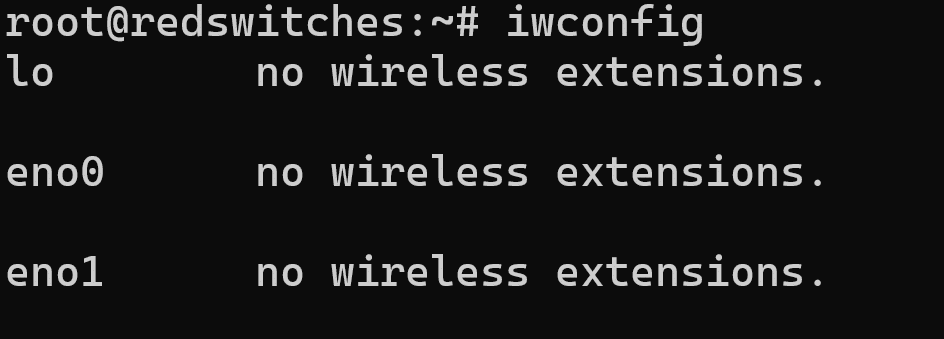
Running iwconfig without any options displays statistics for active wireless connections:
# iwconfig
iwconfig Command Options
You can use the following command options to modify the behavior of the command:
| Command Option | Description |
|---|---|
| essid | Sets the ESSID (network name) of the wireless network. |
| mode | Sets the operating mode |
| freq / channel | Sets the frequency or channel for communication |
| ap | Connects to a specific access point by MAC address. |
| rate | Sets the bit rate |
| txpower | Sets the transmit power in dBm or milliwatts. |
| rts | Sets the RTS (Request to Send) threshold |
| frag | Sets the fragmentation threshold |
| key / enc | Configures the WEP encryption key |
| power | Enables or disables power management |
| retry | Sets the maximum number of retransmissions |
| nick | Sets a nickname for the interface |
| commit | Applies all pending changes |
Command #19: tracepath
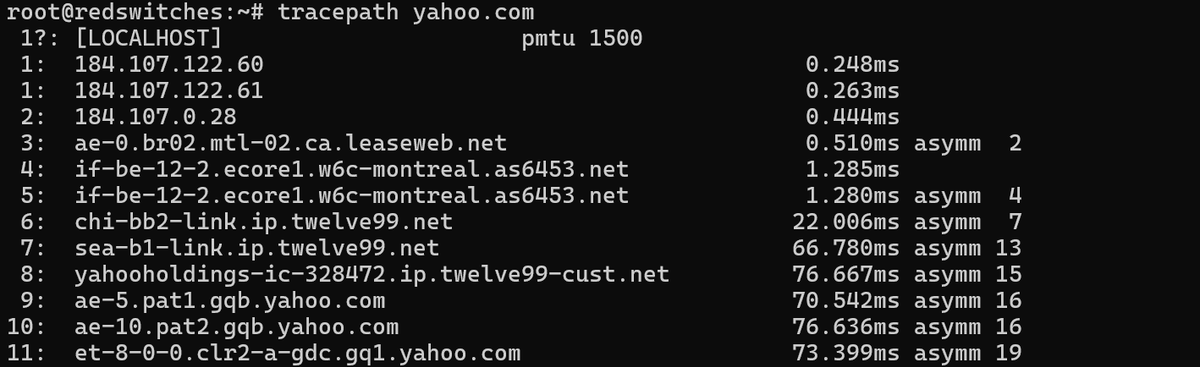
The tracepath command traces the path(s) of a packet to a destination. The command further displays the latency for each hop of the route. This is important in determining the issues in network designs as well as identifying the slow paths and nodes of the network.
While tracepath is similar to traceroute, it is a simpler command focused primarily on hop latency and total round-trip time..
Syntax
The basic syntax of the tracepath command is as follows:
# tracepath [target IP address/hostname]
For instance, the following tracepath command traces the network path to yahoo.com:
# tracepath yahoo.com
tracepath Command Options
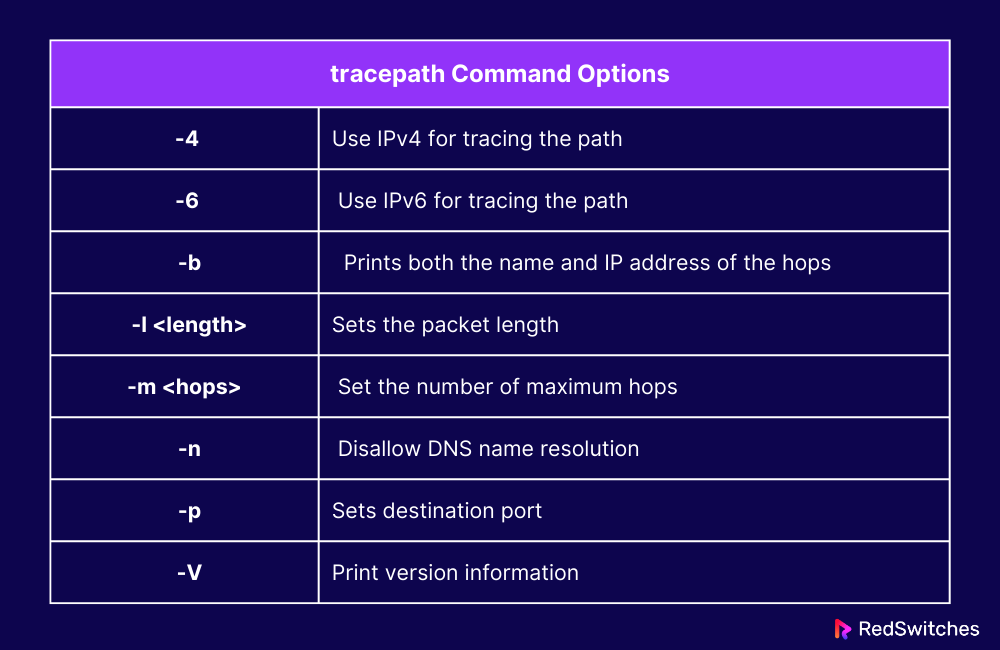
The following are some of the common options available with the tracepath command:
Command #20: ip
The ip command is a versatile and powerful tool used to view and configure network interfaces, devices, routing, and tunnels on a Linux system. It provides real-time insights into the system’s current network configuration.
The ip command replaces several deprecated networking utilities from the net-tools package.
Syntax
The syntax of the ip command is as follows:
# ip [options][target device or configuration][command]
Here,
- [Options] alter the primary action of the ip command
- [Command] is a subcommand that states the action(s) to be executed on the target object
The ip command belongs to the iproute2package. To identify the precise version of the package installed in your system, execute the following command:
# ip -V

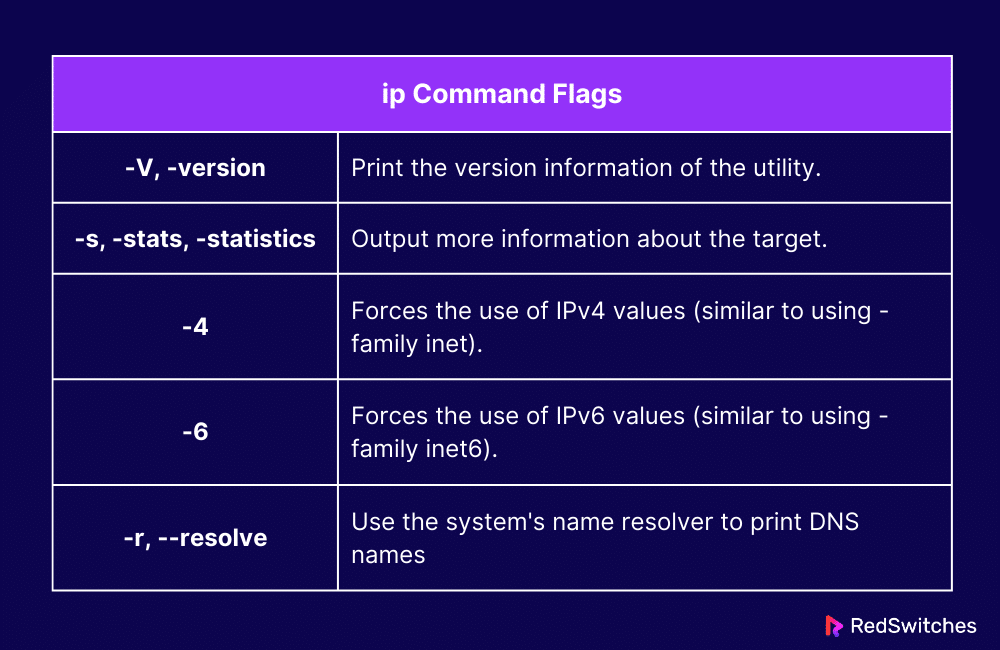
ip Command Flags
These are some of the most frequently used flags with the ip command:
Here are three commonly used variations of the ip command frequently used by system administrators. The commands assist them in viewing and configuring network settings.
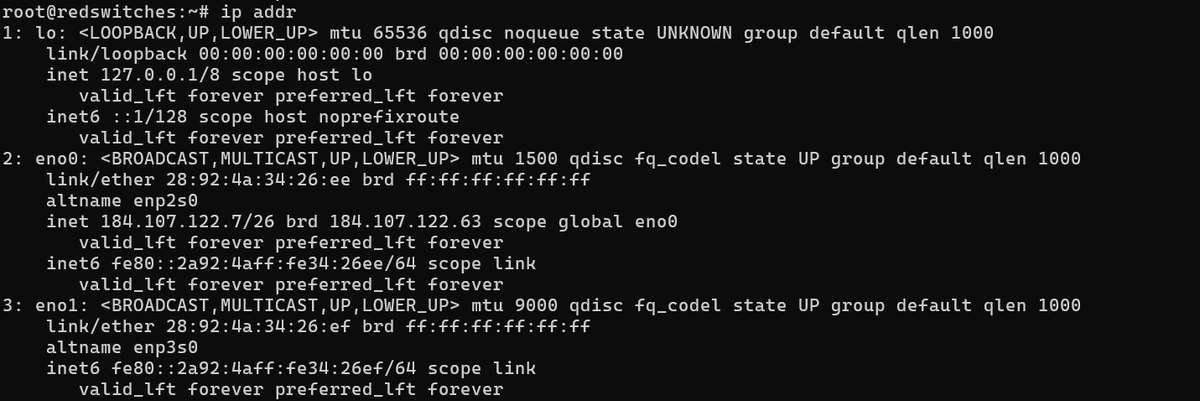
ip addr
The standard usage of the ip addr command is to list the IP addresses given to network interfaces on the system.
You can also use the command to perform simple maintenance tasks like adding or deleting an IP address.
The basic syntax of the command is:
# ip addr [sub command] [target interface]
When you simply execute the ip addr command, all IP addresses and interface configurations on a Linux system are displayed:
# ip addr
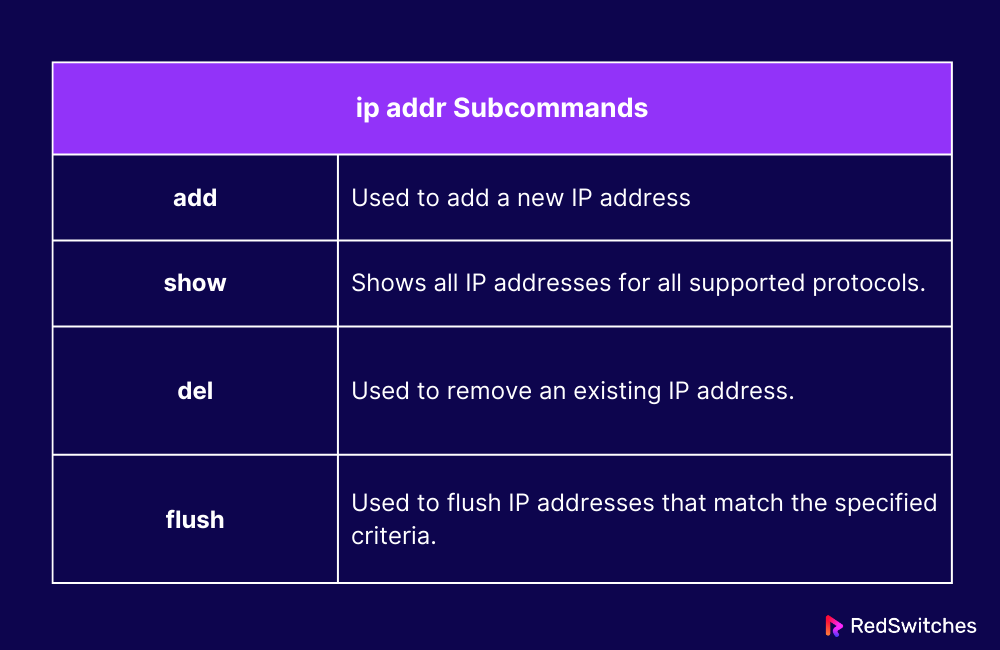
ip addr Subcommands
You can use the following subcommands with the ip addr command. Note that you can further modify the behavior of these subcommands with additional options and flags.
ip link
Theip link command is used to view, configure, enable, or disable network interfaces on a Linux system. It provides granular control over interface settings such as status, MTU, MAC address, and more.
The standard syntax of the ip link command is:
# ip link [subcommand][option/additional command][target interface]
When run without any options, it lists all available network interfaces and their current states:
# ip link

If you want to disable the network interface, run the following command:
# ip link set lo down
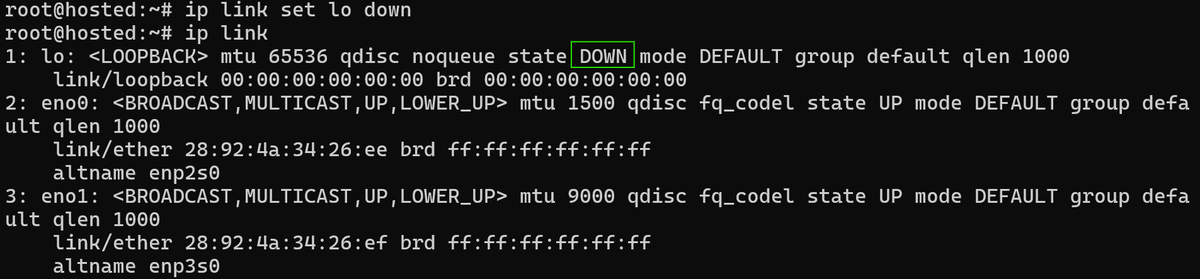
This command will turn off a network interface. Once an interface is set down, it will no longer allow any data in or out, terminate any active sessions, and be considered inactive.
This is helpful when you want to put an interface temporarily offline for any testing, troubleshooting or reconfiguration purposes. For instance, running ip link set lo downwill disable the lo interface.
Now, if you want to bring the interface back online, run the following command:
# ip link set lo up
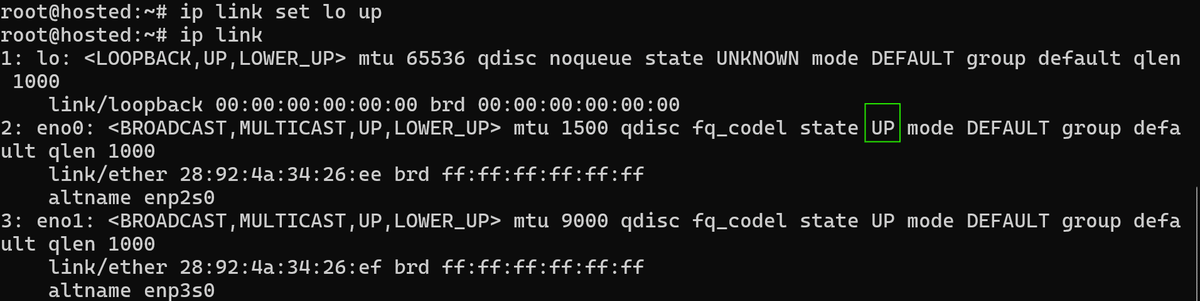
This command will turn on a disabled network interface, where it can receive or send network traffic. This is frequently done when network services need to be restored.
For example, ip link set lo upwill enable the eno0 interface and allow it to communicate.
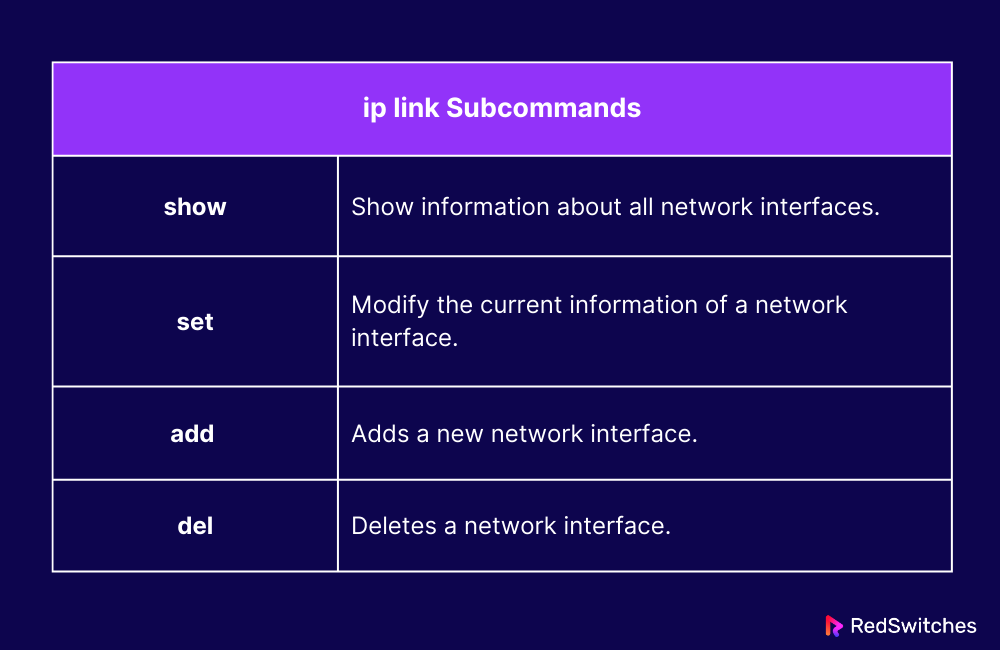
ip link Subcommands
The subcommands listed here add to the standard functionality of the ip link command.
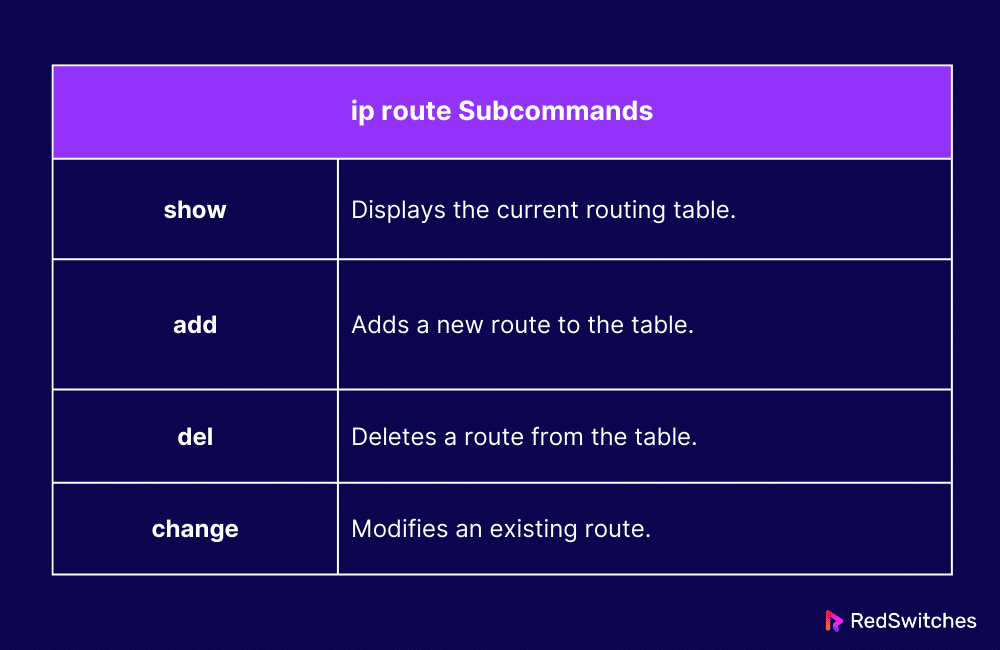
ip route
The ip routecommand is used to view, add, delete, and modify entries in the IP routing table of a Linux system. This command helps define how network traffic is directed, including default gateways and static routes.
The standard syntax of the command is as follows:
# ip route [subcommand] [options] [target IP address/destination]
For instance, run the following command to see the current contents of the system’s IP routing table:
# ip route show

ip route Subcommands
The following subcommands are frequently used with the ip route command:
The following table summarizes the top 20 Linux networking commands:
| Category | Command | Description |
|---|---|---|
| Remote Access | ssh | Secure remote login using SSH protocol. |
| Socket Statistics | ss | Displays network socket statistics (TCP, UDP, etc). |
| Network Connectivity | ping | Tests connectivity and measures round-trip time to a host. |
| System Identity | hostname | Shows or temporarily changes the system’s hostname. |
| File Transfer/Requests | curl | Transfers data to/from servers using HTTP, FTP, etc. |
| Route Tracing | traceroute | Traces packet path to destination, identifying hops and delays. |
| Address Resolution | arp | Displays/modifies the system’s ARP cache (IP to MAC mapping). |
| Network Diagnostics | mtr | Combines ping and traceroute for real-time route diagnostics. |
| Domain Information | whois | Retrieves registration info about domains/IPs. |
| Bandwidth Monitoring | iftop | Shows real-time bandwidth usage per connection. |
| DNS Query | dig | Queries DNS servers for domain/IP info. |
| DNS Query (Alternative) | nslookup | Alternative DNS tool with interactive mode. |
| Network Statistics | netstat | Displays network connections and routing tables (legacy tool). |
| Routing Table Management | route | Views and modifies kernel IP routing table. |
| File Download | wget | Downloads files from HTTP, HTTPS, or FTP servers. |
| Packet Capture | tcpdump | Captures and analyzes network packets. |
| Network Manager CLI | nmcli | Manages NetworkManager settings from the command line. |
| Wireless Network Config | iwconfig | Views and sets wireless-specific network parameters. |
| Path Tracing (Alternative) | tracepath | Similar to traceroute, traces packet path focusing on latency. |
| Network Configuration | ip | Manages IP addresses, routes, and interfaces (modern replacement for ifconfig and route). |
Conclusion
Becoming skilled in Linux networking commands is essential for anyone managing IT infrastructure, from system administrators and DevOps professionals to network engineers.
Whether you’re using commands like ip, ping, or ssh to manage network connectivity, or tools like tcpdump and iftop to inspect network packets and statistics in real time, each utility serves a unique and powerful purpose.
These essential Linux commands help monitor active connections, optimize network performance, reduce latency, and improve security.
FAQs
How do I see the full network configuration information in Linux?
Use ip addr or ip ato show all IP addresses, MAC addresses, and interface states. They’re core Linux networking commands available on almost all Linux distributions. Use ip route for routing data.
What is the best way to securely connect to a remote Linux server?
Use ssh user@hostname to access remote Linux hosts securely through an encrypted communication channel. You can also use keys (-i keyfile) and ports (-p) for additional network security and controlling access.
What are the best Linux commands to diagnose packet loss or network delays?
ping, mtr, traceroute, and tracepath are good utilities to debug the network by testing network latency, hops, and checking for packet loss between hosts.
How do I join a Wi-Fi or Ethernet network from the Linux command line?
Use nmcli to list, connect, and manipulate wireless network interfaces. Commands such as nmcli device wifi list and nmcli device connect wlan0 are invaluable for CLI network setup.
How do I track real-time bandwidth usage on Linux?
iftop and vnstat are great for live network monitoring. They assist in determining which active network connections are using the most bandwidth and monitoring traffic patterns over time.
What is the difference between ‘ifconfig’ and ‘ip’ under Linux?
ifconfig is an older program, and ip (e.g., ip addr, ip link) is the newer replacement in most Linux systems. ip gives more flexible, scriptable output for network configuration and diagnostics.
How do I list what services or applications use network ports?
Utilize ss -tunlp or netstat -tulnpto see all listening ports, active network connections, and associated processes. These are essential for network utility and security auditing.
How do I inspect live network traffic or capture packets in Linux?
tcpdump is a high-capacity packet sniffer that captures and shows network packets in real-time. Example: sudo tcpdump -i eth0 port 80 to monitor HTTP traffic.
What are some tools to resolve domain name and DNS problems in Linux?
Utilize dig or nslookup to verify DNS resolution. They both output domain IPs, name servers, and so on—necessary for network connectivity troubleshooting and discovering DNS misconfigurations.
How can I show or play with the ARP cache in Linux?
Use arp or ip neigh to display IP-to-MAC (ARP table) mappings. This is important while debugging problems with connectivity on the local network or sniffing out spoofing attacks.
Manasa M
Technical Content Editor
Manasa is a Technical Content Editor at RedSwitches, known for turning complex technical concepts into clear, engaging content. With a background in copy editing, sub-editing, and technical writing, she shapes the blog's guides for accuracy, readability, and search performance.

Ubuntu vs Linux: Key Differences Explained
Linux is the kernel, while Ubuntu is a complete operating system built on it. This guide breaks down their key differences, use cases, and when to choose each.

Reduce Docker Image Size: Best Practices to Slim Your Images
Docker image size can become a serious issue as you add more code to the image. Learn how to reduce Docker image size and optimize Dockerfiles for production to speed up CI/CD pipelines and improve container efficiency.

Best Linux Distros 2026, Full Guide for Beginners, Developers, Gamers & Servers
Match your hardware, workflow, and skill to the right Linux distro in 2026. Compare 23 top picks, Mint, Ubuntu, Fedora, Arch, Bazzite, covering beginners, developers, gamers, and servers.
Power Your Next Project With Bare Metal
10 min delivery, zero setup fees, and 24/7/365 human engineers across 20+ global locations.