A Quick Guide To Bare Metal Server Backup and Disaster Recovery
Bare metal server backup enables complete system recovery from OS to configurations. The processes ensure business continuity after hardware failures, ransomware, or disasters. It's the foundation of reliable, fast, and testable disaster recovery.
As a server support engineer, I have witnessed IT professionals helplessly lose their critical data due to unexpected hardware failures, simple but cascading mistakes, or even natural disasters.
Regardless of the reason, a single failure could bring your operations to a halt, costing not just revenue but reputation, trust, and time you’ll never get back. On top of that, stakeholders, consumers, and customers do not give ears to your excuses.
Therefore, it is your responsibility to make sure your data is backed up; which brings us to one of the core solutions, bare metal server backup and disaster recovery.
Unlike traditional backup methods that protect individual files or applications, bare metal backup creates complete, “drop-in” images of your entire server infrastructure, including operating systems, applications, configurations, and data.
So when disaster strikes, you don’t rebuild; you restore your entire environment exactly as it was.
What is Bare Metal Backup?
Bare metal backup is a comprehensive backup solution that creates a complete copy of a system, including the operating system, applications, configurations, and data at the hardware level.
In my years of experience as a server support engineer, I completely agree with the expert opinion that bare metal backup is the most comprehensive server protection form.
It consists of the exact clone of the entire system environment, including the OS, applications, configurations, registry settings, boot sectors, partition tables, and every single file on the system.
One of the core differences I have noticed when comparing bare metal backup with traditional file and system backups is that in traditional backups, you need to build the entire system infrastructure from scratch. On the other hand, bare metal backup eliminates the rebuild process entirely as it saves the entire server environment, including documents, databases, and user files.
However, when bare metal backup and traditional file backups are two extreme points of a line, there is something called system state backups that is seen as the middle ground. Here, unlike traditional backups, if you have a functioning operating system, you can restore your server data using system state backup.
The following table summarizes bare metal backup vs system state vs file backup.
| Parameter | Bare Metal Backup | System State Backup | File Backup |
|---|---|---|---|
| What Does It Back Up | Complete server image: OS, applications, configurations, boot sectors, all data | System files, registry, boot files, system configurations, some application data | User data, documents, databases, selected files and folders |
| Restore Target | Complete server restoration to any compatible hardware | Existing OS installation with system repair/recovery | Individual files or folders to existing system |
| Use Case | Complete disaster recovery, hardware migration, full system cloning | System corruption repair, configuration recovery | Data loss protection, accidental file deletion recovery |
| Recovery Speed | Fastest full recovery | Moderate recovery speed | Slowest full recovery |
| Downtime Risk | Minimal – near-complete automation | Moderate – manual intervention required | High – extensive rebuild and reconfiguration |
| Technical Complexity | Low operational complexity, high initial setup | Moderate – requires system knowledge | Low – straightforward file restoration |
| Portability | Excellent – works across different hardware | Limited – tied to a specific OS installation | Excellent – files work on any compatible system |
| Storage Space | Highest – complete system image | Moderate – system files and configurations | Lowest – only selected data files |
How Does Bare Metal Restore Work?
How does bare metal restore work? This is one of the common questions I get when I train my juniors.
The answer is quite simple. If you’re going to back up and restore servers, you need to understand what happens when everything fails, including the OS itself.
Imagine a critical server goes down during peak business hours. If no one knows how to do a bare metal restore, the team might spend hours rebuilding everything manually, including the OS, apps, settings, and files.
I’ve seen it happen. It’s not fun.
So, by learning how bare metal restores work, you’re not just preparing for if something goes wrong, but you’re preparing for when it does.
Let us now discuss the step-by-step process of how bare metal restore works.
Step #1: Create a Full System Backup
This is the first and foremost step where you create a complete backup of the source system. Here, you create an image-level backup where the entire system state, boot sectors, system files, applications, configurations, and all data on the chosen partitions or disks are copied.
Step #2: Prepare Bootable Recovery Media
Now, if you need to restore a process on new hardware, you need a way to boot that hardware and access the restore environment. So the next step is to download recovery tools that provide an option to create bootable media, which can be either a USB drive or an ISO file. Usually, this contains the OS, necessary drivers, and tools to connect to the backup location and start the restore.
Step #3: Boot the New Hardware
In this step, you boot the new hardware. For this, insert bootable media into the new hardware and adjust BIOS settings if necessary.
Step #4: Locate and Mount the Backup Image
Next, you need to find the backup image created in step #1. You can use the recovery wizard to locate the backup image. Ensure the new disk has enough storage to accommodate your backup. You can either use tools like GParted to check the space available on the drive and delete partitions if necessary. Alternatively, you can leave them as is, and let the recovery software handle partition removal automatically during the restoration process.
Step #5: Start the Restore Process
At this point, we have arrived at the heart of the restore process. Here, the backup image restores the server environment and related parameters.
Step #6: Configure Post-Restore Settings
Once the data transfer is complete, you may need to apply several post-restore configurations. This may include driver installation, network configuration, and license activation.
Step #7: Reboot and Validate
Now, restart the system, verify a successful boot, and test system functionality. Make sure all applications are running as expected, user data is accessible, and network connectivity is established.
Why Bare Metal Backup is Critical for Disaster Recovery
The question, why bare metal backup is critical, can be better explained with real-world examples.
The following are some of the core reasons why bare metal backup is important.
Ransomware Attacks
Ransomware attacks are not a new threat. However, the intensity and the depth of these attacks are increasing, making backup options inevitable.
In January 2025 alone, there were 510 reported ransomware victims globally, which underscores how organizations need to employ bare metal backups as a crucial defense mechanism to eliminate the need to pay ransom and hope that your systems can return to their pre-attack state.
Hardware Failures
Hardware components include CPU, hard drives, motherboard, and power supplies. Unfortunately, these can fail unexpectedly without any notice. In such instances, not having a backup can cost you time, money, and the trust of your customers.
If you have already backed up your server environment in bare metal backups, you can restore the entire system onto new hardware swiftly and reduce the downtime.
Natural Disasters
Natural disasters can cause catastrophic damage to physical infrastructure. Natural disasters cannot be avoided or prevented, and so the damage they can cause can be difficult to recover from.
In such extreme situations, ensure bare metal backups are stored off-site. With off-site bare metal backups, you can restore data, OS, and applications onto new hardware easily.
Patch or Update Failures
System updates or patches can sometimes cause unexpected issues or system instability. If you go with manual checking and uninstallation, it would take you time and energy, which can be avoided by using bare metal backup. Bare metal backup helps you roll back the system state to a known working state if updates cause problems.
Data Center Migration
There are times when an organization decides to migrate its servers from one data center to another, or from on-premises hardware to a cloud bare metal solution. Data center migration is always a complex process with potential for significant downtime if not handled appropriately.
In such instances, bare metal backup ensures that systems can be accurately replicated at the new location, maintaining exact configurations and reducing migration risks.
Benefits of Bare Metal Restore
I guess, by now, you have a brief idea of the benefits of bare metal backup and restore. Let us now look at the four core benefits of bare metal backup.
Comprehensive System Recovery
This is one of the most important advantages of bare metal restore. Unlike traditional file backups, bare metal recovery provides an end-to-end system reconstruction where your entire server environment is captured and restored.
This eliminates manual intervention and thereby human error. I prefer the bare metal server backup over other options as it guarantees identical system functionality after the recovery.
Faster Recovery Times
Like I said before, traditional recovery methods may need manual intervention, causing time and energy. Bare metal server recovery significantly reduces downtime and eliminates the need for separate installations or configurations. It streamlines the recovery process through automation and simplification, and rapid system restoration capabilities, which are crucial for maintaining business operations.
Application and Configuration Preservation
Complex interdependencies of applications and software, custom configurations, and specific environmental settings are almost impossible to restore manually. Bare metal recovery saves applications during the recovery process and eliminates the need for manual reinstallation. It maintains all system configurations and settings and reduces the potential for human error during recovery. As a result, applications return to their exact pre-disaster state.
Business Continuity and Compliance
Bare metal backup recovery supports regulatory compliance requirements like GDPR, HIPAA, and PCI DSS.
Industries like healthcare, finance, and retail have tough rules about how fast the system and data must be recovered. Similarly, the regulatory frameworks mandates very strict system availability requirements. If these conditions can’t be met, massive fines in addition to loss of customer trust will happen.
With bare metal restore, companies can promise customers faster recovery times and better protection, thereby improving business.
Limitations of Bare Metal Restore
Now, let us discuss the limitations of bare metal restore.
Resource-Intensive Setup
As you know, unlike traditional file storage backups, bare metal backups capture the entire server environment, including files, applications, and OS. Due to this comprehensiveness, they take 10-20 times more space than traditional file backups.
There is a high initial cost to set up bare metal backup systems, which can be challenging for small and medium businesses.
In addition, sufficient storage capacity, dedicated network bandwidth for backups, and compatible hardware components can result in additional cost.
Hardware Compatibility Constraints
A major limitation of bare metal backup & restore is that it often requires the target hardware to be identical to the source hardware for a successful restoration. Dissimilar hardware configurations can lead to compatibility issues, particularly with critical components like BIOS, processor types, or storage controllers.
Requires Skilled Management
Managing bare metal backup systems demands specific expertise and ongoing training. Even as an experienced server support engineer, I am always fascinated by how much there is to learn each time I come across an edge case.
You need to have a deep understanding of IT infrastructure and server provisioning knowledge. In addition, you need to provide comprehensive training programs for technical staff and hands-on experience with real-world scenarios.
Key Features to Look for in Bare Metal Backup Software
As an experienced server support engineer, few key things I have learned that you need to look for in bare metal backup software. Some of these features include:
Fast Recovery Options
One of the important features you need to look for in a bare metal backup restore is:
- Quick Recovery Times: Solutions like Zerto provide recovery time objectives (RTO) as low as 15 seconds
- Instant VM Recovery: Features like Veeam’s instant VM recovery minimize downtime
- Flexible Restoration Options: Support for file-level and complete system recovery
OS and Hardware Compatibility
Look for solutions that offer broad compatibility:
- Universal Restore Capabilities: Support for restoration to dissimilar hardware
- Cross-Platform Support: Compatibility with various operating systems and environments
- Virtualization Support: Integration with multiple hypervisors and cloud platforms
Automation and Scheduling
You should also look for these essential automation features:
- Automated Backup Scheduling: Regular, automated backup processes
- Deduplication: Variable block-size deduplication to optimize storage usage
- Continuous Data Protection: Automated failover processes for enhanced resilience
Security
Security is an important feature you should never overlook, especially in the current era of rising cybersecurity issues:
- Encryption Standards:
- End-to-end data encryption
- Protection for data in transit and at rest
- Immutable backups for ransomware protection
- Access Control:
- Hardened appliances resistant to tampering
- Robust authentication mechanisms
- Detailed audit trails for compliance
Disaster Recovery Capabilities
You should also look for the comprehensive disaster recovery features:
- Multi-Site Recovery:
- Support for geographically distributed backups
- Multiple recovery location options
- Seamless failover testing capabilities
- Virtualization Features:
- Instant VM recovery options
- Cloud integration capabilities
- Hybrid recovery environments
- Testing and Validation:
- Automated recovery testing
- Performance monitoring
- Backup integrity verification
Step-by-Step Guide to Bare Metal Backup and Recovery
In the following section, I will go over the step-by-step process for bare metal backup and recovery.
Step #1: Select Your Backup Tool
The first step you need to take is to choose an appropriate backup tool. I always prioritize a tool that supports bare metal backups, which enables me to create a complete copy of my system, including the operating system, applications, configurations, and all data. Also, make sure to evaluate the storage options available.
Step #2: Configure Backup Parameters
The next step is to configure backup parameters to ensure everything necessary is included in the backup. In my opinion, I would suggest automatic backups on a daily or weekly basis so that there is no need for manual intervention and I have a recent data backup archive. I also make sure I double-check the configuration for my peace of mind.
Step #3: Execute Backup
Once the parameters are set, I execute the backup process. I make sure that it is a full system backup, and once completed, verify its integrity using the built-in verification feature provided by the backup tool. Usually, backup tools use error detection algorithms to check for data integrity.
Step #4: Test Recovery Scenarios
This is one of the important steps that many people overlook. You need to make sure the backup archive is in good order, so that during any real case scenario, you can restore the system without issues. During testing, you can identify and fix any potential issues.
Step #5: Perform Recovery in a Simulated Environment
The last and final step is to execute a recovery in a simulated environment to confirm that the backup solution is working appropriately. Select the backup image and restore it. Once completed, do a thorough review of all software and data to ascertain expected functionalities.
Best Practices for Bare Metal Backup
With years of experience, I have prepared this list of practices (learned the hard way) that streamline the backup and restore processes.
- Follow the 3-2-1 Rules
- Automate Regular Backups
- Enable Encryption and Access Controls
- Use Backup Versioning
Let me explain these in detail.
Follow the 3-2-1 Rule
The 3-2-1 backup rule is a fundamental industry standard that ensures robust data protection through redundancy.
Here, the 3-2-1 means always maintain three copies of data on two different storage media, with one copy offsite. This is one of the core rules I follow and ask every sysadmin to follow.
Let me briefly explain the three core principles of this rule.
Three Copies of Data
- Maintain three copies of all data, including the original production data
- This redundancy ensures data recovery even if one copy becomes corrupted or lost
Two Different Storage Media
- Always store backups on two different types of media, which can be either hard drives, SSDs, tapes, or cloud storage
- By using different media types, the risk of simultaneous media failure is significantly reduced
One Copy Offsite
- Keep at least one copy in a separate physical location or cloud storage
- This protects against local disasters like fires or floods that could destroy on-site data
Like I said, this is one of the golden rules you need to follow and one that has saved many organizations from losing data.
Automate Regular Backups
Autobackup is a simple way to ensure data is saved consistently. This process not just ensures your data is safe but also saves time and prevents errors from manual handling of backup processes.
Depending on your data generation frequency, you can automatically back up data daily, hourly, or even in real-time. I recommend scheduling backups during off-peak hours to minimize impact on system response.
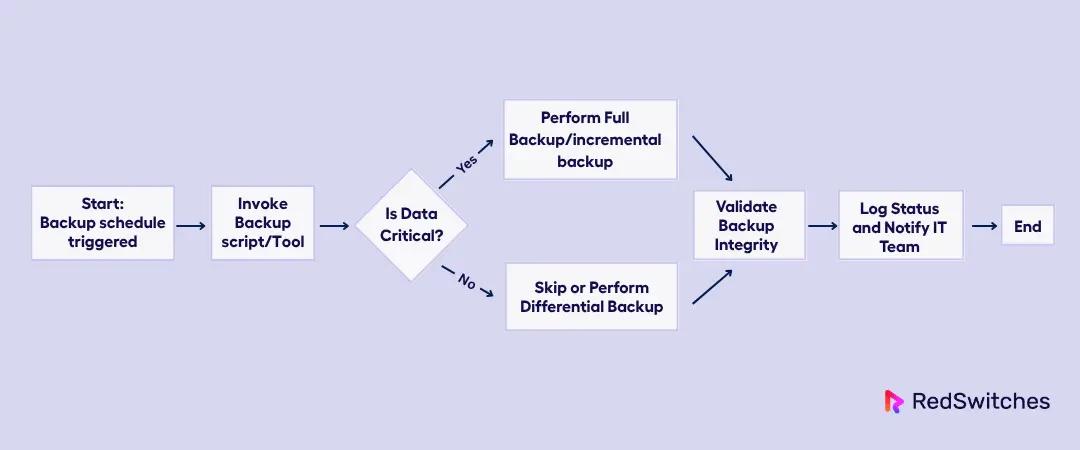
Also, note that there are different kinds of backup: full backup, incremental backup, and differential backup. Implement full and incremental backups if the data is critical. If the data is not critical, you can implement differential backup. Check out this flowchart that highlights the decision flow.
Enable Encryption and Access Controls
Security is no longer a topic that needs to be mentioned specifically, especially in a backup strategy, as you will be uploading the full image that contains sensitive configuration details and personal user data.
There are two main elements of Security in the context of backup: robust encryption and secure access.
Data Encryption
- Encrypt backups both in transit and at rest to protect against unauthorized access or cyberattacks.
- Implement AES-256 encryption for data at rest
- Use TLS/SSL protocols for data in transit
Access Control Mechanisms
- Implement strict access controls that limit backup and restore operations to authorized personnel.
- Enable Multi-Factor Authentication (MFA)
- Use network segmentation and firewalls
Use Backup Versioning
Backup versioning is a feature where, in addition to the latest version of a file or system image, multiple versions of backups from different points in time are maintained. The key benefits of backup versioning include:
- Protection against human error
- Defend against ransomware, as you have multiple backup snapshots and can revert to a version of your data that was created before the attack.
- Organizations can recover data at the system level
I recommend defining clear retention periods based on data type and compliance requirements, and regularly review and update policies to reflect changing needs.
Best Practices for Disaster Recovery Planning
Now that we have discussed the best practices for bare metal backup, let us see some of the best practices you should follow for disaster recovery planning.
In my experience, I can tell you that disaster recovery planning is not just about technology; it’s about a plan that works when everything else is falling apart. I have found that the following practices greatly help with simplifying and implementing a robust disaster recovery plan:
- Define RTO and RPO
- Run Regular DR Drills
- Maintain Multi-Site or Cloud Failover
- Clear Communication and Documentation
Let’s dive into the details of these ideas.
Define RTO and RPO
When I start talking to clients about a recovery plan, one thing I have noted is that their strategy has no direction. This is where I explain to them what Recovery Time Objectives (RTO) and Recovery Point Objectives (RPO) are and why it is important to know.
RTO is how long I can afford for a system to be down. For instance, if you are running a business server and your RTO is 1 hour, the site must be back online within one hour to minimize the loss for the company.
Similarly, RPO means how much data I can afford to lose. For instance, the same business mentioned above can have an RPO of 30 minutes, meaning it shouldn’t lose more than the last 30 minutes of customer data. To maintain this RPO requirement, the business needs to back up the data at least every 30 minutes.
Run Regular DR Drills
I learned the hard way that theories and untested plans fail when you need them most. Therefore, conducting regular disaster recovery drills is as important as following the 3-2-1 rule.
There are different types of DR drills. For instance, in tabletop exercises, you walk through the DR plan and identify potential issues. In the simulated failovers, you intentionally create chaos to test both technical systems and the team’s ability to execute under stress.
In a full-scale failover, a complete switch to the DR environment is made, and production services run from the backup location. This is the most comprehensive test, but also the most disruptive.
Maintain Multi-Site or Cloud Failover
I typically implement a combination of geographic redundancy and cloud failover capabilities.
Geographic redundancy means maintaining a duplicate environment in a geographically separate location. So during a disaster, you can failover to the secondary site and resume operations.
Now, cloud failover means replicating your on-premises environment to the cloud. For my enterprise clients, I maintain backup solutions in multi-sites, and for smaller clients, I use cloud-based disaster recovery services that can restore their entire infrastructure in minutes.
Clear Communication and Documentation
During a disaster, everything is in chaos. Having a well-documented DR plan with clear communication channels is important for prompt action and faster recovery to normal operations.
Maintain a detailed playbook with every procedure in step-by-step detail, screenshots, and include contact information of vendors, key personnel, and escalation paths. Document system configurations, backup procedures, and recovery procedures.
The details should be simple enough so that even a person without in-depth knowledge should be able to follow along.
Use a variety of communication methods, such as email, phone, and instant messaging, to ensure that everyone is informed. Create pre-written templates for the team, so that they can focus on restoring the server rather than crafting well-written emails and messages for stakeholders.
Use Cases for Bare Metal Backup
Finally, I will discuss some of the particular use cases where bare metal backup is imperative.
Enterprise Applications (ERP, CRM)
Enterprise applications like ERP and CRM systems often run on custom configurations. I have seen many organizations implementing bare metal backup for numerous ERP and CRM systems, and I always recommend it because these applications are incredibly complex ecosystems.
Rebuilding these configurations, custom integrations, API configurations, and performance tuning is not a simple task. It may take days to rebuild it. But with the bare metal backup, it may take only hours to restore them and bring back the production line to work.
AI/ML Workloads and Pipelines
AI/ML workload demands unique requirements that traditional backup methods can’t handle. It always involves complex setups with specialized hardware and multiple dependencies.
Bare metal backup captures complex data processing tasks critical for model training the entire system state.
Replicating these manually is nearly impossible and takes a lot of time, energy, and resources. With bare metal backup, rapid system restoration is possible, minimizing service disruptions.
Small to Mid-Sized Businesses (SMBs)
One key point I have noticed among small and mid-sized businesses is that they lack an extensive IT staff or sophisticated disaster recovery plans.
With bare metal backup’s user-friendly automated backup scheduling, there is a minimal need for IT expertise. In addition, the financial impact of system outages is also reduced through rapid restoration.
Conclusion
In my years of managing enterprise infrastructure, I’ve learned that successful disaster recovery is not just limited to having backups. You need to test it, document it, and ensure your team can work effectively during high-pressure situations.
FAQs
Is bare metal backup better than full backup?
Yes, bare metal backup is more comprehensive than a traditional full backup. While full backups typically include only user files and data, bare metal backups capture the entire system, operating system, applications, configurations, and data. This allows you to restore a server exactly as it was before failure. For complete disaster recovery and minimal downtime, bare metal backup is the superior choice.
What’s the difference between system state and bare metal backup?
System state backup includes core system components like the registry, boot files, and Active Directory, but it doesn’t cover applications or user data. Bare metal backup, on the other hand, creates a full disk image of the entire server. This includes the system state plus OS, apps, and files. If you need to recover a server from scratch, bare metal backup is a better solution.
Is it worth the investment for SMBs?
Definitely. For small and medium-sized businesses (SMBs), a single server failure can cause major disruptions and losses. Bare metal backup solutions provide fast recovery and business continuity at an affordable cost. It’s a smart, proactive investment that protects both data and operations.
Can I use cloud backup for bare metal recovery?
Yes, many modern solutions support cloud-based bare metal backups and recovery. This allows you to store full system images off-site and restore them to new hardware or virtual machines when needed. It’s especially useful for disaster recovery planning and remote environments. Just ensure the solution supports image-level backups and secure cloud storage.
What’s the most cost-effective bare metal backup software?
Some of the most budget-friendly and reliable tools include Macrium Reflect, Veeam Agent, EaseUS Todo Backup, and Acronis Cyber Protect. These offer full image-based backups, cloud integration, and fast recovery. The best choice depends on your infrastructure and RTO needs. I recommend testing a few to see which aligns with your workflow and budget.
Manasa M
Technical Content Editor
Manasa is a Technical Content Editor at RedSwitches, known for turning complex technical concepts into clear, engaging content. With a background in copy editing, sub-editing, and technical writing, she shapes the blog's guides for accuracy, readability, and search performance.
Ubuntu vs Linux: Key Differences Explained
Linux is the kernel, while Ubuntu is a complete operating system built on it. This guide breaks down their key differences, use cases, and when to choose each.
Reduce Docker Image Size: Best Practices to Slim Your Images
Docker image size can become a serious issue as you add more code to the image. Learn how to reduce Docker image size and optimize Dockerfiles for production to speed up CI/CD pipelines and improve container efficiency.

Best Linux Distros 2026, Full Guide for Beginners, Developers, Gamers & Servers
Match your hardware, workflow, and skill to the right Linux distro in 2026. Compare 23 top picks, Mint, Ubuntu, Fedora, Arch, Bazzite, covering beginners, developers, gamers, and servers.
Power Your Next Project With Bare Metal
10 min delivery, zero setup fees, and 24/7/365 human engineers across 20+ global locations.