How to Update a Docker Image and Container
Learn how to update a Docker image and container! This guide covers how to update Docker images and containers to the latest version.
When was the last time you updated your Docker containers and were absolutely sure nothing would break?
Docker does not automatically update the base images your containers are built on. Once a container is created, it keeps running on the same image version, even if new, more secure, and better-performing releases are available.
Every day that passes without updating your Docker images and containers is another day your applications drift further from security patches, performance improvements, and critical bug fixes.
In this tutorial, you will learn how to update Docker images and update containers to the latest version.
Let’s start with a cheat sheet of Docker commands and then dive into an overview of why you need to update your Docker images and containers.
Docker Commands to Update Containers & Images
| Task | Command | Explanation |
|---|---|---|
| Pull the latest image | docker pull <image_name>: | Fetches the newest version of an image from the registry (e.g., docker pull nginx:latest). |
| Rebuild an image | docker build -t <image_name>: | Rebuilds an image from the updated Dockerfile in the current directory (.). |
| Stop a running container | docker stop <container_id_or_name> | Gracefully stops the container before updates. |
| Remove a stopped container | docker rm <container_id_or_name> | Deletes the old container to avoid conflicts with new versions. |
| Run an updated image | docker run -d –name <new_name> <image_name>: | Starts a new container with the updated image. |
| View running containers | docker ps | Lists active containers to verify updates. |
| Check image versions | docker images or docker image ls | Shows local images and their tags. |
For a full list of commands and options, see the official Docker CLI documentation.
Why Should You Update Docker Images and Containers
Staying on top of Docker images and container updates for any app running in containers is crucial for a number of reasons. It’s a critical part of maintaining a healthy and secure application environment. Here are the main reasons why:
- Security: New image versions often fix security issues found in older ones. Using outdated images can leave your system exposed to risks.
- New features: Updates often introduce significant improvements, including new features, enhanced performance, and increased efficiency. These enhancements can lead to a better user experience and more robust application functionality
- **Compatibility:**Staying updated helps ensure your application works with the latest libraries and dependencies.
- Compliance: For many industries, staying updated is a matter of compliance. Certain regulations and industry standards require applications to be regularly patched and updated to meet security and operational guidelines.
Now that you know why updating your Docker image and content is important, let us see the step-by-step process to pull the latest image, recreate containers, and ensure your applications run on the most secure and efficient versions available.
However, before we move on to the process, let us have a quick look at the prerequisites.
The Prerequisites
Before you jump into the updating process, ensure you have the following:
- A user with sudo/root privileges
- Access to the terminal
- Docker is set up and ready to use.
Let us now move to the core part of our tutorial.
How to Update a Docker Image and Container
Updating a running container requires you to replace the old container with a new one that uses the updated image.
Follow the steps below to update your container to the latest Docker image.
Step #1: Check Current Version
Start by finding the image that needs an update. You can check this by listing all the local images using the following command:
# docker images
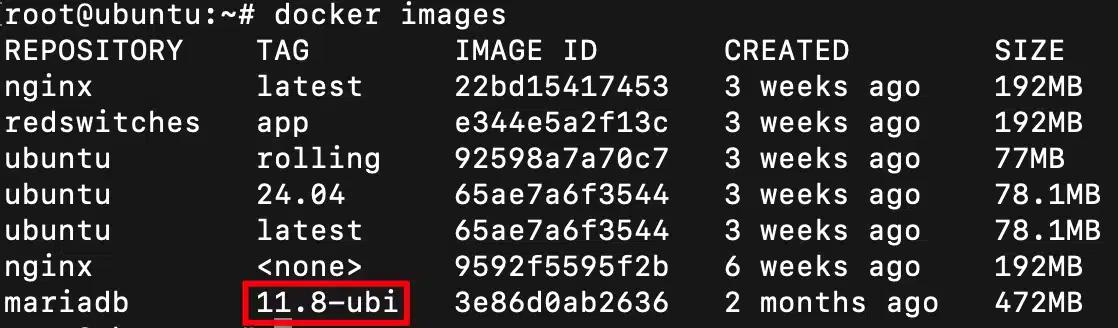
The output displays the images you’ve downloaded along with their tags, which usually include version numbers. In this example, the mariadb image is using the older version 11.8-ubi.
Learn more about the docker images command in the Docker CLI reference.
Step #2: Pull the Latest Docker Image
Next, download the new version of the image from its repository. with the docker pull command.
# docker pull [image name]
By default, Docker will fetch the latest version. If you’re not sure about the system’s default behavior, add the latest tag.
# docker pull [image name]:latest
If you want to get a specific version, use this format:
docker pull [image name]:[version-number]
I manage servers for several customers, each with their specific version requirements for various software and libraries. That’s where I prefer using the version numbertag to simplify container setup.
For instance, to download the latest MariaDB image from Docker Hub, run the following command:
# docker pull mariadb:latest
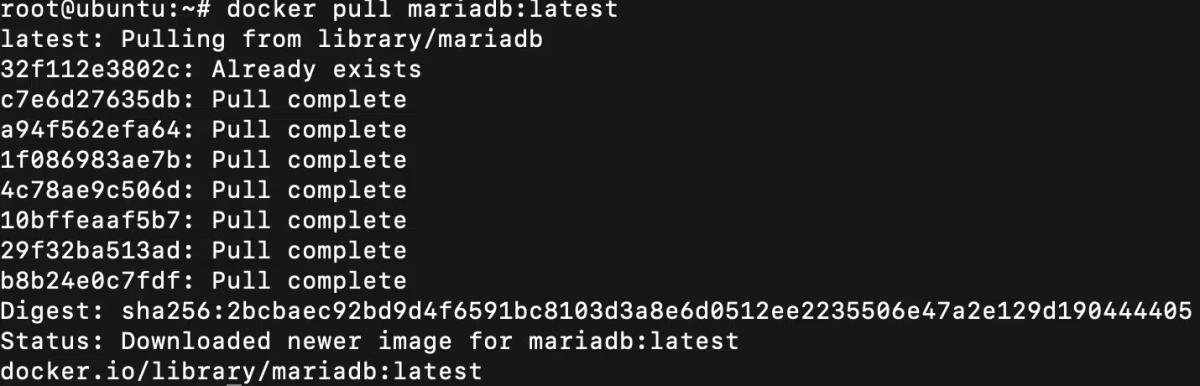
This command fetches the updated image from Docker Hub and stores it locally. A status report will be displayed indicating that a new image has been downloaded.
Step #3: Stop and Remove Running Container
Once you have the updated image, stop and delete the container that uses the old image. This allows you to start a new container with the same name and also frees up the ports and resources it was using.
Find the name of the old container by listing all containers currently running on the system:
# docker ps -a

Next, stop the running container:
# docker stop [container name OR container-ID]
Warning: Always check all running applications and processes before stopping active containers. This step may break applications and disrupt user experience.
Once the container is stopped, use thedocker rmcommand to permanently delete the old container.
# docker rm [container name OR container-ID]
Step #4: Launch the New Updated Container
Now, you can create and run a new container using the updated image. It’s crucial to use the same settings as the old container to ensure your application works as expected. This includes port mappings, environment variables, and especially volumes, which hold your persistent data.
# docker run [options] [image] [commands]
As I said, you can attach the same Docker volume used by the old container so that the new one can access all required files. Use the -voption followed by the volume’s directory path. This is a huge help when I need to map the container to a local storage option.
Here’s an example of running an updated MariaDB container in detached mode:
# docker run –name=mariadb –restart=always -e MYSQL_ROOT_PASSWORD=Admin@123 -v /home/mysql:/var/lib/mysql -d mariadb:latest

Now, to confirm the container is using the latest Docker image, list the running containers:
# docker ps -a

The output should show the new container running with the updated image tag. I highly recommend checking the IMAGE column to make sure you have the right version for your specifications.
Conclusion
Updating Docker images and containers is essential for keeping applications secure, efficient, and compatible with the latest features.
Docker does not automatically refresh images in running containers, so you need to manually pull the updated image, stop and remove the old container, and then recreate it using the same settings. This process ensures you benefit from security patches, performance improvements, and compliance with industry standards.
I recommend regularly checking for updates and applying them to reduce security risks and maintain a smooth workflow. Following the commands and processes I outlined will help you keep your containerized applications up to date and running at their best.
FAQs
Why should I update my Docker images and containers?
You need to update Docker images and containers for:
Security: Patches for vulnerabilities (e.g., CVE-2023-1234 fixes).
Features: Access to new functionalities (e.g., PostgreSQL 16’s performance improvements).
Compatibility: Ensure works with newer dependencies or orchestration tools (Kubernetes, Swarm).
Bug Fixes: Resolve known issues (e.g., memory leaks in older Redis versions).
Does Docker update containers automatically?
No, you must manually update them because auto-updates risk breaking processes because of untested versions. However, I have tried container auto-updates through CI/CD pipeline triggers through Dockerfile changes.
How do I check if my container is using the latest image?
List running containers and check their image version. Start with **docker ps –format “{{.Names}}\t{{.Image}}”**Next, pull the latest image and check IDs with docker pull <image_name>: && docker images –digests <image_name>. If the Ds differ, your container is outdated.
Will updating a container delete my data?
Not if you use Docker volumes to store data separately. I recommend using the docker run -d -v /host/path:/container/path command to bind Docker volumes to local storage/
Can I update to a specific image version?
Yes, by adding the version tag when pulling the image.
Jignesh Jethwa
Linux System Administrator (RHCE)
Jignesh Jethwa is a Red Hat Certified Engineer with over seven years of experience managing hosting infrastructure and mission-critical servers. As an L2 systems administrator at RedSwitches, he provisions bare-metal servers via IPMI, hardens systems against DDoS attacks, and keeps Linux and cloud environments stable across Docker, Kubernetes, and cPanel.
Ubuntu vs Linux: Key Differences Explained
Linux is the kernel, while Ubuntu is a complete operating system built on it. This guide breaks down their key differences, use cases, and when to choose each.
Reduce Docker Image Size: Best Practices to Slim Your Images
Docker image size can become a serious issue as you add more code to the image. Learn how to reduce Docker image size and optimize Dockerfiles for production to speed up CI/CD pipelines and improve container efficiency.

Best Linux Distros 2026, Full Guide for Beginners, Developers, Gamers & Servers
Match your hardware, workflow, and skill to the right Linux distro in 2026. Compare 23 top picks, Mint, Ubuntu, Fedora, Arch, Bazzite, covering beginners, developers, gamers, and servers.
Power Your Next Project With Bare Metal
10 min delivery, zero setup fees, and 24/7/365 human engineers across 20+ global locations.