How to Start a Docker Daemon? Complete Guide with Troubleshooting Tips
Understand how to start a Docker Daemon. We discuss how to troubleshoot the three core issues that may affect this critical step in Docker operations.
TL;DR: Essential Docker Daemon Commands
- Start daemon: sudo systemctl start docker
- Enable on boot: sudo systemctl enable docker
- Check status: sudo systemctl status docker
- View logs: sudo journalctl -u docker
The Docker daemon, called dockerd, is the primary component of Docker that maintains the overall operation. Without the Docker daemon, containers can’t run, images can’t be built, and your entire workflow comes to a halt.
In other words, it is the single point of failure that can delay the development or disrupt deployments.
Therefore, it is important to know how to start, manage, and troubleshoot the Docker daemon. In this tutorial, we will discuss how to start and troubleshoot the Docker daemon.
Let’s start with a brief understanding of what the Docker daemon is.
What is the Docker daemon?
The Docker daemon is the core background service that runs and manages Docker processes. It runs continuously in the background, managing Docker processes and controlling objects such as containers, images, networks, and volumes. It also interacts with image registries, where Docker images and extensions are stored.
In my experience as a systems engineer, the Docker daemon is often the first place I check when containers won’t run. Nine times out of ten, it’s a simple issue like the daemon not starting at boot or permissions on the Docker socket.
For instance, when you run a command like docker pull, the daemon downloads the image from the registry and prepares it for use. It also communicates with the host system to handle resources like CPU, memory, storage, and networking, while removing the complexity of the underlying operating system.
The Docker daemon is responsible for several critical tasks, such as:
- Container management: Starts, monitors, and stops containers. Once a container is removed, it also frees up the resources it used.
- Networking: Creates networks, assigns IPs to containers, and maps container ports to the host so services inside containers can be accessed externally.
- Storage: Manages data volumes so containers can store and share data with the host system.
- Host system management: Keeps containers isolated from the host OS, assigns CPU, memory, and I/O resources, and ensures they run securely and efficiently.
Now that you know what the Docker daemon is, let us move to the core part of our tutorial. However, before we move forward, let us have a quick look at the prerequisites:
The Prerequisites
Before you dive in, ensure you have the following:
- You have Docker installed on your system
How to Start a Docker Daemon
Starting the Docker daemon turns on all the key processes that manage containers and networks. Without the daemon, Docker’s core features simply won’t function. The good news is that starting the daemon is straightforward. It just takes a single command to start it.
The primary way to start the Docker daemon on most modern Linux distributions (those using systemd) is with the systemctl command. This command manages system services.
To start the Docker service, run the following command:
# sudo systemctl start docker
This command initiates thedocker.service, which is the service file responsible for running the Docker daemon.
Once you start the Docker daemon, it’s important to set it to run automatically at system startup. This ensures that Docker and any containers with auto-restart enabled will be available right after the system boots.
To ensure the Docker service is always available after a system reboot, execute the following command:
# sudo systemctl enable docker

You will see an output confirming that docker.service is linked with the system and will automatically start each time your computer or server boots.
Once you have started the Docker daemon, you can verify its status to ensure it’s running appropriately with the following command:
# sudo systemctl status docker
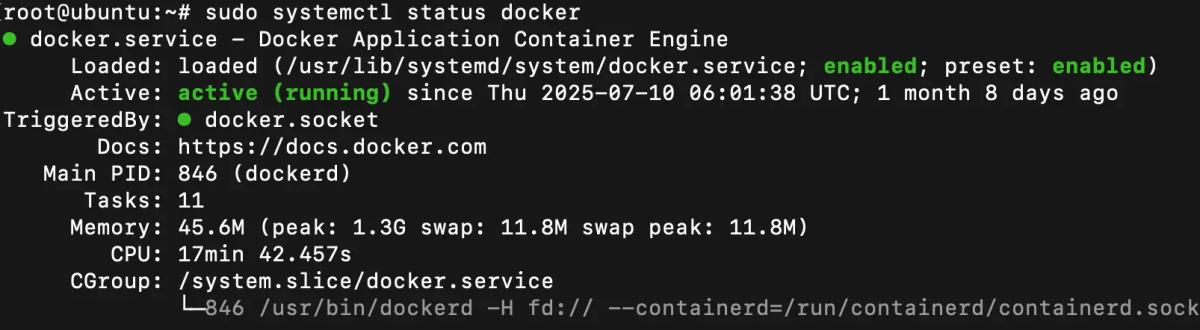
A successful output will show Active: active (running) in green, confirming the daemon is operational.
Troubleshooting Docker Daemon Issues
When the Docker daemon isn’t running or is behaving unexpectedly, it’s often due to one of a few common problems. Knowing these issues helps you take the key steps.
| Symptom | Fix | Command Example |
|---|---|---|
| Daemon won’t start | Start manually with systemctl | sudo systemctl start docker |
| Not running at boot | Enable auto-start | sudo systemctl enable docker |
| Permission denied | Add user to docker group | sudo usermod -aG docker $USER |
| Check logs for errors | View system logs | sudo journalctl -u docker |
| Low resources | Verify memory/disk | free -m / df -h |
Let’s discuss these common methods to fix Docker daemon problems:
Troubleshoot #1: Check Logs for Errors
Logs help identify when and why the Docker daemon failed. Reviewing logs regularly can also alert you to warnings before they turn into bigger issues.
Use the following command to view Docker daemon logs:
# sudo journalctl -u docker
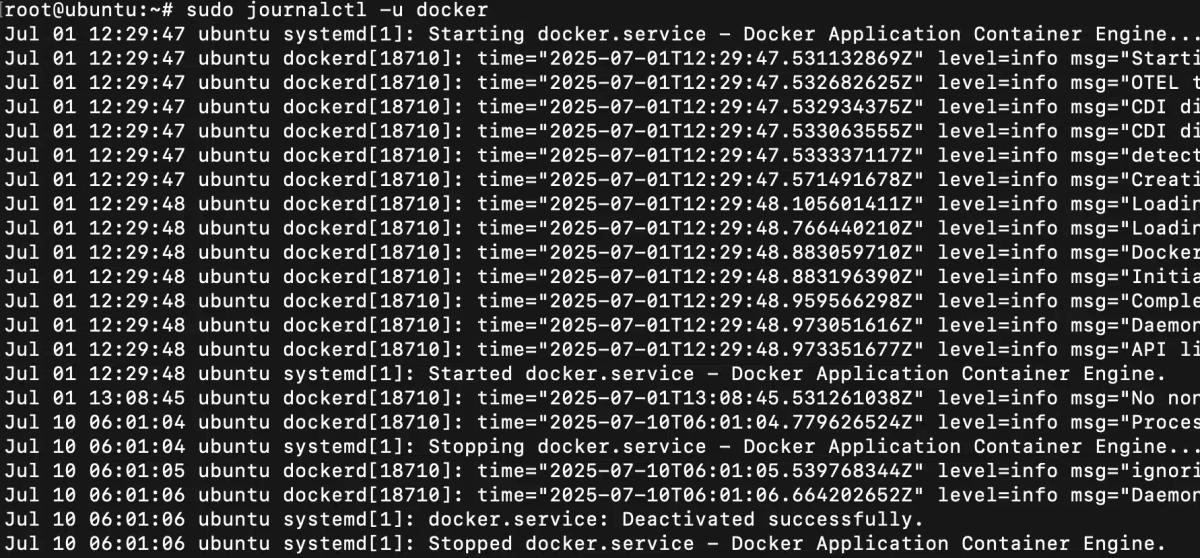
Here,
- journalctl: Displays logs from the systemd journal
- -u: Displays logs specifically for the Docker service
Troubleshoot #2: Check permissions
A common issue, especially on Linux, is that the user trying to run Docker commands doesn’t have the necessary permissions. The daemon itself runs as a privileged process, but the user needs access to the Docker socket to communicate with it.
As a server admin working with multiple developers, I’ve seen this problem occur frequently when users forget to add themselves to the docker group. It’s a small detail, but it saves countless support tickets.
To verify Docker’s permissions on your Linux system, run the following command:
# ls -l /var/run/docker.sock

The output displays the permissions that are assigned to the Docker service.
Troubleshoot #3: Check System Resources
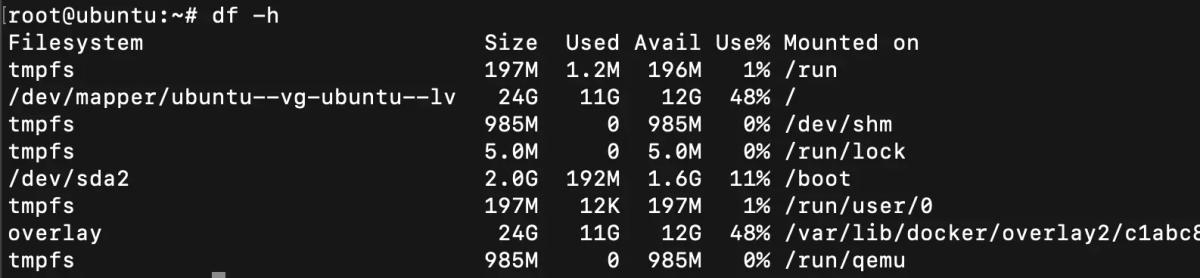
If your system is low on resources, the Docker daemon might fail to start or struggle to manage containers. This is especially common on older machines or on servers running many other services.
To check the memory usage, run the following command:
# free -m

If you want to check the overall disk usage, execute the following command:
# df -h
If you want a real-time view of system processes and their resource usage, run the following command:
# top
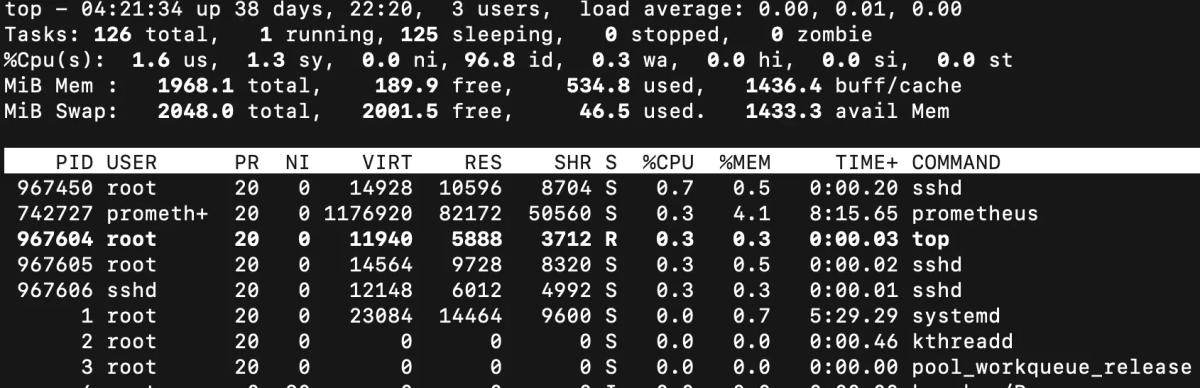
The output displays the processes using memory along with their resource limits.
Conclusion
Starting the Docker daemon is an essential step to make Docker work smoothly on your system. Without it, you cannot run containers or use Docker’s core features.
In this guide, we covered how to start the daemon, enable it to run at boot, and verify that it’s active. We also looked at common troubleshooting steps, such as checking logs, permissions, and system resources, to fix issues if the daemon fails.
By following these steps, you can ensure that Docker services run reliably in the background and provide a stable environment for your containers and applications.
FAQs
What is the Docker daemon?
The Docker daemon is a background service that manages containers, images, networks, and storage for Docker.
How do I start the Docker daemon?
You can start the Docker daemon with the command: sudo systemctl start docker
How can I make Docker start on boot?
If you want to enable Docker to start automatically after a reboot, run the following command: sudo systemctl enable docker
How do I check if the Docker daemon is running?
To check if the Docker daemon is running, run the following command: sudo systemctl status docker
What should I do if the Docker daemon fails?
If the Docker daemon fails, check logs with journalctl -u docker, verify permissions, and ensure your system has enough resources.
Jignesh Jethwa
Linux System Administrator (RHCE)
Jignesh Jethwa is a Red Hat Certified Engineer with over seven years of experience managing hosting infrastructure and mission-critical servers. As an L2 systems administrator at RedSwitches, he provisions bare-metal servers via IPMI, hardens systems against DDoS attacks, and keeps Linux and cloud environments stable across Docker, Kubernetes, and cPanel.
Ubuntu vs Linux: Key Differences Explained
Linux is the kernel, while Ubuntu is a complete operating system built on it. This guide breaks down their key differences, use cases, and when to choose each.
Reduce Docker Image Size: Best Practices to Slim Your Images
Docker image size can become a serious issue as you add more code to the image. Learn how to reduce Docker image size and optimize Dockerfiles for production to speed up CI/CD pipelines and improve container efficiency.

Best Linux Distros 2026, Full Guide for Beginners, Developers, Gamers & Servers
Match your hardware, workflow, and skill to the right Linux distro in 2026. Compare 23 top picks, Mint, Ubuntu, Fedora, Arch, Bazzite, covering beginners, developers, gamers, and servers.
Power Your Next Project With Bare Metal
10 min delivery, zero setup fees, and 24/7/365 human engineers across 20+ global locations.