How to Install PostgreSQL on Ubuntu 24.04 (Step-by-Step Guide for 2026)
Learn how to install and secure PostgreSQL on Ubuntu 24.04 in 2026. This step-by-step guide covers installation, configuration, and best practices for developers and system administrators.

Each passing second, an unimaginable volume of data is generated. The challenge is managing, organizing, and making sense of it all. PostgreSQL is a powerful solution to this problem.
PostgreSQL is a feature-rich open-source relational database system known for its reliability, extensibility, and flexibility.
Designed to handle everything from simple queries to complex workloads, it supports advanced data types, full ACID compliance, and powerful indexing, making it ideal for both traditional and modern applications.
In this tutorial, we will guide you through the process of installing PostgreSQL on Ubuntu.
First, let’s start with a quick overview.
In this tutorial, we will discuss how to install PostgreSQL on Ubuntu. Let’s start with an overview of what PostgreSQL is.
What is PostgreSQL?
PostgreSQLis an advanced, open-source relational database management system (RDBMS) known for its robustness, feature-rich design, and long-standing reliability.
It is fully ACID-compliant, supports advanced features like JSONB for semi-structured data, and offers extensive indexing options. Its extensibility and performance make it a popular choice for startups and enterprises alike.
Designed for scalability, it offers long-term support and the capacity to handle high-volume workloads.
What is PostgreSQL Used For?
PostgreSQL is widely used in a variety of applications and industries:
- Web Applications: Serves as a robust backend for dynamic websites and web services
- Data Analytics: Supports large datasets and complex queries
- Geospatial Applications: With the PostGIS extension for geographic data, it becomes a powerful spatial database for mapping and location-based services.
- ERP and CRM Systems: Reliable and scalable enough to power enterprise-grade systems where data integrity is critical.
Notable users include Reddit, Spotify, Instagram, and thousands of startups and SaaS platforms worldwide.
Now that we have a better understanding of PostgreSQL, let’s move on to the installation process. First, let’s review the prerequisites.
The Prerequisites
Before you install PostgreSQL on Ubuntu 24.04, make sure your system meets the following requirements:
- You have Ubuntu 24.04 LTS installed
- Terminal or command line access
- A user account with sudo or root access
Now that you have all the necessary requirements, we can proceed with the core of our tutorial: How to Install PostgreSQL on Ubuntu 24.04 LTS.
How to Install PostgreSQL on Ubuntu 24.04 LTS
Step #1: Update System Packages
Before installing PostgreSQL, it’s critical to ensure your Ubuntu 24.04 system is fully updated. This minimizes potential conflicts and keeps your system secure.
Therefore, start by updating your package lists and upgrading all installed packages:
# sudo apt update && sudo apt upgrade -y
Now, create a new system user named postgresuser for PostgreSQL administration and grant it sudo privileges. This improves security and organization.
# sudo adduser postgresuser
# sudo usermod -aG sudo postgresuser
You can now switch to your new user for the installation and configuration process:
# sudo -i -u postgresuser
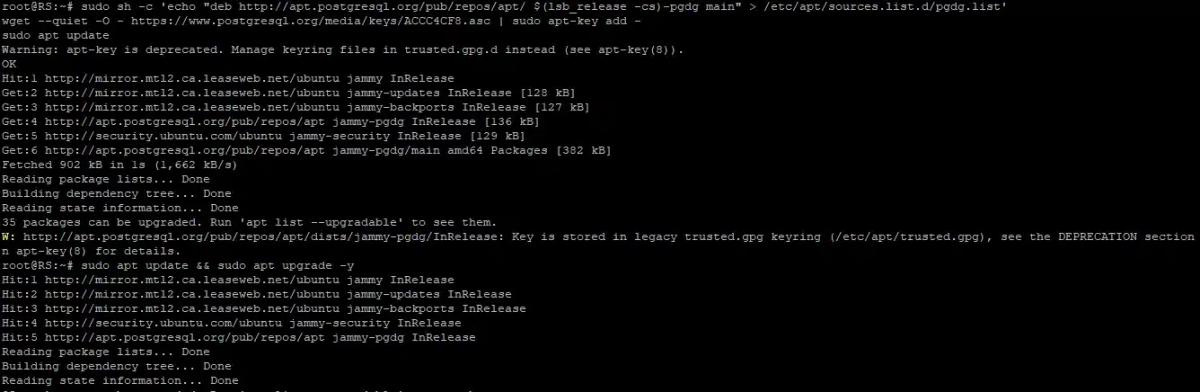
Step #2: Add the PostgreSQL APT Repository
Ubuntu’s default repositories may not provide the latest PostgreSQL version. To get the latest version, add the PostgreSQL Global Development Group (PGDG) repository.
Start by importing the repository signing key with the following command:
# sudo curl -sS https://www.postgresql.org/media/keys/ACCC4CF8.asc | sudo gpg –dearmor -o /usr/share/keyrings/postgresql.gpg
Next, add the PostgreSQL repository to your system’s sources.list.d directory. This command automatically detects your Ubuntu version:
# sudo sh -c ‘echo “deb [signed-by=/usr/share/keyrings/postgresql.gpg] http://apt.postgresql.org/pub/repos/apt $(lsb_release -cs)-pgdg main” > /etc/apt/sources.list.d/pgdg.list’
Step #3: Install PostgreSQL 17 on Ubuntu 24.04
Now, install both the server and the client with the following command:
# apt install postgresql-17 postgresql-client-17 -y
This will install PostgreSQL 17 and all necessary dependencies
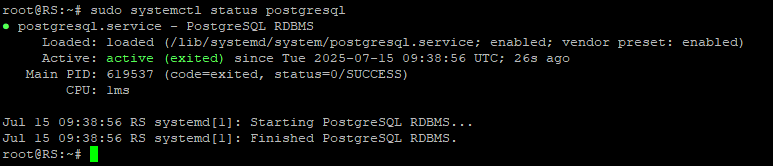
Step #4: Check PostgreSQL Service Status
Once installed, ensure it is running and enabled to start on boot:
# systemctl status postgresql
# systemctl enable postgresql

Step #5: Log into the PostgreSQL Shell
PostgreSQL creates a default database user named postgres. Switch to this default PostgreSQL superuser and open the shell:
# sudo -i -u postgres
Once you are the postgres user, you can access the PostgreSQL command-line interface:
# psql
You are now in the psql shell. You can create databases, users, and manage your PostgreSQL instance.
Step #6: Exit and Secure PostgreSQL (Recommended)
Now to exit the psql shell, type**\q** and press Enter.
To improve PostgreSQL security
- Change the default port (5432) by editing the postgresql.conf file.
- Restrict IP access by setting appropriate listen_addresses in postgresql.confand using firewall rules.
- Edit the pg_hba.conffile to enable strong authentication methods
Now, restart PostgreSQL to apply the changes:
# systemctl restart postgresql
Basic PostgreSQL Commands to Get Started
Now that you have installed PostgreSQL, let us learn some of the common SQL commands for managing users, databases, tables, and data within PostgreSQL.
Create a New User
If you want to create a new database role (user) with a password, use the following statement:
CREATE USER devuser WITH PASSWORD ‘securepassword’;
Create a New Database
If you want to create a new database user, execute the following statement:
CREATE DATABASE devdb OWNER devuser;
Create and Delete Tables
If you want to create a table schema and remove a table from the database, use the following statement:
CREATE TABLE employees (id SERIAL PRIMARY KEY, name TEXT);
DROP TABLE employees;
Add, Query, and Delete Data
If you want to insert a new row into a table named employees, execute the following statement:
INSERT INTO employees (name) VALUES (‘Alice’);
Now, if you want to retrieve all rows and columns from the employees table, use the following:
SELECT * FROM employees;
To delete rows matching a condition (e.g., id=1), execute the following:
DELETE FROM employees WHERE id=1;
Add or Delete Columns
If you want to add a new column called department of type TEXT, execute the following:
ALTER TABLE employees ADD COLUMN department TEXT;
To remove the department column from the table, run:
ALTER TABLE employees DROP COLUMN department;
Update Data
To modify existing records in a table, for instance, update the name of the employee withid=2, use the following:
UPDATE employees SET name=’Bob’ WHERE id=2;
How to Connect to PostgreSQL Remotely
By default, PostgreSQL is configured to only accept connections from the server it’s running on (localhost). To allow clients from other machines to connect, you need to adjust two main configuration files and, critically, configure your server’s firewall.
Before we move on, remember, opening your database to remote access increases your attack surface. Implement strong passwords, restrict access to only necessary IPs, and use secure authentication methods.
Step #1: Configure postgresql.conf to Listen on External Interfaces
Open the postgresql.conffile with any text editor like Nano:
# sudo nano /etc/postgresql/17/main/postgresql.conf
Now, locate the following line:
#listen_addresses
Uncomment it (remove the #) and change its value to ***** to listen on all available network interfaces:
listen_addresses = ‘*’
Save and exit the file.
Step #2: Configure pg_hba.conf for Client Authentication
The pg_hba.conf (host-based authentication) file controls which hosts are allowed to connect, which database users they can connect as, and what authentication method is required.
Open the pg_hba.conf file with any text editor like Nano:
# sudo nano /etc/postgresql/17/main/pg_hba.conf
Now, add the following line at the end of the file to permit all IP addresses to authenticate using passwords:
host all all 0.0.0.0/0 md5
Save and exit the file.
Now, restart PostgreSQL to apply the changes:
# sudo systemctl restart postgresql
How to Connect to PostgreSQL Using pgAdmin
pgAdmin is a powerful open-source graphical user interface (GUI) tool for managing PostgreSQL databases. It allows you to visually browse schemas, run SQL queries, manage roles, and perform various administrative tasks without using the command line.
To install pgAdmin, follow these steps:
- For Windows/macOS: Download the installer directly from the official pgAdmin website.
- For Linux: Install it via your distribution’s package manager.
Next, you will be prompted to add a new server. Enter the following details:
- Name: Assign any label for easy identification
- Host: your server IP
- Username: postgres or custom user
- Password: your DB password
Click Save.
Once connected, you can:
- Browse: Navigate databases, tables, and schemas via the sidebar.
- Run SQL Queries: Click the Query Tool to write and execute SQL.
- Manage Roles and Users: Use the dashboard to add users, assign privileges, and set up roles.
- Monitor Activity: View server status, running queries, and logs.
How to Connect to PostgreSQL from Python
To interact with a PostgreSQL database from Python, the most popular and reliable library is psycopg2.
For this, follow the steps below:
Step #1: Install psycopg2
Start by installing psycopg2 using pip:
# pip install psycopg2
Step #2: Sample Python Code to Connect and Query PostgreSQL
The following sample code shows how to establish a connection, execute a simple query, and fetch results.
import psycopg2
conn = psycopg2.connect(
dbname=”devdb”, user=”devuser”, password=”securepassword”, host=”localhost”
)
cur = conn.cursor()
cur.execute(“SELECT * FROM employees;”)
print(cur.fetchall())
conn.close()
Conclusion
Installing PostgreSQL on Ubuntu 24.04 is straightforward and ideal for production environments in 2026. We suggest you check out the official Ubuntu documentation for any issues you may encounter during the process,
Whether you’re using the terminal, pgAdmin GUI, or connecting via Python, PostgreSQL offers the flexibility and power to support a wide range of applications.
As the next step, you can explore PostgreSQL roles and permissions, use extensions like PostGIS or TimescaleDB, set up regular backups and replication, and tune performance for large-scale applications.
FAQs
What is the default PostgreSQL port?
The default PostgreSQL port is 5432
How do I create a superuser in PostgreSQL?
To create a superuser in PostgreSQL, use the following statement:
CREATE USER admin WITH SUPERUSER;
Can I use PostgreSQL with Django/Flask?
Yes, PostgreSQL is fully supported by both frameworks.
Is PostgreSQL free for commercial use?
Yes, PostgreSQL is fully open-source and free.
How do I uninstall PostgreSQL from Ubuntu?
Warning: This command will completely remove PostgreSQL and all of its associated data and configuration files.
You can use the following command to uninstall PostgreSQL from Ubuntu:
sudo apt purge postgresql*
Pratik Kshirsagar
Linux System Administrator
Pratik Kshirsagar is a Linux System Administrator at RedSwitches, certified in Red Hat (RHCSA) and Microsoft Azure (AZ-900). He manages Linux and Windows servers, tunes performance, runs AWS EC2 workloads, and supports clients across the hosting stack.
Ubuntu vs Linux: Key Differences Explained
Linux is the kernel, while Ubuntu is a complete operating system built on it. This guide breaks down their key differences, use cases, and when to choose each.

Reduce Docker Image Size: Best Practices to Slim Your Images
Docker image size can become a serious issue as you add more code to the image. Learn how to reduce Docker image size and optimize Dockerfiles for production to speed up CI/CD pipelines and improve container efficiency.

Best Linux Distros 2026, Full Guide for Beginners, Developers, Gamers & Servers
Match your hardware, workflow, and skill to the right Linux distro in 2026. Compare 23 top picks, Mint, Ubuntu, Fedora, Arch, Bazzite, covering beginners, developers, gamers, and servers.
Power Your Next Project With Bare Metal
10 min delivery, zero setup fees, and 24/7/365 human engineers across 20+ global locations.