How to Check Your Ubuntu Version: 5 Easy Command Line and GUI Methods
Knowing the Ubuntu version you have on your machine is often the basic requirement for installing and maintaining critical packages. Here are five ways you can get this essential information.
What version of Ubuntu are you really running?
The question can seem silly, but it matters more than you think.
Knowing your Ubuntu version isn’t just a technical detail; it’s the key to security updates, compatibility with software, and effective troubleshooting.
Each Ubuntu release comes with its own support lifecycle and feature set. Some releases are supported for years, while others receive updates for a much shorter period. Therefore, knowing your Ubuntu version is directly linked to the health, reliability, and future of your system.
TL;DR: Quick Ways to Check Ubuntu Version
- Command-line (fastest): lsb_release -a
- Automation-friendly: cat /etc/os-release
- GUI method: Settings → About → OS Name / Version
Use CLI for servers and scripts, GUI for desktop users.
In this article, we will discuss five easy ways to check your Ubuntu version, using both command-line and GUI methods.
Why You Might Need to Check Your Ubuntu Version
As we mentioned earlier, knowing your Ubuntu version is strongly tied to your system’s health, reliability, and performance.
The following are some of the core reasons why you should know your Ubuntu version:
- Software Compatibility: Software packages often have strict version requirements. Installing them on the wrong Ubuntu release can cause broken dependencies, system instability, or even failed installations. By knowing your Ubuntu version, you can ensure that you’re installing software that’s fully compatible with your system, avoiding unnecessary errors and downtime.
- Security Updates: Ubuntu’s security update cycle is directly tied to your specific version and release type. Long-term support (LTS) versions like 20.04 and 22.04 receive five years of security updates, while standard releases have shorter support cycles. Knowing whether you’re running an LTS or standard release helps you avoid running an unsupported version.
- Troubleshooting: Ubuntu version is often the first piece of information required during troubleshooting. Different Ubuntu versions have varying kernel versions, default software packages, and system configurations. By knowing your exact version, you can follow the right documentation and troubleshoot the issue.
- Planning an Upgrade: Understanding your current Ubuntu version helps you plan upgrade paths. Some Ubuntu versions can only upgrade to specific newer versions.
Now that you know why it is important to know your Ubuntu version, let us check out five simple methods to find your Ubuntu version.
How to Check Your Ubuntu Version?
You can check your Ubuntu version using a few simple methods, ranging from a quick graphical user interface (GUI) check to command-line tools.
In the following section, we will discover five key methods to discover your Ubuntu version.
The following table summarizes the five different methods to check the Ubuntu version.
| Method | Command / Path | GUI/CLI | Usage |
|---|---|---|---|
| Settings App | Settings → About | GUI | Check version through desktop settings; works on GNOME-based Ubuntu, may vary on other desktops |
| Neofetch | neofetch | CLI | Install and run for version plus system overview (CPU, memory, kernel) |
| lsb_release | lsb_release -a | CLI | Quick command for release and codename; package may need installation on minimal systems |
| /etc/os-release | cat /etc/os-release | CLI | Read file directly; reliable for scripts and automation |
| hostnamectl | hostnamectl | CLI | View version along with kernel, architecture, and hostname |
Method #1: Check Ubuntu Version Using the GUI Settings Menu
This is the most straightforward method for those who prefer not to use the terminal, even though it takes a couple more clicks when compared to using the terminal.
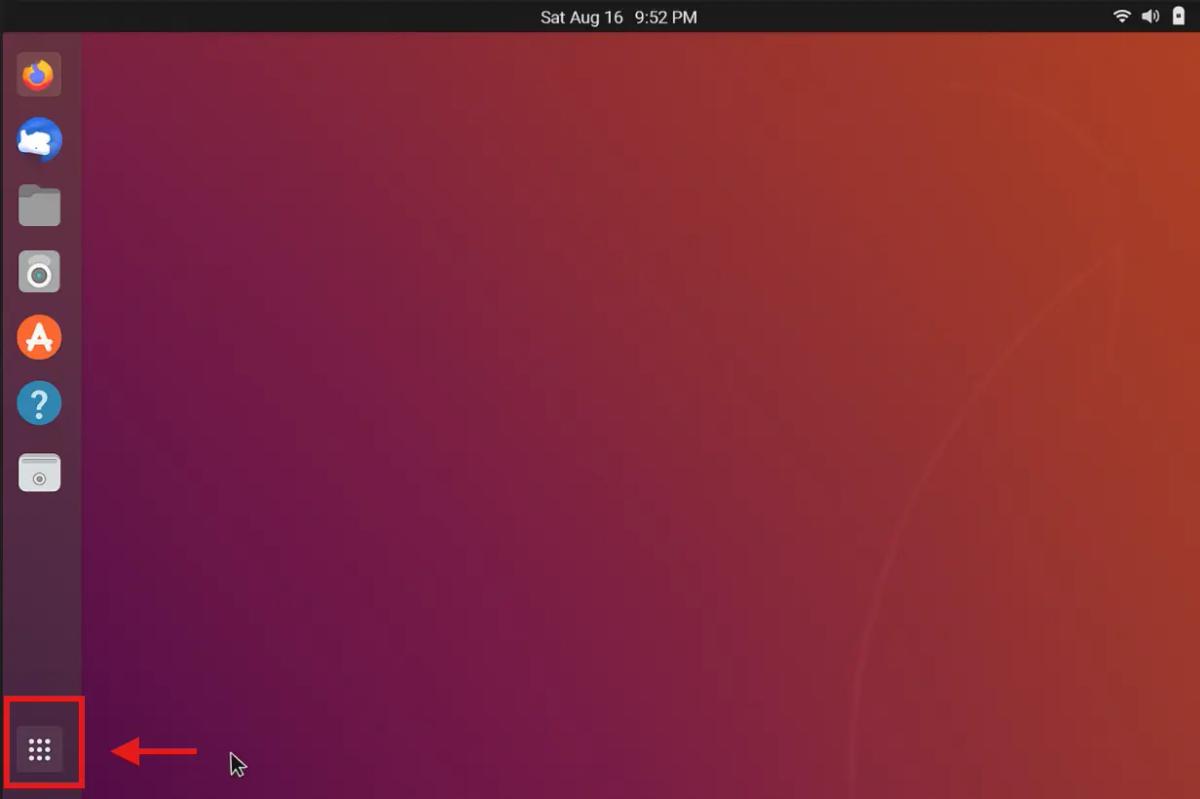
Start by clicking the Show Applications button (the grid of dots) at the bottom left of your screen.
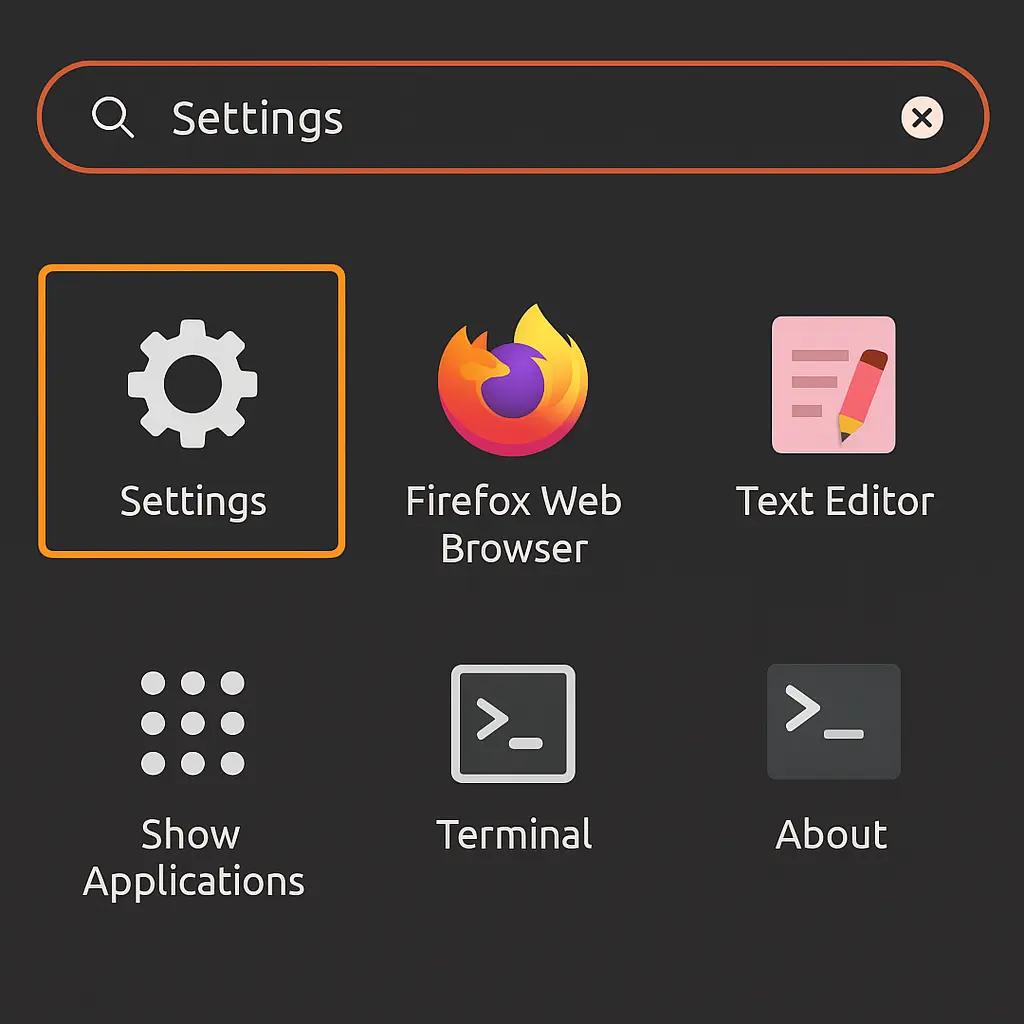
Next, in the applications menu, search for Settings and open it.
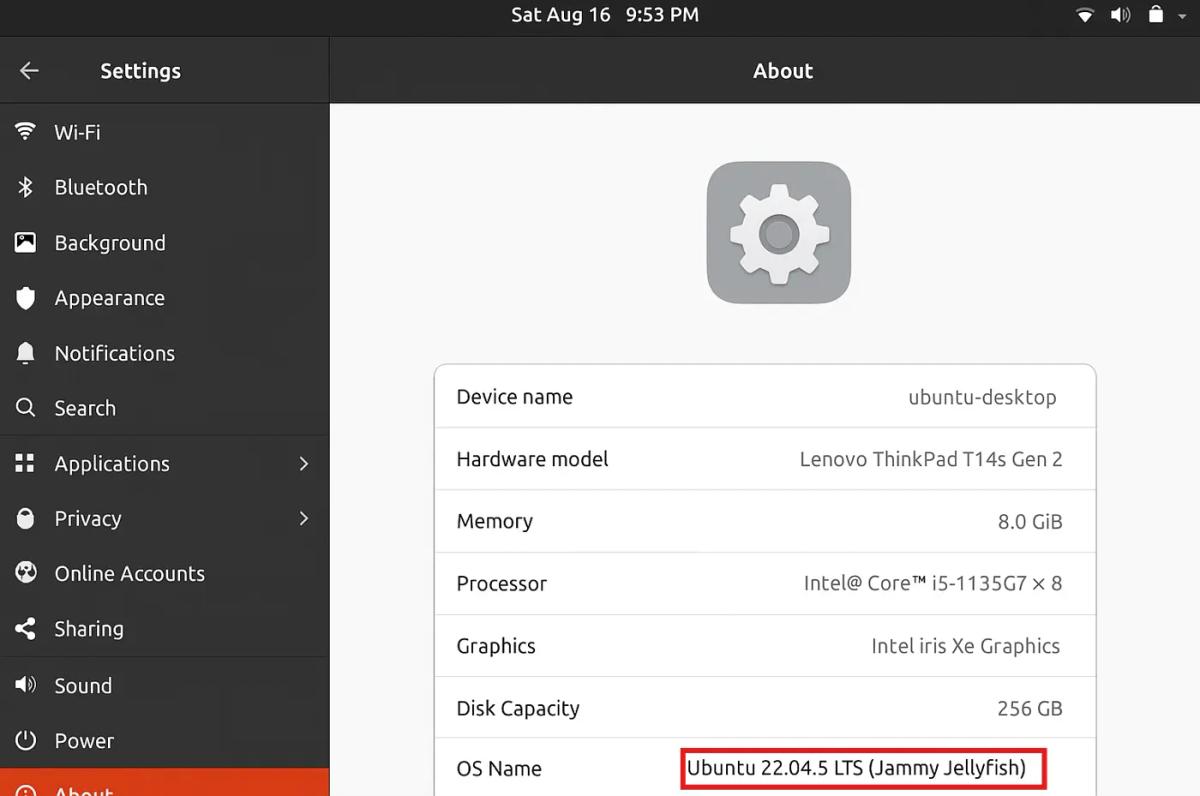
Once Settings is open, scroll down the left-hand menu and select About.
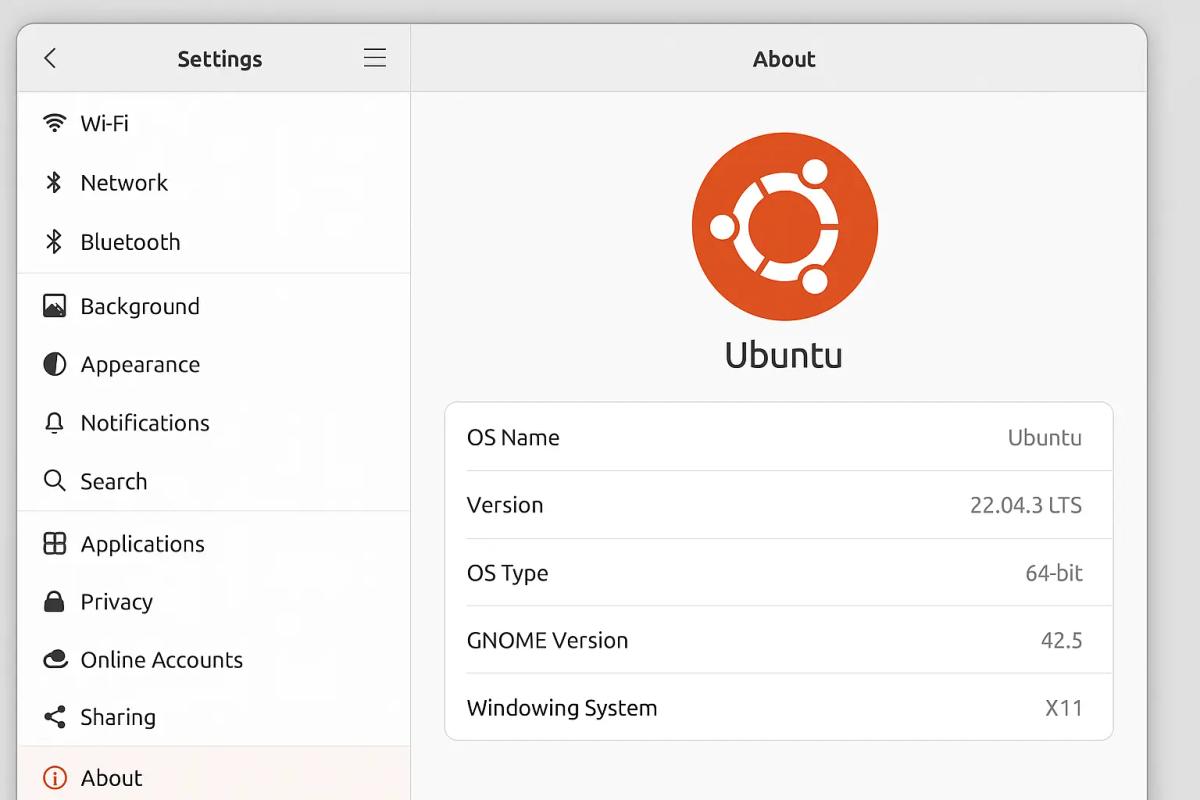
In the About section, look for OS Name or Version. Your Ubuntu version will be displayed next to it.
Method #2: Check Ubuntu Version via Neofetch
Neofetch is a command-line tool that presents system information in a highly organized format. It’s a popular choice for getting a quick snapshot of your system. It displays your Ubuntu version along with hardware, kernel, and resource information.
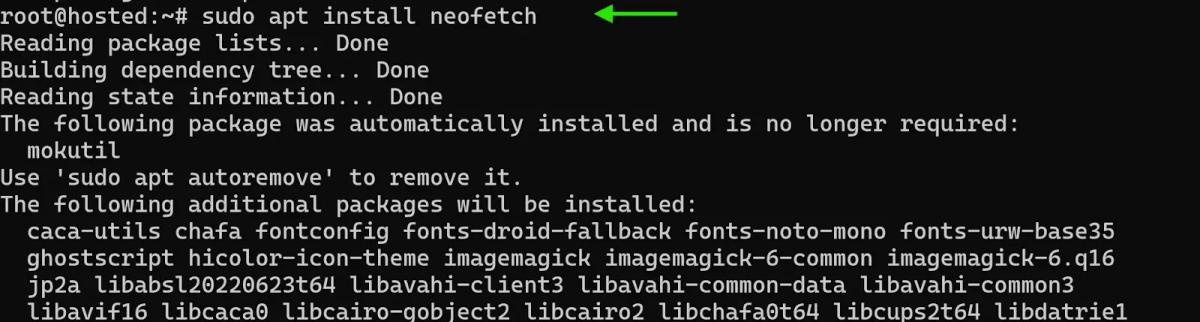
Start by installing Neofetch if not already installed with the following command:
# sudo apt update && sudo apt install neofetch -y
Once installed, run the following command to check the Ubuntu version:
# neofetch
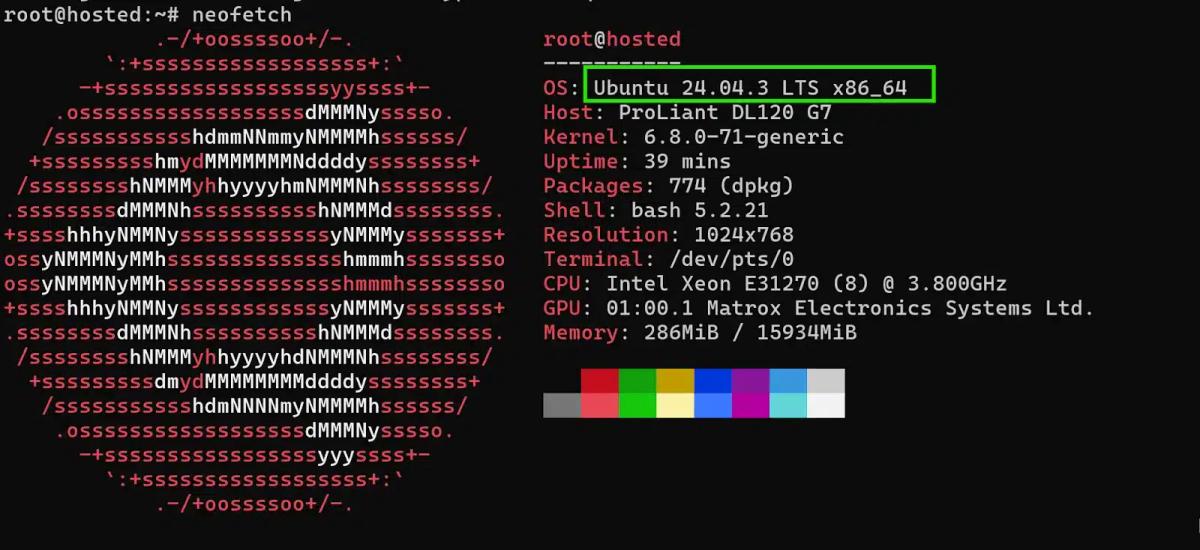
The output displays your Ubuntu version alongside other system stats like your CPU, memory, and kernel version.
Method #3: Check Ubuntu Version Using lsb_release Command
The lsb_release command is a simple and common way to get detailed information about your Linux distribution from the terminal. It displays information such as the distributor ID, release number, and codename.
As a sysadmin, this is usually my go-to command. It’s fast, doesn’t require digging through files, and works on most standard Ubuntu installs right out of the box.
To check the Ubuntu version, open the terminal and execute the following command:
# lsb_release -a
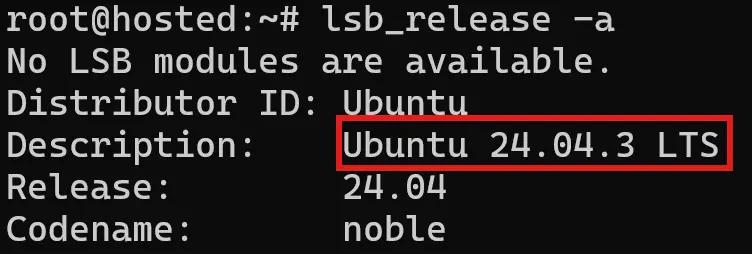
Here, the -a flag returns all available details, making it one of the fastest ways to confirm your Ubuntu version.
Method #4: Check /etc/os-release File (CLI)
Ubuntu keeps its release information in a standard text file called /etc/os-release. This file is always present on the system and is often used by scripts and services to identify the distribution.
On headless servers without extra packages, I always fall back to /etc/os-release. In almost all cases. it’s guaranteed to be there, making it the most reliable choice for scripts and automation.
To display the contents of the /etc/os-releasefile, run the following command:
# cat /etc/os-release
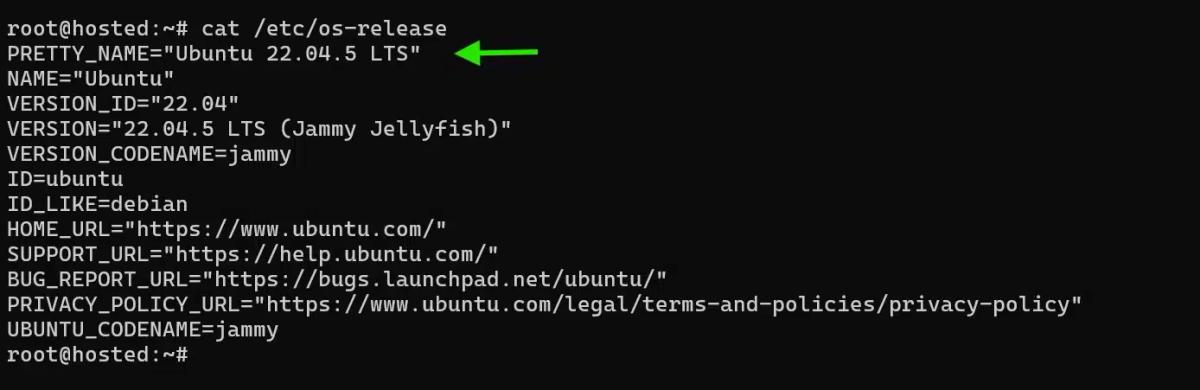
The output displays information such as:
- NAME and PRETTY_NAME: Displays the distribution name
- VERSION and VERSION_ID: Shows the exact release
- CODENAME: Each Ubuntu release is assigned a unique codename for easy reference
- HOME_URL and SUPPORT_URL: Point to Ubuntu’s official resources.
Method #5: Use hostnamectl (CLI)
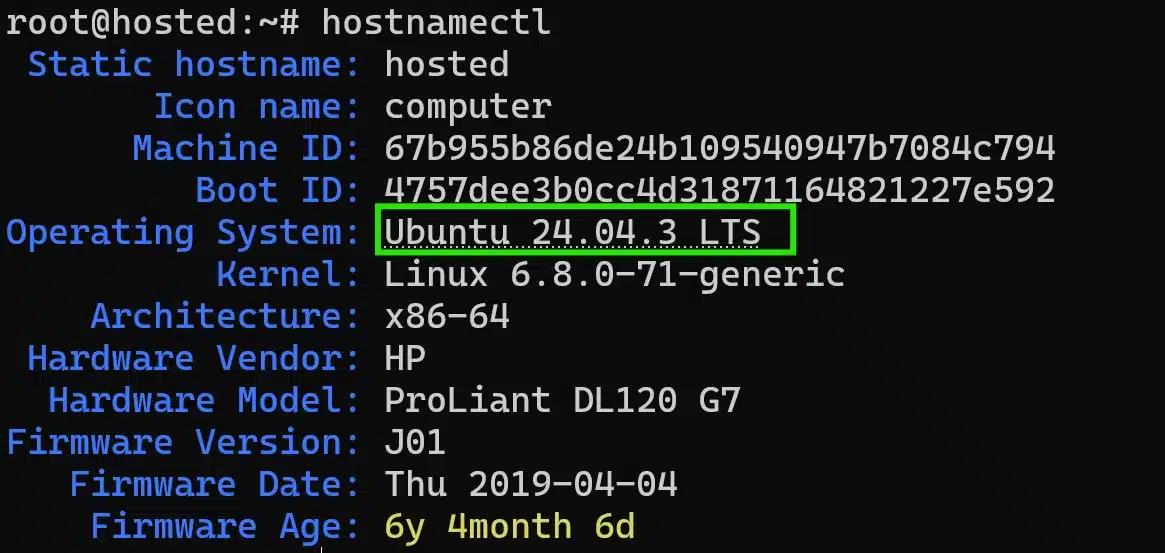
The hostnamectl command is primarily used for managing system hostnames, but is also used to display operating system details such as the version number.
Personally, I use hostnamectl when I need both OS version and hardware details in one shot. This is especially helpful when auditing multiple machines remotely.
To display the Ubuntu version, open the terminal and execute the following command:
# hostnamectl
The following table summarizes the most common methods to check your Ubuntu version, along with the key reasons to use each one.
| Method | Why Use It? |
|---|---|
| GUI | Quick system overview: Ubuntu version, device name, memory, CPU, and graphics in one place. User-friendly: no need for terminal commands. Easy documentation: take screenshots or notes directly. Great for managing multiple systems visually. |
| Neofetch | Displays Ubuntu version along with CPU, memory, kernel, and desktop environment. Quick system overview in a single command. Useful for documenting configurations. Helps track multiple servers without searching through files. |
| lsb_release Command | Simple and direct. Works on most Ubuntu installations without extra setup. Perfect for quickly checking release details |
| /etc/os-release File (CLI) | Always available, even on minimal installations. Easy to parse programmatically for automation tasks. Trusted by system services as the “source of truth.” Ideal for scripting and managing server fleets. |
| uname Command | Provides OS version, kernel, and architecture details. Useful when managing servers that need more than just release info. Often preinstalled—no extra packages required. |
Conclusion
Checking your Ubuntu version may feel like a small task, but it has a big impact on how you manage and maintain your systems. Every release carries its own support window, kernel updates, and package availability.
If you don’t know which one you’re running, you risk wasting time on outdated documentation, applying the wrong updates, or introducing compatibility problems with critical applications.
Whether you’re planning an upgrade, troubleshooting software, or following security guidance, knowing your exact release number keeps your work accurate and your systems stable.
FAQs
Q: What is the fastest way to check my Ubuntu version?
The quickest method is using the terminal command:
lsb_release -a
It instantly displays your release number and codename. For a one-line result, run lsb_release -d or read the PRETTY_NAME from /etc/os-release.
Q: Can I check my Ubuntu version without using the terminal?
Yes. On a desktop, open Settings → About to view your OS version along with device details. This GUI method works well on GNOME-based Ubuntu systems.
Q: Which command should I use in scripts to get only the version name?
For scripts, use:
cat /etc/os-release | grep PRETTY_NAME
This prints a clean line like “Ubuntu 22.04.3 LTS”, ideal for automation.
Q: Do I need sudo privileges to check the Ubuntu version?
No. Commands like lsb_release -a or cat /etc/os-release work fine without superuser access.
Q: How do I upgrade Ubuntu?
To upgrade, first update your package lists and upgrade installed packages using sudo apt update && sudo apt upgrade*,* then run sudo do-release-upgrade to move to a newer Ubuntu release. Note that it’s always a good idea to back up important data before upgrading.
Q: How are Ubuntu versions named?
Ubuntu versions follow an Adjective + Animalnaming scheme, such as Jammy Jellyfish (22.04). LTS versions are best for users seeking stability, while non-LTS versions are ideal for those who want newer features and can handle more frequent upgrades.
Manasa M
Technical Content Editor
Manasa is a Technical Content Editor at RedSwitches, known for turning complex technical concepts into clear, engaging content. With a background in copy editing, sub-editing, and technical writing, she shapes the blog's guides for accuracy, readability, and search performance.
Ubuntu vs Linux: Key Differences Explained
Linux is the kernel, while Ubuntu is a complete operating system built on it. This guide breaks down their key differences, use cases, and when to choose each.

Reduce Docker Image Size: Best Practices to Slim Your Images
Docker image size can become a serious issue as you add more code to the image. Learn how to reduce Docker image size and optimize Dockerfiles for production to speed up CI/CD pipelines and improve container efficiency.

Best Linux Distros 2026, Full Guide for Beginners, Developers, Gamers & Servers
Match your hardware, workflow, and skill to the right Linux distro in 2026. Compare 23 top picks, Mint, Ubuntu, Fedora, Arch, Bazzite, covering beginners, developers, gamers, and servers.
Power Your Next Project With Bare Metal
10 min delivery, zero setup fees, and 24/7/365 human engineers across 20+ global locations.