How to Back Up a Linux Server: Step-by-Step Guide
Server backup is often an overlooked system maintenance activity. Use this comprehensive guide to come up with an actionable strategy for backing up your Linux server.

One unexpected system crash, a natural disaster, or even a single command failure could wipe out years of hard work, customer trust, and even your business continuity.
Modern businesses generate terabytes of critical data daily, and downtime costs an average of $5,600 per minute for enterprise systems.
Therefore, the need for a comprehensive server backup strategy is a necessity. It not only helps in data recovery but also gives you peace of mind, saves your time, money, and trust.
In this tutorial, we will discuss how to back up a Linux server. We will also cover some of the recommended tools trusted by professionals and some best practices to keep your backups secure and efficient.
Why Server Backups Are Important
Server backups are foundational in every organization. It provides critical protection against a wide range of threats and ensures business continuity. The following are some of the core reasons why you need server backups.
Data Security
Server backups are essential for safeguarding data against a variety of security threats, including data breaches, ransomware attacks, and accidental deletion. If the primary data is lost or compromised, server backups allow organizations to restore data to its original state.
- Protection Against Data Breaches: Backups, when properly secured with encryption and access controls, ensure that even if production data is stolen or corrupted, a clean copy remains available for recovery.
- Ransomware Resilience: Modern ransomware often targets both live and backup data. Techniques such as immutable backups (which cannot be altered or deleted for a set period) and isolated storage (air-gapped or in a separate cloud account) are vital defenses. These measures ensure that, even if ransomware encrypts production data, backups remain untouched and can be used for recovery.
- Accidental Deletion: Human error is a common cause of data loss. Backups with versioning and retention policies allow organizations to recover accidentally deleted or overwritten files.
Disaster Recovery
Backups are the backbone of disaster recovery (DR) strategies, enabling organizations to restore operations after catastrophic events such as hardware failures, cyberattacks, natural disasters, or system corruption.
- Rapid Recovery: With robust backup systems, organizations can restore critical data and services quickly, minimizing downtime and financial losses.
- Business Continuity: An organization with a solid backup can bring back the business in a short period of time. According to the surveys, around 94 percent of companies that are hit by data loss do not survive, where 43 percent never reopening.
- Protection Against Local Disasters: Offsite or remote backups ensure that data can be recovered even if the primary site is destroyed by fire, flood, or theft
Compliance
Many industries are subject to strict regulatory requirements regarding data protection, retention, and recoverability. Server backups are often a legal necessity for compliance with frameworks such as GDPR, HIPAA, SOX, PCI DSS, and SOC 2.
- GDPR: Requires organizations to ensure the ongoing confidentiality, integrity, and availability of personal data, including the ability to restore data in a timely manner after an incident
- HIPAA: Mandates data backup and disaster recovery plans for protected health information (PHI), including encryption, access controls, and regular testing
- SOX: Requires retention and integrity of financial records, auditability, and disaster recovery capabilities
- Audit Readiness: Regulators may request evidence of backup and restore capabilities, audit logs, and data retention policies at any time. Non-compliance can result in significant fines and reputational damage
Peace of Mind
Perhaps the most undervalued but valued benefit of server backups is the peace of mind they provide to business owners, IT staff, and stakeholders.
- Confidence in Recovery: Knowing that data is regularly backed up, securely stored, and tested for recoverability allows organizations to operate with confidence, even in the face of cyber threats or operational mishaps.
- Reduced Stress: Automated, well-documented backup processes reduce the burden on IT teams and minimize the risk of human error.
- Business Reputation: The ability to recover quickly from incidents helps maintain customer trust and protects the organization’s reputation
Local vs Remote Server Backup
When designing a backup strategy for your Linux server, one of the most critical decisions you’ll make is where to store your backup data. This choice fundamentally impacts your recovery capabilities, security posture, and operational costs.
Understanding the difference between local and remote backups helps you choose the right backup plan that matches your organization’s specific needs.
Local Backups
Local backups involve storing data on physical devices within the organization’s premises, such as external hard drives, Network Attached Storage (NAS) devices, or dedicated backup servers.
Advantages of Local Backups
- Faster Recovery: Local backups allow for rapid data restoration since the data is physically close and not limited by internet bandwidth.
- Full Control: Organizations have direct control over their backup infrastructure, security settings, and access policies, which can be important for compliance and data sovereignty
- No Internet Dependency: Backups and restores can be performed without an internet connection, which is beneficial in areas with unreliable connectivity or for organizations with strict network security policies
Disadvantages of Local Backups
- Risk of Local Disaster: If backups are stored in the same location as primary data, both can be lost to events like fire, flood, or theft. This is a significant single point of failure
- Physical Access Risks: Backup devices can be stolen or tampered with if not properly secured, leading to potential data breaches or loss
- Scalability Limits: As data grows, more storage devices are needed, which can require additional physical space and regular hardware upgrades
Remote Backups
Remote backups store your data at geographically separate locations, typically through cloud storage services (AWS S3, Google Cloud Storage, Azure Blob Storage) or remote server infrastructure accessed via SSH, FTP, or other network protocols.
Pros of Remote Backups
- Offsite Protection: Data is stored in geographically dispersed, secure data centers, protecting it from local disasters and providing resilience against site-specific events
- Scalable and Automatable: Cloud backup services offer virtually unlimited storage that can be scaled up or down as needed
- Compliance Support: Many providers offer features to help meet regulatory requirements, such as audit trails, retention policies, and secure data handling
Cons of Remote Backups
- Slower Recovery: Restoring large volumes of data from the cloud can take hours or days, especially with slow connections or large datasets
- Internet Dependency: Backup and restore speeds are limited by the speed and reliability of your internet connection. If your internet connection is down, you may not be able to access or restore your data
- Ongoing Costs: Remote backup services typically charge ongoing fees based on storage used, bandwidth, and sometimes the number of users or devices. For organizations with large data volumes, these costs can add up over time
The following table summarizes the difference between local and remote backup.
| Criteria | Local Backups | Remote Backups (Cloud/SSH) |
|---|---|---|
| Speed | Faster recovery (direct disk access) | Slower recovery (download required) |
| Control | Full control over hardware/encryption | Vendor-dependent (cloud provider controls infrastructure) |
| Accessibility | No internet needed | Requires stable internet |
| Disaster Recovery | Vulnerable to local disasters (fire, theft) | Offsite protection (immune to local disasters) |
| Security | Physical access risks (theft, tampering) | Enterprise-grade security (encryption, MFA) |
| Scalability | Limited by local storage | Highly scalable (pay-as-you-go) |
| Cost | One-time hardware cost | Recurring subscription fees |
| Automation | Manual or scripted | Native automation tools (e.g., AWS Backup) |
| Compliance | Self-managed compliance | Provider-certified (HIPAA, SOC 2) |
| Best For | • Sensitive data • Air-gapped systems | Distributed teams Long-term archiving |
Choosing the Right Backup Strategy
Now, you have an understanding of various backup strategies available. However, this is not enough. Choosing the right backup strategy is crucial for balancing speed, resilience, cost, and operational complexity. The right backup strategy depends on your environment, risk tolerance, and business needs.
When to Choose Each Strategy
Local-Only Backups
- Best for: Test servers, development environments, or non-critical systems where rapid recovery is needed and the risk of site-wide disaster is low.
- Why: Local backups (e.g., to a NAS or external drive) offer the fastest restore times and are simple to manage. They are cost-effective and do not depend on internet connectivity.
- Limitations: Vulnerable to local disasters (fire, theft, hardware failure) and do not provide off-site protection. Not recommended as the sole strategy for production or mission-critical systems
Remote-Only Backups
- Best for: Cloud-native infrastructure, distributed teams, or organizations prioritizing disaster recovery and regulatory compliance.
- Why: Remote backups (e.g., cloud storage, remote SSH servers) protect against site-wide disasters and enable recovery from anywhere. They are scalable and often managed by third-party providers.
- Limitations: Restore speeds can be slow for large datasets due to bandwidth constraints. Ongoing costs may be higher, and you are dependent on internet access and provider reliability
Hybrid Backups (Recommended for Production)
- Best for: Production environments, mission-critical systems, and organizations seeking comprehensive protection.
- Why: Hybrid strategies combine the speed of local backups (e.g., NAS for fast restores) with the resilience of remote/cloud backups for disaster recovery (DR). This approach aligns with the 3-2-1 backup rule and is considered the gold standard for most businesses
What to Back Up
Deciding what data to include in your backup strategy is crucial for balancing completeness with efficiency. Not all files require the same level of protection, and including unnecessary data wastes storage space and extends backup windows
Full System Backups
Full system backups create a complete image of your entire filesystem, including the operating system, applications, configurations, and data. These backups enable bare-metal recovery, where you can restore a completely failed system to its exact previous state.
Its use cases include:
- Disaster recovery scenarios requiring complete system restoration
- Creating images for the rapid deployment of identical servers
- Compliance requirements mandating complete system state preservation
- Critical production servers where any data loss is unacceptable
Veeam, Acronis, Clonezilla, Bacula, Windows Server Backup, dd, and fsarchiver are some of the full-backup tools you can use.
Directory-Level Backups
Directory-level backups focus on specific filesystem locations containing critical data, configurations, or applications. This targeted approach reduces backup sizes and enables more frequent backup schedules.
Some of the essential directories to back up are:
- /etc/: System and application configuration files.
- /var/www/: Web server content and application code.
- /home/: User data and personal configurations.
- Database Dumps: Rather than backing up raw database files (which can be inconsistent), create logical dumps using database-specific tools like mysqldump, pg_dump, or mongodump.
The directory-level backup allows for quick recovery of specific data or configurations without restoring the entire system. It is ideal for frequent, incremental backups and granular restores
Exclude Unnecessary Files
Excluding certain directories and file types from backups improves efficiency and reduces storage requirements while avoiding potential issues with special filesystems.
Some of the common files that are always excluded include:
- /proc/: Virtual filesystem, dynamically generated by the kernel.
- /sys/: Kernel and device information, not persistent.
- /tmp/: Temporary files, cleared on reboot.
- /mnt/, /media/: Mount points for external/removable media, may contain transient data
You can also consider excluding:
- Log files older than your retention policy
- Cache directories (/var/cache/, ~/.cache/)
- Temporary build artifacts
- Large media files are stored elsewhere
- Virtual machine disk images are backed up separately
| Backup Type | Description | Use Cases | Examples / Tools |
|---|---|---|---|
| Full System Backups | Creates a complete image of the entire filesystem (OS, applications, configs, and data). Supports bare-metal recovery to restore the system to its exact state. | Disaster recovery requiring full system restoration Rapid deployment of identical servers Compliance requiring full system preservation Critical production servers with zero tolerance for data loss | Veeam, Acronis, Clonezilla, Bacula, Windows Server Backup, dd, fsarchiver |
| Directory-Level Backups | Focuses on specific directories containing critical data/configs. Smaller size, allows frequent backups and faster restores. | Protecting critical directories like: /etc/ – config files /var/www/ – web server data /home/ – user files Database dumps (mysqldump, pg_dump, mongodump) Frequent incremental backups and gran | rsync, tar, borgbackup, database dump tools |
| Exclude Unnecessary Files | Skips non-essential or temporary data to improve efficiency and save storage. Prevents issues with special filesystems. | Exclude system-generated or transient files: /proc/, /sys/, /tmp/, /mnt/, /media/ Exclude older log files, caches (/var/cache/, ~/.cache/), build artifacts Large media files or VM images stored separately | Configured within backup tools (exclude lists/patterns) |
Understanding the 3-2-1 Backup Rule
This is one of the golden rules followed across industries to ensure data protection through redundancy.
3 Copies of Your Data
This means always keep 3 copies of the data, where one is the primary copy (your working data) and two are backup copies stored on two different media. So in case of any failure, you have access to the backup even if one backup becomes corrupted or inaccessible.
2 Different Media Types
This indicates that store backups are on at least two different types of storage media. This can be either hard drives, SSDs, tapes, or cloud storage. This protects against media-specific failures, such as all hard drives in a RAID array failing simultaneously, or a specific storage technology becoming obsolete. We always recommend combining hard drives, SSDs, and tapes with cloud storage.
1 Copy Offsite
Keep at least one backup copy in a geographically separate location. So that if any disasters, such as a flood, fire, or theft, affect your primary facility and local backups, you’ll still have at least one intact copy stored safely elsewhere.
Configure Backup Settings
Why configure the backup setting can cross your mind when reading this. The purpose of configuring backup settings is to make sure your backups run reliably, efficiently, and in line with your recovery needs. If you don’t configure them, you risk having incomplete, outdated, or even unusable backups.
We will list out some of the configuration settings you can make.
Schedule
The frequency of backups, whether daily, weekly, or real-time, depends on your Recovery Point Objective (RPO).
RPO defines the maximum amount of data you can afford to lose in case of a failure. For example, if your RPO is 15 minutes, it means that losing more than the last 15 minutes of customer data is unacceptable. To meet this requirement, the business must schedule backups at least every 15 minutes.
For critical production systems, databases, and environments where losing more than 24 hours of data would be unacceptable, daily backups are recommended. Similarly, for development systems, test environments, and non-critical services where some data loss is acceptable, weekly backups are fine.
However, in the case of mission-critical systems where even minimal data loss is unacceptable, such as fintech systems, real-time backups are indispensable.
Backup Type
Primarily, there are two types of backup:
- Full Backup
- Incremental Backup
- Differential Backup
Full Backup
Full backups are a complete copy of all selected data, regardless of previous backup history.
The pros and cons of full backups are:
Pros
- Fastest recovery time (single restore operation)
- Self-contained (no dependency on other backups)
- Simplest to manage and verify
Cons
- Largest storage requirement
- Longest backup window
- Most network bandwidth consumption
Incremental Backups
Backs up only files that have changed since the last backup (whether full or incremental).
Its advantages and disadvantages include the following:
Pros
- Minimal storage requirements
- Fastest backup completion
- Efficient use of network bandwidth
Cons
- Slower recovery (may require multiple backup sets)
- More complex management
- Higher risk if any backup in the chain is corrupted
Differential Backup
Unlike full and incremental backups, differential backups all data changed since the last full backup. Its pros and cons are:
Pros
- Faster recovery than incremental (only requires full + latest differential)
- Less complex than incremental chains
- Good balance of storage and recovery speed
Cons
- Larger storage requirements than incremental
- Backup size grows throughout the backup cycle
- Slower than incremental for backup completion
Retention Policy
Retention policies define how long backups are kept before deletion to balance recovery needs and storage costs.
For instance, some retention policies that can be implemented are:
- Keep daily backups for 30 days
- Keep weekly backups for 12 weeks
- Keep monthly backups for 12 months
- Keep yearly backups for regulatory requirements
We can use backup software features to automatically delete old backups according to your policy and prevent storage wastage.
Encryption
Encryption is a key important security practice to protect backup data from unauthorized access, both at rest and in transit. You can use strong, industry-standard algorithms (e.g., AES-256 for data, RSA-4096 for key management) as well as tools like GPG or OpenSSL to encrypt backup files or archives.
The best practices you can follow are:
- Use strong passwords or key files
- Store encryption keys separately from backups
- Test decryption procedures regularly
- Consider secure key management solutions for enterprise environments
Compression
Compression reduces storage requirements and transfer times, particularly important for large datasets and bandwidth-limited connections.
Some of the compression options are:
- gzip: Good balance of speed and compatibility.
- xz: Highest compression, but slowest; best for archival.
- zstd: Modern, very fast, and highly tunable; often the best choice for server backups
You can choose compression based on your priorities: use zstd for daily backups requiring speed, xz for archival backups prioritizing storage efficiency, and gzip for maximum compatibility across different systems.
Now that you have an understanding of backup, let us see how to back up a Linux server.
How To Back Up a Linux Server
Linux server can be backed up in several ways:
- Manual backups using tar and rsync.
- Automated backups with cron jobs.
- Remote backups via SSH.
Let us see each of them in detail.
Before choosing any method, always start by checking the available disk space to ensure you have enough storage for your backup.
Check Available Disk Space
Before creating backups, make sure the backup drive or partition has sufficient free space to store all the data you plan to back up.
You can check the disk space availability with the following command:
# df -h
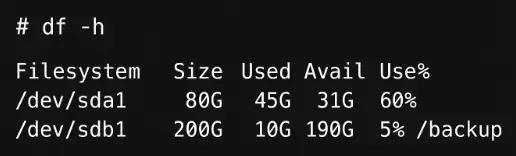
The output displays the available space.
In this case, /backup is the designated backup partition, and it has 190 GB free, which is sufficient to store backups.
Now, let us see each method in detail.
Method #1: Manual Backups with tar and rsync
The tar command is a powerful archiving utility in Linux. It can compress multiple files into a single archive, making it ideal for creating full system or directory backups.
The basic tar command to back up the /home directory is:
# sudo tar -czvf /backup/home-backup-$(date +%F).tar.gz /home
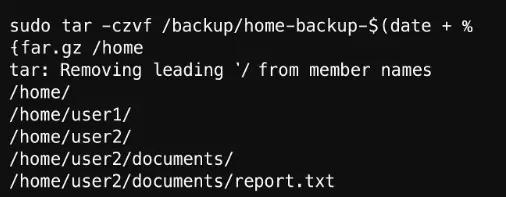
Here,
- -c: Creates a new archive.
- -z: Compresses the archive usingg-zip.
- -v: Verbose output, shows the progress.
- -f: Specifies the filename of the archive
This creates a compressed backup of the**/home** directory with today’s date.
Now, let us see how to back up a Linux server using the rsync utility.
rsync is a versatile tool for syncing files and directories. Its key advantage is efficiency, as it only copies the files that have changed since the last backup. This is much faster than tar for subsequent backups.
For instance, if you want to back up critical directories (/etc,/var/www, /home) to the /backup partition, run the following command:
# sudo rsync -avz /etc /var/www /home /backup/
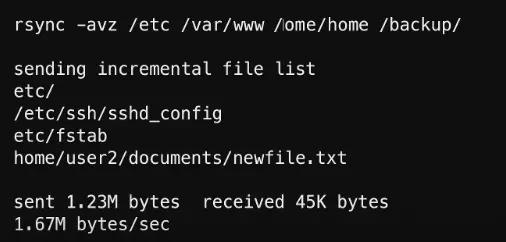
Here,
- -a: Archive mode, which preserves permissions, ownership, and symbolic links.
- -v: Verbose output, shows what files are being copied.
- -z: Zips files during transfer to reduce bandwidth.
This command will copy the specified directories into /backup/, creating an efficient and reliable snapshot of configurations, web data, and user files.
Method #2: Automate Backups with cron
Manual backups are not sustainable. A better approach is to automate them using a cron job, which schedules commands to run at specific intervals.
To schedule a daily backup, first open your crontab file with the following command:
# crontab -e
Then, add a line to run your rsync command at a specific time. Here, we will take the example of running a backup every day at 2:00 AM.
# 0 2 * * * rsync -avz /etc /var/www /home /backup/ >> /var/log/backup.log 2>&1
Here,
- **0 2 * * ***: This is the time and date specification. It translates to minute 0, hour 2 (2:00 AM), every day of the month, every month, and every day of the week.
- >> /var/log/backup.log 2>&1: This redirects the output of the command to a log file.
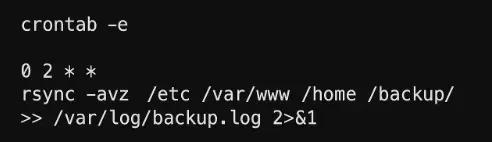
Now backups run automatically at 2 AM every day.
Method #3: Remote Backup Over SSH
For a robust backup strategy, you should follow the 3-2-1 backup rule, which we have mentioned in our previous sections. For quick understanding 3-2-1 backup rule means backing up three copies of your data, on two different media, with one copy off-site.
rsync over SSH is the perfect tool for the off-site part, as it allows you to securely transfer files to another server.
For instance, to back up /var/wwwto a remote server at 192.168.1.100, execute the following command:
# rsync -avz -e ssh /var/www [email protected]:/remote-backup/

Verify Backup Integrity
Once you have backed up your data, it is important to verify it, as corrupted data is useless. Therefore, it is critical to verify them regularly.
For tar archives, you can list the contents of a tar file without extracting it. This shows if the files are accessible.
# tar -tzf /backup/home-backup-2025-08-17.tar.gz | head
Now, in the case of rsyn backups, use the –dry-run (-n) option.
This will simulate a sync, showing you the differences between the source and destination directories without actually copying.
# rsync -avnc /home /backup/home
Restore Data from Backup
Now imagine your system crashes and you need to restore the backup.
To restore the backup using tar, run the following command:
# sudo tar -xzvf /backup/home-backup-2025-08-17.tar.gz -C /
Here, the -x option extracts the files.
If you want to restore from rsync, just reverse the source and destination paths
# sudo rsync -av /backup/home/ /home/
Note the trailing slash after /backup/home/ is important. If you omit it, rsync will create a new /home directory inside your existing /home directory.
Server Backup and Restore Best Practices
Implementing robust backup and restore best practices is essential for ensuring data integrity, minimizing downtime, and maintaining business continuity.
Below are some of the server backup and restore practices you can follow:
Test Your Backups
Regularly testing your backups is an important step in any effective backup strategy. Simply having backups is not enough; without verification, you cannot be certain that your data can be restored when needed.
Industry standards recommend testing backups at least annually as a minimum, but more frequent testing (quarterly or monthly) is advised for larger organizations or those in regulated industries. Always test after major infrastructure or policy changes.
Some of the types of testing are:
- Plan Review: Ensure your disaster recovery (DR) plan is up-to-date and all stakeholders understand their roles.
- Walk-Throughs and Tabletop Exercises: Conduct structured discussions and scenario-based reviews to identify gaps.
- Mock and Parallel Testing: Perform small-scale or parallel tests to validate specific components without impacting production.
- Full Failover Testing: Periodically execute a complete failover to a DR site to validate end-to-end recovery.
While conducting restore testing, it is best to restore backups to a sandbox or isolated test environment and verify that the system or application is fully functional. Always test both granular (file-level) and full system restore. You can also use backup solutions with automated test restore or verification features to reduce manual effort and ensure consistency.
Simulate a Restore
Simulating a restore is essential to verify both your team’s readiness and the system’s reliability. It ensures that data can be successfully restored under pressure.
Key points to note:
- Restore Scenarios: Simulate a variety of incidents, such as hardware failure, ransomware attacks, accidental deletions, or complete data center loss
- Isolated Test Environments: Always perform restore simulations in a dedicated, non-production environment to avoid disrupting live systems
- Tools and Automation: Modern backup platforms (e.g., Veeam, Commvault, Rubrik, Zerto) offer automated restore testing, spinning up virtual machines or systems in isolated labs to verify recoverability and application functionality
- Validation: After restoring, verify data integrity and application operability. Involve application owners to confirm that restored systems meet business requirements
- Documentation: Record every step, outcome, and lesson learned to refine your procedures and improve future tests
Regularly Verify Hashes or Logs
Ensuring the integrity of your backups is critical to prevent silent data corruption or undetected tampering.
Hash Verification:
- Generate cryptographic hashes (e.g., SHA-256) for backup files at the time of backup.
- Store these hashes securely and recalculate them during restore or periodic audits.
- A match confirms data integrity; a mismatch signals corruption or tampering
- Many backup solutions automate this process; command-line tools like sha256sum or md5sum can be used for manual checks.
Log Analysis:
- Regularly review backup job logs and system event logs for errors, warnings, or anomalies.
- Use log monitoring tools (e.g., Splunk, ELK Stack) to automate detection of failed backups, hash mismatches, or unauthorized access
- Set up alerts for critical events and retain logs for compliance and forensic analysis
We recommend using both hash verification and log analysis for a comprehensive integrity check, as recommended by NIST and other industry standards.
Stagger Jobs to Reduce Load
Running all backup jobs simultaneously can overwhelm system resources, degrade performance, and increase the risk of backup failures.
- Off-Peak Scheduling: Schedule backups during periods of low system usage (e.g., overnight or weekends) to minimize impact on users
- Staggered Start Times: Assign different start times to backup jobs, especially in environments with multiple servers or large datasets.
- Grouping and Prioritization: Back up critical systems first, followed by less critical data. Use tiered backup windows based on data importance
- Incremental and Differential Backups: Use these methods to reduce the size and duration of backup jobs, staggering full backups to avoid resource spikes
- Resource Throttling: Limit the bandwidth, CPU, or IOPS that backup jobs can consume to prevent system overload
- Monitoring and Adjustment: Continuously monitor backup performance and adjust schedules as needed to optimize resource usage
Document Your Policy and SOPs
Comprehensive documentation is the backbone of a reliable backup and restore strategy. It ensures consistency, accountability, and compliance.
Clear documentation should enable a novice developer to restore the backup without much assistance.
The backup policy should include the following details:
- Overview and Purpose: The intent and objectives of your backup policy.
- Scope: Systems, data types, and personnel covered.
- Roles and Responsibilities: Who is responsible for backups, monitoring, validation, and restoration
- Backup Methods and Schedules: Types of backups (full, incremental, differential), frequency, and storage locations
- Retention and Rotation: How long backups are kept and when they are rotated or deleted
- Security Controls: Encryption, access controls, and physical security measures
- Testing and Validation: Procedures for regular backup and restore testing
- Recovery Procedures: Step-by-step instructions for restoring data, including RTO and RPO targets
- Revision History: Track updates and approvals
The following table summarizes the best practices to follow for backup and restoration.
| Practice | Key Actions | Benefits |
|---|---|---|
| Test Your Backups | Regular, automated, and manual restore tests | Ensures recoverability, builds confidence |
| Simulate a Restore | Restore in isolated environments, document results | Validates DR readiness, identifies gaps |
| Verify Hashes or Logs | Use hash checks and log analysis, automate alerts | Detects corruption/tampering early |
| Stagger Jobs to Reduce Load | Schedule backups off-peak, stagger start times, monitor performance | Prevents resource contention, improves reliability |
| Document Policy & SOPs | Maintain clear, detailed, and accessible documentation | Ensures consistency, compliance, and rapid response |
Conclusion
For an effective server backup, both a comprehensive plan and consistent practice are necessary. Just having sophisticated tools without regular testing and validation is worthless.
Implement a hybrid strategy that combines local storage for rapid recovery with remote backups for disaster protection, leveraging the 3-2-1 rule as your foundation. In addition, automating the backup process improves efficiency and removes manual errors.
FAQs
What is the best way to back up a Linux server?
The most common tools are rsync for efficient incremental backups and tar for compressed archives. Enterprises may prefer solutions like Bacula, Veeam, or cloud-native backups (AWS S3, Google Cloud).
How often should I back up my server?
It depends on criticality. Production servers may need hourly or daily backups, while personal or dev systems can be backed up weekly. Base your schedule on your Recovery Point Objective (RPO).
Where should I store Linux backups?
Always store backups on a separate device or remote/cloud location. Local-only backups are fast but risky; hybrid (local + cloud) follows the 3-2-1 rule and provides the strongest resilience.
How do I automate backups on Linux?
You can use cron jobs to schedule commands like rsync or tar at fixed times. Consider this example:
0 2 * * * rsync -avz /etc /var/www /home /backup/
This runs every day at 2 AM.
How do I test and restore Linux backups?
For tar: tar -tzf backup.tar.gz | head
For rsync: rsync -avnc /source /backup/ (dry run)
To restore:
Tar: sudo tar -xzvf backup.tar.gz -C /
Rsync: sudo rsync -av /backup/home/ /home/
Can I back up a live Linux server without downtime?
Yes. For filesystems, rsync works while services run. For databases (MySQL, PostgreSQL), use tools like mysqldumpor pg_dump to ensure consistency.
Sonika Bhusanur
Linux System Administrator
Sonika Bhusanur is a Linux System Administrator at RedSwitches, responsible for the day-to-day operation and security of production servers. She works hands-on across Linux environments to keep hosting infrastructure stable and performant.
Ubuntu vs Linux: Key Differences Explained
Linux is the kernel, while Ubuntu is a complete operating system built on it. This guide breaks down their key differences, use cases, and when to choose each.

Reduce Docker Image Size: Best Practices to Slim Your Images
Docker image size can become a serious issue as you add more code to the image. Learn how to reduce Docker image size and optimize Dockerfiles for production to speed up CI/CD pipelines and improve container efficiency.

Best Linux Distros 2026, Full Guide for Beginners, Developers, Gamers & Servers
Match your hardware, workflow, and skill to the right Linux distro in 2026. Compare 23 top picks, Mint, Ubuntu, Fedora, Arch, Bazzite, covering beginners, developers, gamers, and servers.
Power Your Next Project With Bare Metal
10 min delivery, zero setup fees, and 24/7/365 human engineers across 20+ global locations.