
The Server Panel
Every server has its own panel, so day to day management never needs a ticket. Power, reinstall, rescue, console, traffic and reverse DNS are all a click away.
The servers list
Section titled “The servers list”Select Servers in the sidebar. The list shows each server’s name, hardware summary, IP address, location, status and renewal date.
- Filter by hostname, IP address or location.
- Tabs switch between Active, Suspended, Canceled and All.
- The menu at the end of each row gives quick access to Manage, Copy IP address, Networking and reverse DNS, Reboot, Reinstall OS and Rescue mode.
The header
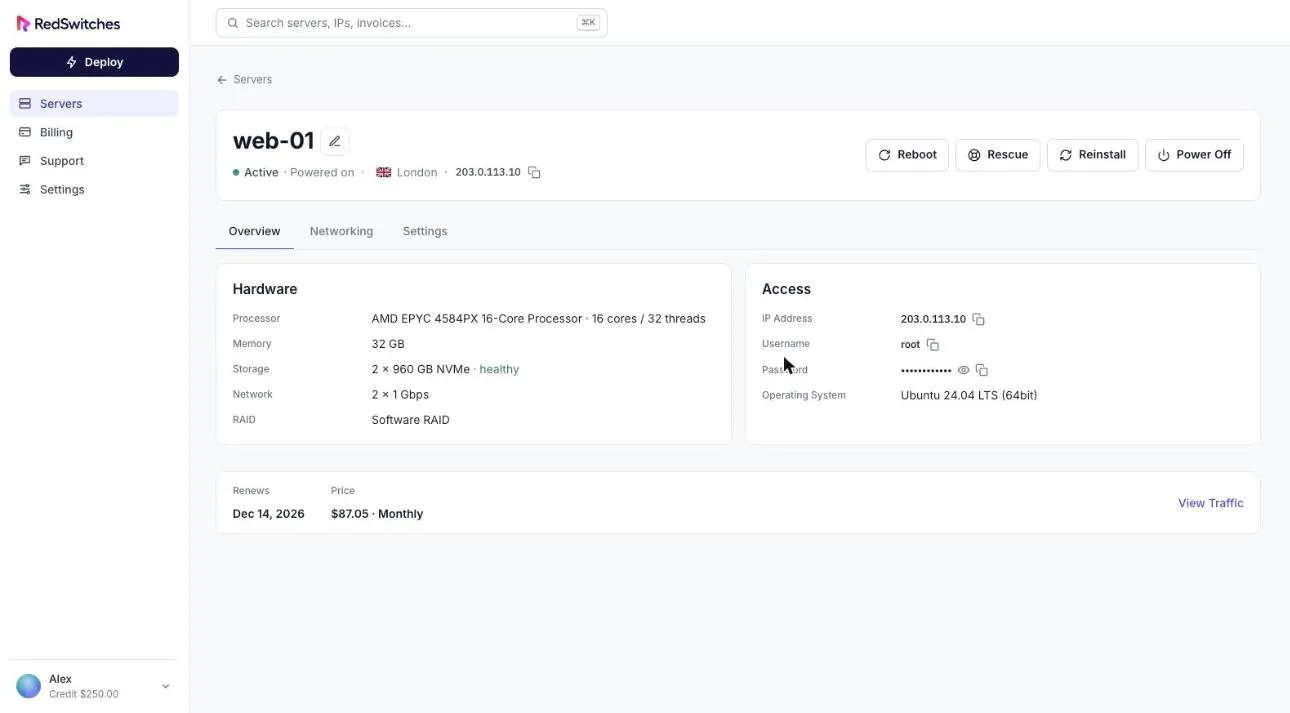
Section titled “The header”Opening a server shows its name, status, power state, location and IP address, with four actions on the right: Reboot, Rescue, Reinstall and Power Off. See Power actions, Rescue mode and Reinstall.
To rename a server, select the pencil icon beside its name.
Overview
Section titled “Overview”- Hardware: processor, memory, storage and, where reported, network ports and RAID type.
- Access: IP address, username, password and operating system, each with a copy button. The password is hidden until you reveal it.
- Billing summary: renewal date and price, with a View Traffic link.
Networking
Section titled “Networking”Port details, bandwidth graphs, data usage and IP addresses with reverse DNS. See Bandwidth and usage and Reverse DNS.
Console
Section titled “Console”Opens the server’s screen and keyboard in your browser. See Remote console. This tab appears on servers that support it.
Settings
Section titled “Settings”Shows the server name, plan, price, renewal date and the date it became active, along with Cancel This Server. See Cancel a server.