
Deploy Your First Server
A RedSwitches server goes from order to online in about 3 minutes. There is no sales call and no setup ticket: you choose a server, configure it and pay, and the platform installs it while you watch.
The four steps are Choose, Configure, Review & pay and Deploy. For in-stock servers the whole installation is automatic.
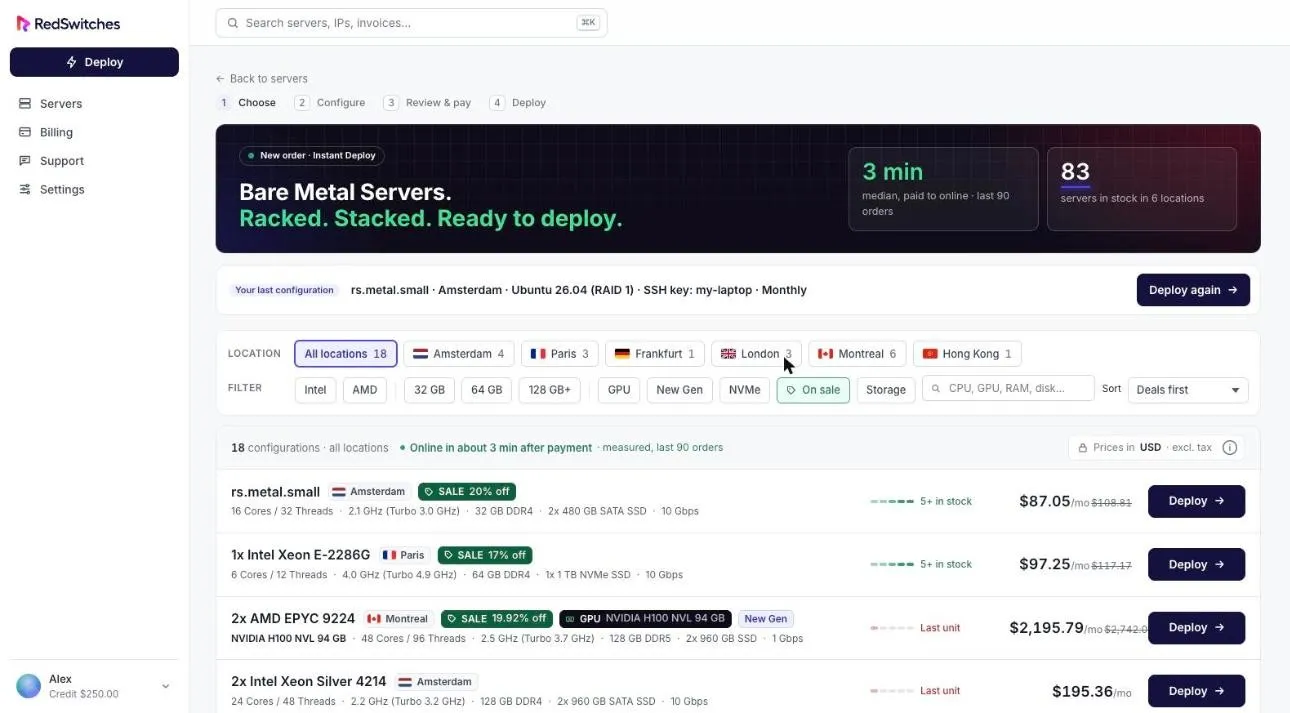
About 3 minutes, measured
Section titled “About 3 minutes, measured”This is a published figure, not a promise in small print. The Deploy page shows the median time from payment to online over the last 90 orders, and at the time of writing it reads 3 minutes.
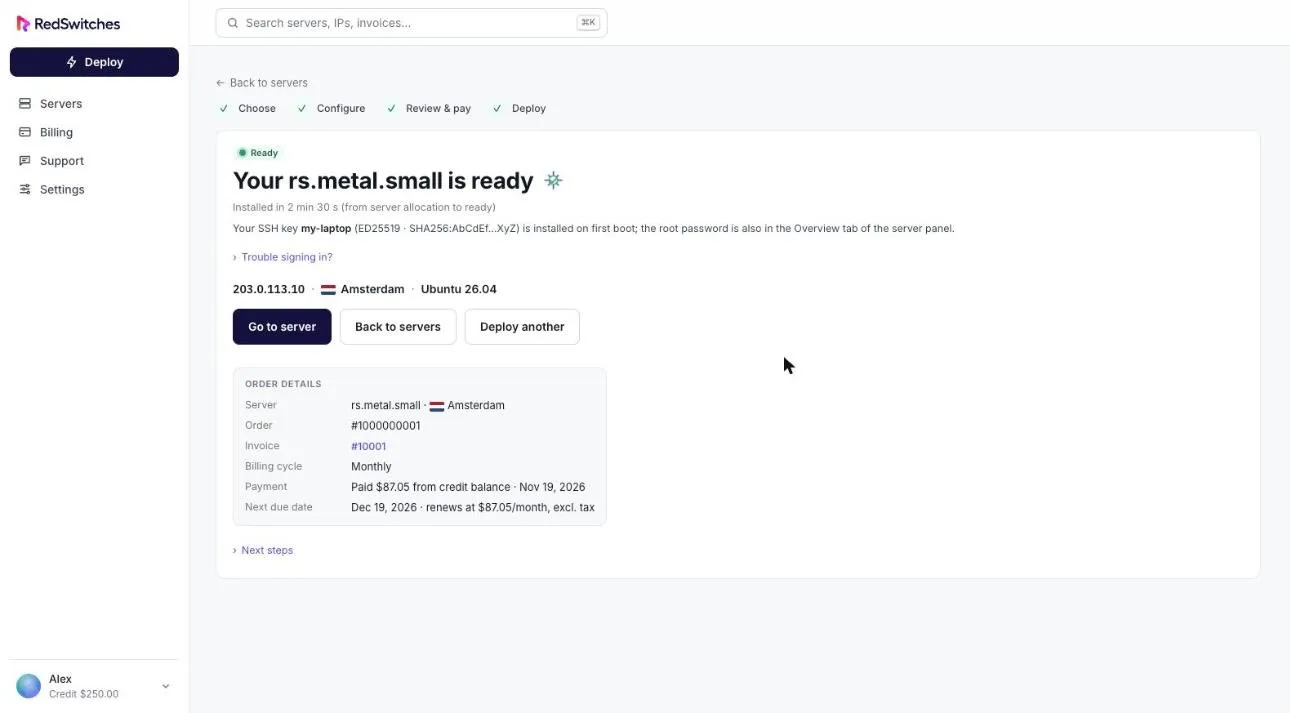
In a test deployment on 19 November 2026 (Amsterdam, Ubuntu 26.04, RAID 1), the portal reported the server installed in 2 minutes 30 seconds from allocation to ready, and it answered over SSH within 3 minutes of payment.
Before you start
Section titled “Before you start”- Sign in to the client portal.
- Have a payment method ready, or enough credit balance to cover the first invoice.
- Optional: have an SSH public key to hand. You can also save keys in advance.
Deploy
Section titled “Deploy”-
Choose a server. Select Deploy in the sidebar. Filter the list by location or hardware, then select Deploy on the configuration you want. Each row shows its specifications, stock level and monthly price.
-
Configure it. Pick an operating system, version and RAID layout, choose how you will log in (a saved SSH key, a new key, or no key), select a bandwidth option and a billing cycle. The summary on the right updates as you go.
-
Review and pay. Check the order, choose a payment method, accept the Terms of Service and select Deploy now. If you have credit balance it is applied to the invoice automatically.
-
Watch it deploy. The deployment page tracks each stage live: payment received, server allocated, server assigned, the three OS installation steps, and finalizing. An installation log runs alongside. You can close the page at any time; the server appears under Servers when it is ready.
When it is ready
Section titled “When it is ready”The page changes to Your server is ready and shows the IP address, location, operating system and how long the installation took. From there select Go to server to open its panel.
Next: connect to your server.
For every option in each step, see Deploy a server.