
Reinstall the Operating System
Reinstall a server yourself whenever you need a clean start, without contacting support. Reinstalling erases the server and installs a fresh operating system. You keep the same server, IP addresses and reverse DNS.
Reinstall
Section titled “Reinstall”- Open the server and select Reinstall.
- Choose an operating system and version. The version currently installed is marked.
- Choose a disk layout: no RAID, RAID 0 or RAID 1.
- Optional: set a hostname and paste an SSH public key, one key per line.
- Optional: expand Custom Partitions to define your own layout.
- Tick the box confirming that all data will be erased, then select Reinstall.
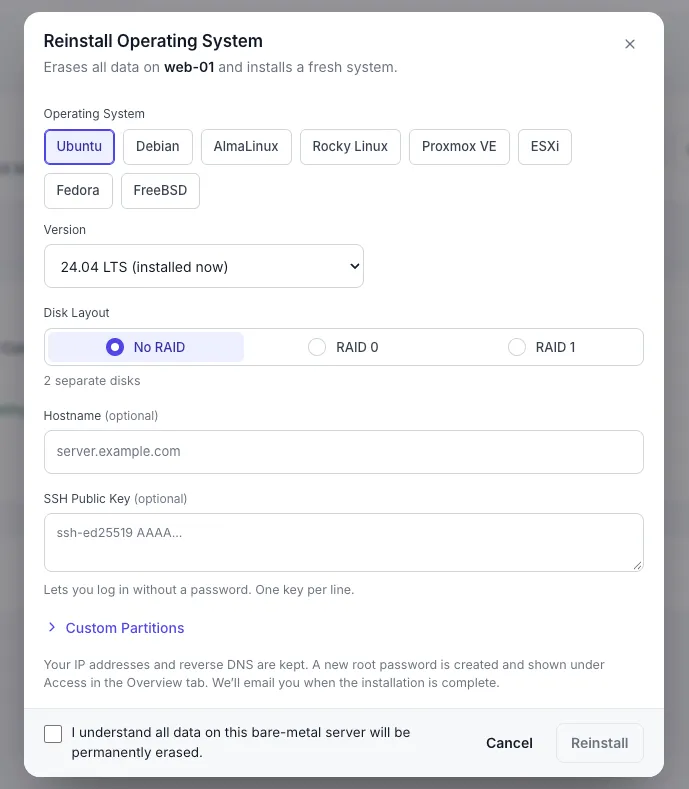
Operating systems
Section titled “Operating systems”Ubuntu, Debian, AlmaLinux, Rocky Linux, Proxmox VE, ESXi, Fedora and FreeBSD.
Custom partitions
Section titled “Custom partitions”Leave this section alone to use the default layout. To customize, give each partition a mount point, a size in MB and a filesystem. Use * as the size to take the rest of the disk. Select Add Partition for more rows.
After the reinstall
Section titled “After the reinstall”- Your IP addresses and reverse DNS are kept.
- A new root password is created and shown under Access on the Overview tab.
- You receive an email when the installation is complete.