What is Server Virtualization? Complete Guide with Types, Benefits, and Best Practices
Server virtualization enables multiple virtual machines to run on a single physical server, maximizing hardware efficiency, reducing costs, and enhancing scalability, security, and disaster recovery across modern IT environments.
Imagine managing over 100 plus physical servers spread across departments in your organization. You can imagine the increased hardware costs, high maintenance costs, and expensive data center space for housing these servers.
Now, imagine consolidating these physical servers onto just 12 high-performance host servers, each running multiple virtual machines.
This solution is called server virtualization. This transformation dramatically reduces hardware costs, improves resource utilization, and simplifies overall server management.
In this tutorial, we’ll discuss what server virtualization is, the different types, the VM lifecycle, and best practices for implementing it in your business environment.
Let’s start by understanding the fundamentals.
What is Server Virtualization?
Server virtualization is a technology that partitions a single physical server into multiple isolated virtual servers using specialized software.
It utilizes the physical server’s hardware to create multiple independent virtual instances, known as virtual machines (VMs).
Each virtual server operates independently, running its own operating system and applications, managed by a hypervisor.
I always use the apartment building analogy when I explain server virtualization.
Think of an apartment building where each unit is allocated to a tenant (an individual or family) by the building owner. Each apartment has its own space, utilities, and privacy, but they all share the same underlying structure and infrastructure.
In the case of server virtualization, each apartment is a dedicated virtual server, and the building is the physical server. The hypervisor acts as the building owner, allocating resources to each virtual machine.
In my years of experience, I view server virtualization as a key revolution that has become the backbone of modern cloud computing. It is what allows cloud providers to share their huge server infrastructure among thousands of customers, including scaling and downsizing resources as needed.
How Server Virtualization Works
Server virtualization relies on a specialized software layer called the virtualization layer or hypervisor, which sits between the physical hardware and the virtual machines. When I deploy these systems, I’m creating a virtualization layer that intercepts all requests from virtual machines to the underlying hardware.
When a virtual machine needs to access the CPU, memory, or storage, it doesn’t communicate directly with the physical components. Instead, the virtualization layer intercepts these requests and translates the virtual machine’s requests into commands that the actual physical hardware can understand and execute.
What’s fascinating is how the virtualization layer emulates physical hardware for each VM, making each one believe it has its own dedicated server, CPU, RAM, network interface, and storage devices.
All of this is made possible by the hypervisor. The hypervisor manages the creation, execution, and isolation of VMs and allocates resources, enforces security boundaries, and ensures that VMs do not interfere with each other.
What is a Hypervisor?
A hypervisor, also known as a virtual machine monitor (VMM), is the software or firmware layer that enables server virtualization. As its core functionality, it creates, runs, and manages multiple VMs on a single physical server. It sits between the physical server hardware and the virtual machines and controls how resources are allocated between the virtual machines.
As a server support engineer, I can confidently say that hypervisors are the foundation of every virtualized environment.
The hypervisor ensures isolation between VMs, so that issues in one do not affect others or trigger cascading failures. It manages the distribution of CPU, memory, storage, and network resources, and enforces security boundaries between VMs.
There are two main types of hypervisors: Type 1 and Type 2. Each has its own purpose and ways of interaction.
Let’s examine each type in more detail.
Type 1 Hypervisors (Bare Metal)
This class of hypervisors runs directly on the physical server, without a host operating system. Because they access hardware directly, these hypervisors introduce no operational overhead and offer consistent performance, efficiency, and security.
I always recommend Type 1 hypervisors for data centers and enterprise environments.
Over the years, I’ve implemented numerous enterprise environments using VMware ESXi, which I consider the gold standard for production environments. When I deploy ESXi, it boots directly from the server hardware and takes complete control of the physical resources. I also suggest Microsoft Hyper-V and KVM hypervisors, depending upon the client’s specifications.
Type 2 Hypervisors (Hosted)
Type 2 hypervisors are installed as applications on top of an existing operating system, like Windows or Linux. Unlike Type 1 hypervisors, Type 2 hypervisors rely on the host operating system to manage hardware resources, which can introduce some performance overhead.
I recommend Type 2 hypervisors for desktop virtualization, development, and testing scenarios, where ease of use and flexibility take precedence over performance. I frequently use VirtualBox for training environments as it’s free, cross-platform, and simple to manage. However, for more advanced features, I use VMware Workstation.
Types of Server Virtualization
Server virtualization can be broadly categorized into three primary types, each suited for distinct use cases.
Full Virtualization
Full virtualization simulates server hardware to create a full virtual environment for each VM. The operating system runs as if it is on dedicated physical machines. The operating system functions as if it were installed directly on physical hardware. VMware ESXi and Microsoft Hyper-V are two popular hypervisors that support full virtualization.
Key features of full virtualization include:
- Creates a complete hardware environment replication
- Supports unmodified operating systems
- Provides complete isolation between VMs
- Higher performance overhead due to hardware emulation
- Uses a hypervisor to manage virtual machines and resource allocation
- Ideal for environments requiring different operating systems
- Cost-effective solution for maintaining legacy systems
- Higher resource consumption compared to other virtualization types
What I appreciate most about full virtualization is the complete isolation it provides. I’ve migrated legacy applications that were never designed for virtualization, and they run seamlessly because they interact with emulated hardware exactly as they would with physical components.
Para-virtualization
Para-virtualization is a technique where the guest operating system is modified to communicate directly with the hypervisor through hypercalls. Here, the VM is aware it’s running in a virtualized environment.
Key features of paravirtualization include:
- It requires a modified guest operating system
- Enables direct communication with the hypervisor through hypercalls
- It offers enhanced performance compared to full virtualization
- Less portable due to OS modification requirements
- Suitable for high-performance computing scenarios
- More efficient resource utilization
- Compatibility issues with certain operating systems
- Complex setup and maintenance
OS-Level Virtualization (Containerization)
OS-level virtualization, or containerization, is a distinct kind of server virtualization. Here, there’s no hypervisor; instead, multiple isolated user-space instances (containers) run on a single shared OS kernel.
The main features of containerization are:
- It creates isolated user-space instances within a single OS kernel
- More resource-efficient, as no hypervisor is needed
- Enables quick deployment and management
- All containers must use the same OS kernel, and therefore, isolation isn’t as strong as with VMs
- Perfect for microservices and cloud-native applications
- High scalability and quick deployment
- Reduced infrastructure costs
- Potential security risks due to the shared OS kernel
- Dependency issues between containers
- Minimal overhead, and therefore can run thousands of containers on a single host if needed (I do not recommend this for real-world scenarios).
The following table summarizes the three types of server virtualization.
| Feature | Full Virtualization | Para-Virtualization | OS-Level Virtualization (Containers) |
|---|---|---|---|
| Hardware Emulation | Fully emulates hardware | Partially emulates hardware | No hardware emulation; shares host OS kernel |
| VM awareness | Unaware it’s virtualized | Aware it’s virtualized | No VMs; uses isolated containers |
| OS Compatibility | Can run different OS types | Requires OS modifications | Same OS kernel as host |
| Performance | Overhead due to hardware emulation | Better than full virtualization | Very low overhead |
| Isolation | Strong isolation | Good isolation | Lower isolation compared to VMs |
| Use Cases | Enterprise data centers, cloud workloads | Hybrid environments, legacy apps | Microservices, DevOps, lightweight apps |
Lifecycle of a Virtual Machine
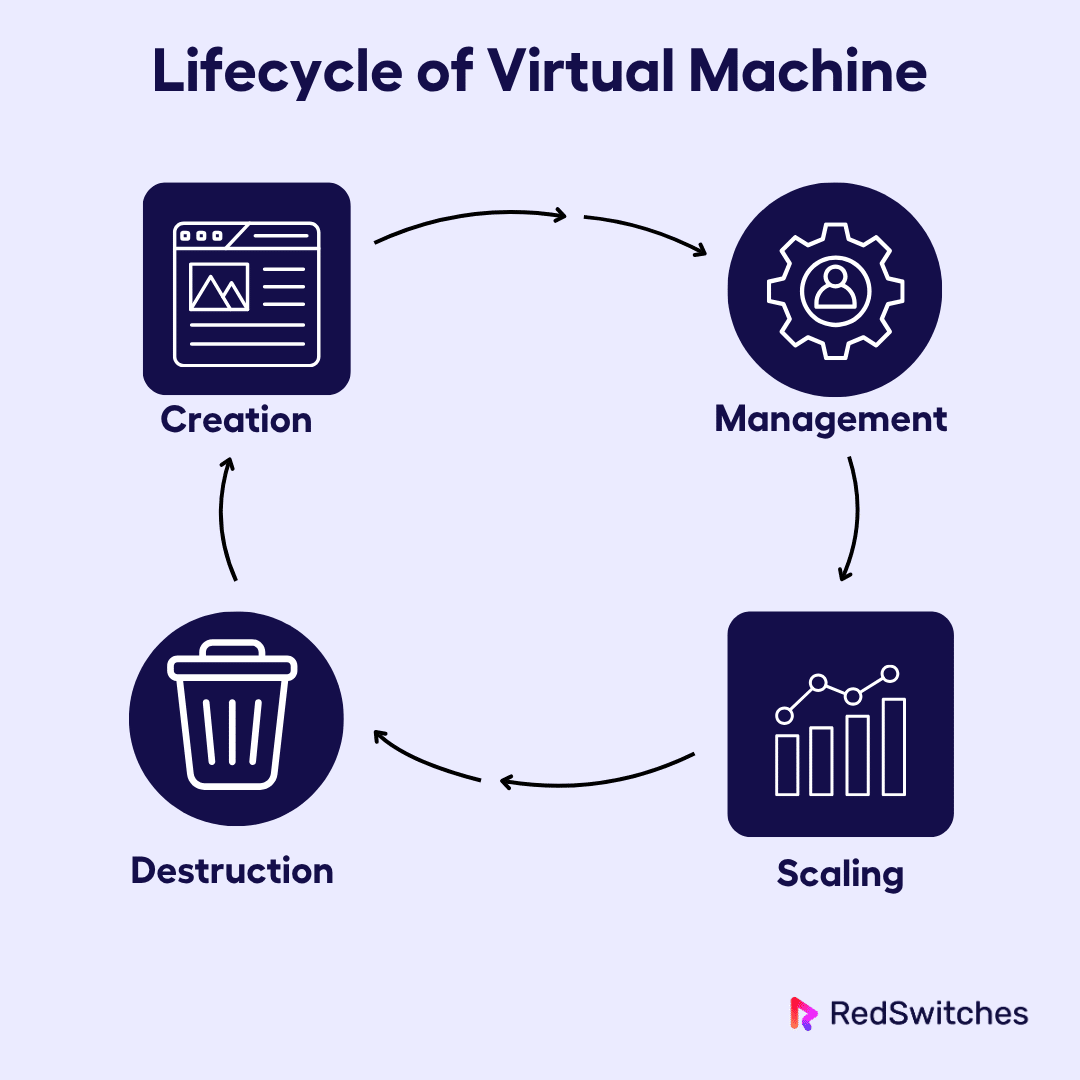
The virtual machine lifecycle closely resembles that of other virtualization environments.
Over the years, I’ve managed thousands of VM lifecycles from creation to decommissioning. Understanding the stages of this lifecycle is important for maintaining efficient, secure, and well-organized virtual infrastructure.
Creation
When creating new virtual machines, I typically use one of two approaches, depending on requirements and timeline.
For rapid deployment, I rely heavily on templates that I’ve pre-configured with standard operating systems, security patches, and baseline configurations. For instance, I use Windows Server templates for domain controllers, and Linux-based templates for setting up web servers.
Now, if the requirements are unique or if I need more granular control over the configuration, I perform manual OS installations. In this case, I create a new VM with specified hardware parameters, mount an ISO image, and go through the complete OS installation process.
Management
After deployment, I allocate CPU, RAM, and disk resources based on workload requirements. You need to monitor performance metrics continuously and adjust allocations based on actual usage patterns. Also, if you configure dynamic resource allocation, VMs can automatically use additional CPU and memory during peak periods.
I also make sure to regularly take snapshots before major changes or updates, so I can roll back if something goes wrong. I’ve used snapshots countless times to quickly recover from failed updates or configuration errors. However, snapshots can quickly pile up and you need to regularly review and delete old snapshots to optimize disk space utilization.
Scaling
During peak load, scaling resources such as CPU, RAM, and storage becomes critical to maintain performance. Fortunately, you can select from several options.
Vertical scaling involves adding more CPU cores, RAM, or storage to existing VMs.
Alternatively, in horizontal scaling, existing VMs are cloned to create additional instances. This approach is often used in load balancing or testing environments.
You can also implement automated scaling in cloud environments where VMs automatically provision based on demand metrics.
Destruction
This is the last stage where VMs are destroyed. When a VM is no longer needed, you need to follow a systematic destruction process to ensure security and compliance.
Important: Never delete virtual machines without following proper preparation steps.
First, ensure you back up any critical data. Then check that database connections are properly closed and temporary files cleaned up.
Next, remove the VM from any monitoring systems, backup schedules, and automated management tools. Before final destruction, delete all snapshots associated with the VM to free up storage space, remove any network assignments, firewall rules, and DNS entries.
Inexperienced system administrators often overlook the critical step of deleting or archiving log entries. You should either archive the logs according to the organization’s policies or securely delete the local or online logs.
Finally, maintain detailed documentation to support compliance and audits.
Benefits of Server Virtualization
Let us now discuss some of the benefits I have noticed.
Hardware Efficiency
- Virtualization maximizes hardware utilization, allowing significantly higher usage without compromising performance
- It enables efficient use of server resources, helping organizations maximize returns on infrastructure investments
- Reduced need for multiple underutilized servers
Cost Savings
- Consolidating workloads onto fewer physical servers significantly reduces hardware, energy, and maintenance costs.
- Fewer servers mean less energy consumption and cooling costs
- Reduced maintenance expenses due to fewer physical servers
- Optimized data center space
Enhanced Flexibility and Scalability
- It’s easy to add new VMs or containers as business needs grow.
- New virtual servers can be provisioned in minutes. This is a huge advantage when you’re operating in fast-paced development cycles
- Quick resource scaling and downsizing to meet demands
- Dozens of VMs can be rapidly created, tested, and decommissioned without modifying physical hardware.
Improved Disaster Recovery
- Traditional disaster recovery required duplicate hardware at remote sites. This is expensive and complex to manage.
- With server virtualization, VM replication and backup processes are simplified
- Faster system restoration during failures
- Enhanced system resilience
- VMs can be configured to automatically migrate to healthy hosts without manual intervention
- Minimal disruption to business operations during system failures
Security Benefits
- Isolated VM environments ensure that a compromise in one doesn’t affect the rest.
- VM snapshots offer security benefits by enabling quick recovery from incidents or misconfigurations
- Simplified security implementation at the hypervisor level
- Better protection against system-wide vulnerabilities
Potential Challenges of Server Virtualization
While virtualization offers numerous advantages, it also presents several challenges.
Security Vulnerabilities and Risks
- While virtualization provides many security benefits, it also introduces new attack surfaces that must be constantly monitored and defended.
- Critical security concerns, such as VM escape attacks, hypervisor vulnerabilities, data leakage, and insider threats can undermine infrastructure operations.
- A single compromised hypervisor host affects all VMs running on it.
- Difficulty in tracking and monitoring VMs due to their dynamic nature
- Vendor-specific security practices may vary in effectiveness and implementation
Licensing
- Significant licensing costs with complex fee structures
- Licensing for management tools adds another layer of complexity to virtualization projects.
- Advanced management features often require additional licensing, incurring extra costs.
- Some vendors use per-core or per-VM licensing models, which can lead to hidden costs as we scale up
Performance and Resource Management
- Minor performance or resource overhead introduced by hypervisor software
- Consolidating many physical servers into fewer virtual machines causes new management issues like provisioning, monitoring, and patching
- VMs communicate over networks, This can result in increased network latency, impacting VM performance.
- Complex resource distribution across heterogeneous workloads
Operational Complexities
- Difficult to integrate legacy systems with virtualized environments
- Increased complexity in managing both on-premises and cloud-based resources
- Risk of data loss, corruption, and extended downtime during migrations
- Managing a virtualized environment requires orchestration tools, regular patching, and thorough planning. As the number of VMs grows, complexity increases.
Is Server Virtualization Secure?
This is a critical question to address before implementation.
Security is always a top priority in virtualized environments. Based on my extensive experience securing virtualized environments, I can confidently say that server virtualization can be highly secure when implemented properly.
Security approaches for server virtualization differ significantly from those used in traditional physical environments.
Some of the specialized security practices you can follow are:
- Shared Resource Risks: Since VMs share physical resources, I use network segmentation and monitoring to detect and contain potential breaches. Implement micro-segmentation using virtual firewalls and VLANs to isolate different VM groups based on their security requirements.
- Common Security Practices: Implement strong access controls, regularly patch hypervisors and VM, and use standardized templates to ensure consistent security settings. You can deploy security information and event management (SIEM) systems to collect logs from hypervisors, VMs, and the virtual network infrastructure.
- Hypervisor Hardening: You can minimize the attack surface by disabling unnecessary services, applying security patches promptly, and following vendor hardening guides. IBegin with minimal hypervisor installations, removing unnecessary services and components that could create attack vectors.
Understanding VM Sprawl
VM sprawl is one of the most significant operational and security challenges in mature virtualized environments.
VM sprawl occurs when the number of VMs grows uncontrollably, often without proper governance or oversight. I’ve seen organizations go from a few dozen VMs to hundreds or even thousands without adequate management processes. As a result, unused virtual servers begin to clutter the infrastructure.
In my experience, the ease of creating VMs can be both beneficial and problematic without proper governance. When too many VMs are created for temporary projects and then forgotten without proper destruction, they become security liabilities and will drain resources for years. Such wasted resources could instead be allocated to productive workloads.
VM sprawl creates several serious security risks. Unpatched VMs represent the most immediate security concern. I’ve found forgotten VMs running outdated operating systems with known vulnerabilities. This could have served as an entry point for attackers.
However, automation tools can significantly reduce the frequency of VM sprawl. By implementing automated tools, VM utilization can be monitored, and underutilized or idle VMs can be identified. In addition, you can implement VM tagging and metadata management, as well as regular VM lifecycle audits.
Real-World Applications of Server Virtualization
Now you know what server virtualization is, let us now discuss some of the real case scenarios where it is used.
Cloud Service Providers (AWS, Azure)
AWS, Azure, and Google Cloud Platform are major cloud providers that rely on advanced server virtualization to deliver scalable, secure, and flexible infrastructure-as-a-service (IaaS).
For example, AWS initially used the Xen hypervisor and now leverages its custom Nitro hypervisor for improved performance and security. Azure is built on Microsoft’s Hyper-V, while Google Cloud uses KVM. These platforms allow customers to create virtual machines (VMs) on demand, supporting a vast range of workloads and operating systems.
The scalability I’ve observed in cloud environments is only possible through virtualization. Cloud providers can rapidly provision VMs using large pools of pre-virtualized resources.
Dev/Test Environments
Isolated environments, quick deployment capability, and the ability to run multiple operating systems simultaneously encourage organizations to adopt server virtualization for development and testing purposes. This has made virtualization a game-changer for development and testing environments.
This approach also allows for rapid provisioning, easy rollback via snapshots, and safe experimentation without risking production systems. Many organizations, from startups to large enterprises, use virtualization to accelerate software delivery and improve quality.
Enterprise IT Operations
Enterprises leverage server virtualization to consolidate workloads, optimize resource usage, and streamline management.
For instance, a business can reduce its physical server count dramatically by running hundreds of VMs on a handful of hosts, cutting power usage by a third.
Virtualization enhances business continuity through built-in migration and restoration capabilities, especially during hardware failures. In my experience, this leads to more agile, resilient, and cost-effective IT operations.
The flexibility of virtualized environments has enabled organizations to respond more quickly to business requirements. During peak times, new VMs can be provisioned immediately rather than going through lengthy procurement processes.
Backup and Recovery Systems
Disasters are inevitable, making reliable data backup solutions essential for minimizing data loss.
Modern backup solutions capture VM-level snapshots, support off-site replication, and enable rapid recovery, allowing an entire VM to be restored in minutes rather than hours.
Technologies like virtual disaster recovery (VDR) and agentless backup tools make this possible, minimizing downtime and data loss.
Disaster recovery procedures should be tested regularly to ensure reliability.
Server Consolidation for SMEs
Small and medium-sized enterprises (SMEs) benefit immensely from server consolidation. By running multiple VMs on fewer physical servers, SMEs reduce hardware, energy, and maintenance costs. This approach also extends hardware lifecycles and simplifies management.
I’ve helped SMEs reduce their IT complexity by consolidating servers that were previously running single applications. Email servers, file servers, web servers, and database servers can all run as VMs on shared infrastructure while maintaining the isolation and performance they need.
Cross-Platform App Support
Virtualization enables organizations to run applications across different operating systems and hardware platforms.
For example, I can deploy a Linux VM on a Windows host or vice versa, ensuring legacy or specialized applications remain accessible. Cross-platform flexibility is essential for organizations with diverse software environments or during platform migrations.
Also, development teams working on cross-platform applications can test on multiple operating systems simultaneously using VMs.
Desktop Virtualization (VDI)
Desktop virtualization, or Virtual Desktop Infrastructure (VDI), allows users to access their desktops and applications from any device, anywhere.
Following the COVID19 pandemic, virtual desktop infrastructure (VDI) has seen widespread adoption. VDI solutions like VMware Horizon, Citrix, and Microsoft Azure Virtual Desktop centralize desktop management, improve security, and support remote work.
Implementation Plan for Server Virtualization
Implementing server virtualization needs a structured plan. Successful virtualization projects typically follow a structured implementation plan.
Start with Business Needs and Inventory
In my experience, the most critical phase of any virtualization project is understanding the business needs and conducting a comprehensive inventory of existing infrastructure.
Begin by assessing business goals (specifically, cost savings, scalability, and disaster recovery), and conducting a full inventory of existing hardware, software, and workloads.
Tools like the Microsoft Assessment and Planning Toolkit (MAP) can automate this process, providing data on server utilization and consolidation opportunities.
Evaluate Tools (VMware, Proxmox, Nutanix, KVM)
Next, evaluate virtualization platforms based on criteria such as cost, feature set, scalability, ease of management, and compatibility. Each platform has specific strengths and limitations that determine its suitability for different scenarios.
For instance:
- VMware: Industry leader, robust features, strong support, but can be costly.
- Proxmox: Open-source, integrates KVM and containers, cost-effective, suitable for small to medium environments.
- Nutanix: Hyperconverged infrastructure, streamlined management.
- KVM: Open-source, flexible, strong Linux integration
Also consider licensing models, management tooling, scalability, and available community or vendor support for each platform. Backup solutions, monitoring tools, automation platforms, and security solutions all need to integrate with the chosen virtualization platform.
Run Pilots in Isolated Environments
Before full deployment, I always recommend running a pilot project in a controlled environment to validate performance and compatibility.
A pilot project is a small-scale, short-term trial run of a new idea, process, product, or service. This allows you to test performance, compatibility, and management workflows without impacting production. It also allows technical teams to get familiar with deployment and management procedures.
During pilot implementations, I focus heavily on performance validation. I compare application performance in virtualized environments to the baseline measurements I collected from physical servers.
Ensure thorough documentation during the pilot phase for future reference and optimization.
Define VM Usage Guidelines
Now, establish clear policies for VM provisioning, resource allocation, naming conventions, and lifecycle management. Resource allocation guidelines help ensure that VMs are configured appropriately for their intended use.
Define who can create, modify, or delete VMs, and set standards for sizing and security. This step is crucial for avoiding VM sprawl and maintaining consistent configurations.
Rollout Gradually and Monitor
Now, we have reached the last part of the server virtualization implementation. Deploy virtualization in phases, starting with non-critical workloads. During and after rollout, monitor performance, security logs, resource utilization, and user feedback closely.
This monitoring helps identify performance issues early and provides data for optimizing the virtualized environment.
Communication with stakeholders is crucial throughout the rollout process. I provide regular updates on migration progress, any issues encountered, and planned next steps.
Best Practices for Managing VMs
In my years of experience, I have learned a few practices that ensure VMs remain secure, efficient, and well-organized.
Reduce VM Sprawl via Policies and Tagging
By this point, you’re likely familiar with the concept of VM sprawl. The more the VMs, the more the chances of VM sprawl. Implement strict policies for VM creation and decommissioning to maintain control and prevent resource waste.
Use tagging and regular audits to track VM ownership, purpose, and lifecycle status. I implement mandatory tagging policies that require every VM to include metadata for owner, project, environment type, cost center, and expected lifespan. These tags enable automated management, cost allocation, and lifecycle tracking.
Also, implement automated alerts for VMs that exceed their expected lifespan or show signs of abandonment. Thereby, you can identify sprawl before it becomes a significant problem and prevent resource wastage.
Use Templates for Consistent Sizing
We now know that there are two ways to create VMs. You can either use templates or install manually.
Template-based deployment ensures VM consistency and reduces deployment time. I maintain libraries of VM templates that include pre-configured operating systems, standard applications, security settings, and monitoring agents.
Standardized templates help ensure consistent configurations, enforce security baselines, and support resource right-sizing. This speeds up provisioning and reduces errors.
Regularly update VM templates to maintain current configurations and ensure security. Ensure you regularly update templates with the latest security patches, software updates, and configuration changes.
Monitor Usage with Dashboards
Real-time dashboards are essential for visualizing resource usage, performance metrics, and the health status of VMs and host systems.
There are several tools available to monitor the VMs. Prometheus, Zabbix, or SolarWinds are some top-rated tools to track VM performance, resource usage, and availability. Dashboards provide real-time insights and help identify issues before they impact users.
Prometheus has become my preferred monitoring platform for virtualized environments because of its flexibility and scalability. Zabbix is an alternative monitoring solution for organizations that prefer more traditional monitoring approaches.
Restrict Permissions by User Roles
This is an important practice to ensure the security of VMs. Role-based access control (RBAC) limits who can manage or access VMs.
A role-based access control (RBAC) model typically includes four primary user roles: VM users who can only access their assigned VMs, VM administrators who can manage VMs but not hypervisor infrastructure, infrastructure administrators who can manage hypervisors and shared resources, and security administrators who can audit and modify security configurations.
Here, users will only have the minimum access required for their responsibilities. Now, your job is not over. Conduct regular permission audits to ensure access rights remain aligned with user responsibilities.
Automate Backups with VM-Aware Tools
Automated backups are critical for preventing data loss due to system failures or malicious attacks caused by any reason, including disaster or malicious attacks.
Automated backup systems are essential for protecting virtualized environments and ensuring business continuity.
Use backup solutions designed for virtual environments, supporting features like incremental backups, instant recovery, and automated scheduling. I implement VM-aware backup solutions like Veeam, Commvault, and Rubrik that understand the virtualization infrastructure and can perform consistent, efficient backups without impacting running VMs.
I design backup retention policies that balance data protection requirements with storage costs. Also, replication to remote locations provides additional protection against site-level disasters.
Now, always remember to conduct a recovery test to ensure VMs can be restored and the applications function as needed.
Conclusion
Server virtualization plays a central role in modern IT infrastructure due to its flexibility, cost efficiency, and scalability.
Challenges such as VM sprawl, security risks, and management complexity are manageable with proper tools, policies, and planning.
New users should begin with a small-scale pilot project to understand how virtualization can modernize IT operations.
FAQs
What is virtualization software, and how does it work?
Virtualization software, also known as a hypervisor, enables the creation and management of multiple virtual machines on a single physical server. It works by abstracting the hardware layer and enabling each virtual server to operate independently with its own operating system and resources, improving efficiency, scalability, and cost-effectiveness.
What are the main types of virtualization technologies?
The primary virtualization technologies include server virtualization, desktop virtualization, storage virtualization, and network virtualization. Among these, server virtualization is the most widely used, as it allows businesses to run multiple services or applications on fewer physical servers, reducing hardware costs and improving manageability.
How is a virtual server different from a physical server?
A virtual server is a software-based server that runs on a virtual machine, sharing the physical server’s hardware with other virtual servers. Unlike physical servers, which typically support only one operating system and workload at a time, virtual servers are more flexible, easier to scale, and can be quickly cloned, migrated, or deleted.
Why should businesses adopt virtualization technologies today?
Investing in virtualization technologies helps businesses lower infrastructure costs, streamline operations, and enhance disaster recovery. By using modern virtualization software, organizations can deploy and manage virtual machines efficiently, leading to efficient resource usage and a more agile IT environment.
Manasa M
Technical Content Editor
Manasa is a Technical Content Editor at RedSwitches, known for turning complex technical concepts into clear, engaging content. With a background in copy editing, sub-editing, and technical writing, she shapes the blog's guides for accuracy, readability, and search performance.

BeamMP Dedicated Server Setup Guide (2026)
Build and host a reliable BeamMP dedicated server on Windows or Linux with setup, configuration, optimization, security, and troubleshooting guidance.

ASKA Dedicated Server Setup Guide: 2026
Learn how to successfully install, configure, secure, and troubleshoot an ASKA dedicated server for smooth, persistent multiplayer hosting in 2026.
Wreckfest 2 Dedicated Server Setup Guide 2026
Build a reliable Wreckfest 2 dedicated server with clear, practical steps for 2026 covering installation, configuration, ports, optimization, and troubleshooting.
Power Your Next Project With Bare Metal
10 min delivery, zero setup fees, and 24/7/365 human engineers across 20+ global locations.