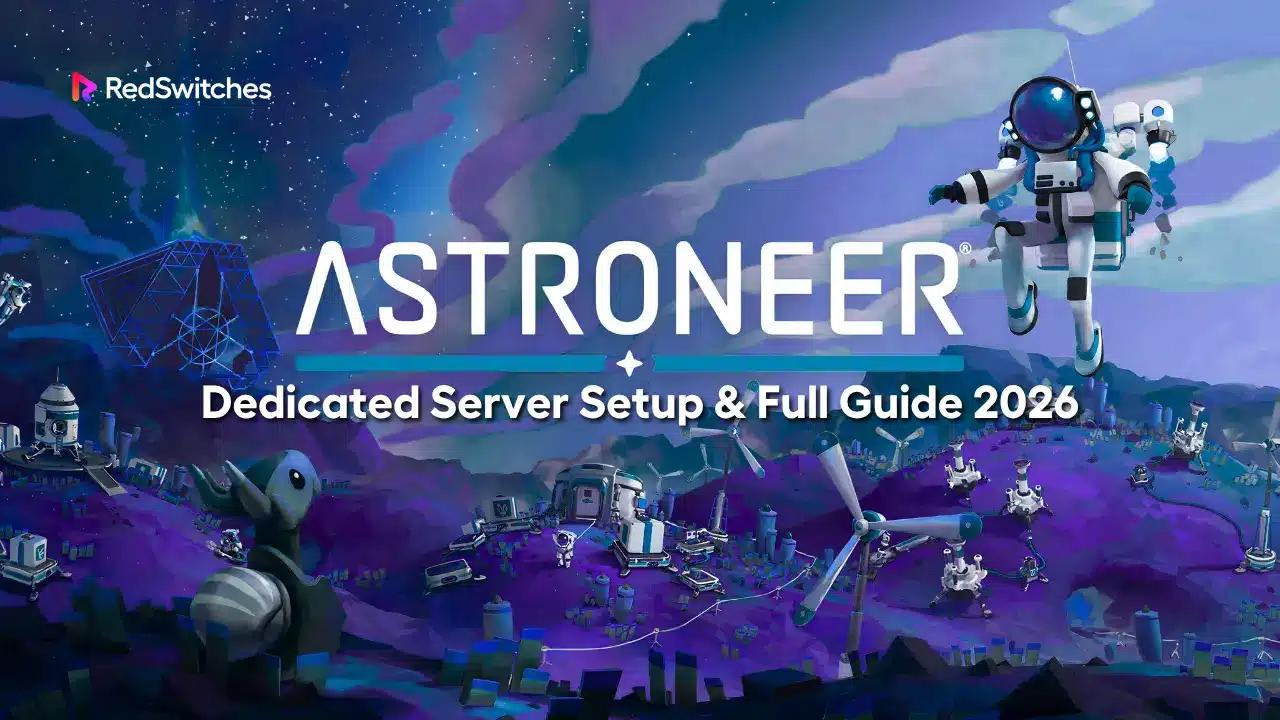
Astroneer Dedicated Server Setup & Full Guide 2026
Run a stable Astroneer dedicated server in 2026 with correct setup, ports, crossplay limits, backups, and hosting choices explained.
Tired of desynced terrain, lag spikes, and saves tied to one player’s PC?
This guide shows you how to run a stable, always-on Astroneer dedicated server that delivers smoother gameplay, persistent worlds, and total control.
In peer-to-peer sessions, your progress depends on the host. If they crash or log off, everything stops. Bases vanish. Terrain fails to load.
But with a dedicated server, simulation runs independently, no host required. Everyone connects to the same synced world, 24/7.
Whether you want a persistent world for friends or you need a cleaner way to keep a shared save online, this guide covers the full Astroneer dedicated server setup in 2026.
You’ll learn how self-hosting works, where official provider hosting makes more sense, how to configure the server correctly, and which limits, platform rules, and backup habits matter most before you commit.
Key Takeaways
- Astroneer dedicated servers keep a shared world online independently of any one player, so progress continues even when the original host is offline.
- The official Astroneer dedicated server tool is a Windows tool, available through Steam Tools or SteamCMD with app ID 728470.
- Self-hosting works best for Steam and PC-focused groups, but Xbox players cannot join a non-authenticated home server. If Xbox is involved, use an official provider.
- System Era’s current official Astroneer dedicated server partners are Nitrado and GPORTAL, and these are the supported route for broader cross-platform play.
- Astroneer dedicated servers support up to 8 players.
- Engine.ini needs a manual [URL] Port=8777 entry, and config files should only be edited while the server is fully stopped.
- Save protection matters more in 2026 because current versions are still receiving dedicated-server fixes, and Patch 1.39.5 is not backwards compatible with older saves.
- DLC now affects server access in some cases. On Megatech dedicated saves and Aeoluz/Glitchwalkers dedicated saves, all joining players may need to own the relevant DLC.
- Fast storage, clean networking, and regular backups matter more than inflated hardware claims.
- If you want the easiest route, rent. If you want full control and your group is mostly PC, self-hosting is still viable.
How Astroneer Dedicated Servers Work
Here is how Astroneer dedicated servers work.
The Server Takes Over the Entire Simulation
In a normal co-op session, the host’s PC runs all simulation tasks: terrain updates, physics, oxygen networks, player sync, and save writes.
When the host lags or disconnects, the whole session collapses. A dedicated server removes this dependency. It runs the full simulation on its own process, so all players connect to the same stable world.
World Data Lives in a Structured Save Folder
Astroneer stores its world state in a folder that contains saves, configs, and session metadata. The server loads this data at startup, keeps it active in memory, and writes updates during auto-saves. This separation lets the world persist even when no players are online.
A Single Gameplay Port Handles Connections
The server relies on a configurable gameplay port (default 8777) to accept connections and stream world data. You open this port on the machine’s firewall and, for home hosting, forward it through your router.
Platform support depends on how the server is hosted, and Xbox players require an authenticated official-provider route rather than a normal home server.
Players Join Through IP, Port, and World Sync
Joining follows a straightforward path:
Player → Server IP + Port → Server process → Load save → Sync state.
After the handshake, the server streams terrain, base structures, research objects, and player states. Every player sees the same version of the world because the server is the single source of truth.
The Server Provides Auto-Saves and 24/7 Persistence
The dedicated process saves at regular intervals, keeps the world alive even with zero players online, and stores all progress on the machine, not on any player’s PC. You can join from any device and always reconnect to the same world.
Dedicated Hardware Makes the World More Stable
Running Astroneer on dedicated machines with high single-core performance and NVMe storage reduces stutters, speeds up terrain streaming, and keeps automation-heavy bases stable. Low-latency data-center environments support smoother world loading for everyone.
Astroneer Dedicated Server Requirements
Let’s discuss the requirements of astroneer dedicated servers.
What the Server Actually Needs
System Era does not publish a detailed official hardware spec sheet for Astroneer dedicated servers. What is officially confirmed is the deployment path: the dedicated server is a Windows tool, installed through Steam Tools or SteamCMD, and configured through the Windows server config structure.
In practice, safe guidance is simple:
- prioritize strong single-core CPU performance
- use SSD or NVMe storage
- keep enough RAM headroom for long sessions and backups
- host on a stable network with open ports and low latency to players
That is a more accurate way to size an Astroneer server than pretending there is a first-party tier list when there is not. For most groups, the real bottlenecks are poor storage, weak networking, bad port setup, and long-running worlds without restart or backup discipline.
Player Capacity and Why It Matters
Astroneer dedicated servers officially support up to 8 players.
Load increases as:
- Players explore different regions
- Bases grow larger
- Automation increases
- Save files expand
These activities place more stress on single-thread performance, not on core count.
General Hardware Guidance
Since official documentation is limited, the Astroneer community recommends focusing on CPU speed and fast storage.
Safe, factual guidance:
- Choose a modern quad-core CPU with strong single-core performance
- 4–8 GB RAM is enough for most worlds
- Use SSD or NVMe storage for smooth save operations
- Allocate 2–4 GB of disk space for saves and configs, plus extra buffer for backups
Avoid giving precise player-tier specs because the developers have never published them.
Network Requirements
System Era does not document bandwidth requirements for Astroneer dedicated servers.
Connection quality depends on:
- Stable upload speeds
- Open ports
- Low latency to players
- No CGNAT blocking inbound traffic
If you host at home, a weak or unstable connection will impact players even if you meet the CPU/RAM requirements.
Why Dedicated Hardware Still Helps
Even without official hardware tiers, community testing shows clear benefits:
- High single-core performance reduces stutters during terrain updates
- NVMe speeds up auto-saves
- Data-center networks keep co-op sessions smooth
Required Ports, Network Setup & Connectivity
A dedicated server only works if players can reach it. That starts with the correct ports, a clean network path, and the right IP settings.
Default Ports Astroneer Servers Use
Astroneer uses a configurable server port, commonly set to 8777, for gameplay connections. In the official setup flow, you add this in Engine.ini under:
[URL]
Port=8777
For a normal self-hosted PC setup, the important step is making sure the configured port is allowed through your firewall and forwarded correctly if you are hosting from home.
The bigger 2026 caveat is platform support:
- Steam and PC-focused groups can self-host normally.
- Xbox players cannot join a non-authenticated home server.
- If you need Xbox compatibility or wider cross-platform support, use an official Astroneer provider.
So yes, networking matters. But for Astroneer crossplay, the limiting factor is not just ports. It is whether the server is running through the supported authenticated route.
How Port Forwarding Works
If you host from home, your router blocks inbound traffic by default. Port forwarding tells the router to send all traffic on port 8777 to your server’s local IP.
You must also allow the same port through your operating system firewall. Missing either step prevents outside players from joining.
Common Networking Issues Players Face
Most connection failures come from incorrect network paths or blocked ports. These are the most frequent issues:
- Firewall blocks TCP/UDP 8777
- Router forwards traffic to the wrong LAN IP
- Host is under CGNAT (no inbound traffic allowed)
- Server advertises a LAN IP instead of the public WAN IP
These problems affect whether your server appears in an Astroneer server URL list or in your own shared connection link.
How to Identify the Correct IP
Your server always has two addresses:
- LAN IP: For devices inside your home
- WAN IP: For players connecting over the internet
When sharing your server with friends or listing it in an Astroneer dedicated server URLs post, always use:
WAN IP + Port
LAN IP works only inside the same network.
Troubleshooting: Common Issues and How to Fix Them
| Issue | Likely cause | Best fix |
|---|---|---|
| Players outside your home cannot join | The configured server port is not open or forwarded correctly | Check Engine.ini, confirm the server port, allow it in the OS firewall, and forward it to the correct local machine |
| The server works on LAN but not over the internet | Wrong public IP, wrong router mapping, or CGNAT | Share the real public IP. If your ISP uses CGNAT, self-hosting may fail unless you get a public IPv4 or move to rented hosting |
| Xbox players cannot join | The server is self-hosted and not authenticated through an official provider | Move the world to an official provider. |
| The server shows as saved but joining fails | Wrong IP, wrong port, or version mismatch | Recheck the saved address format, confirm the server is updated, and verify that the game build matches |
| Admin control is not working | OwnerName or OwnerGuid is wrong | Recheck the owner values in AstroServerSettings.ini, then restart the server |
| The server appears online but loading hangs | Misconfigured PublicIP, port issue, or a bad saved server entry | Re-enter the server manually, confirm the current public IP, and restart both server and client |
| A copied world does not load correctly | Save was copied incorrectly or edited while the server was live | Stop the server fully, restore a clean backup, and recheck the active save name |
| The Dedicated Servers list looks empty | Client-side menu quirk | Reopen the game menu flow and add the server again manually if needed |
| Linux or container deployment behaves inconsistently | Unofficial Wine or container setup issue | Validate the Windows server first. Then troubleshoot the unofficial Linux layer separately |
Windows Installation Guide
You can install an Astroneer dedicated server on Windows in two ways: through Steam Tools or SteamCMD. Both methods give you the same server files, the same folder layout, and the same config structure you need for a complete astroneer dedicated server setup.
Install Through Steam Tools
The Steam Tools method is the simplest way to get a server running.
Download the Server Tool
Open Steam, go to Library → Tools, and install Astroneer Dedicated Server.
The server files are placed inside your Steam library folder. The exact path depends on your system.
Run the Server Once
Launch the tool once. The server stays active until you close it, and this first run creates the full config folder structure.
…\ASTRONEER Dedicated Server\Astro\Saved\Config\WindowsServer\
Inside this directory, you will see:
- AstroServerSettings.ini with default values
- Engine.ini, created as a blank file
Engine.ini must be edited manually before the server is fully usable. Do not edit any config file while the server is running, or the changes will not save.
Start the Server After Editing
After adding your settings and ports to Engine.ini and AstroServerSettings.ini, launch AstroServer.exe again.
The server loads your world, applies settings, and waits for player connections.
This method is ideal for local hosting and testing.
Install Through SteamCMD
SteamCMD is the preferred option for remote servers, automation, and environments running alongside Linux hosts (such as mixed Windows + astroneer linux server deployments).
Install and Prepare SteamCMD
Download SteamCMD from Valveand extract it, for example:
C:\steamcmd\
Download the Server
Use the official command structure:
steamcmd +login anonymous +force_install_dir C:\astroneer_server\ +app_update 728470 validate +quit
This downloads the dedicated server into C:\astroneer_server.
You can also run the commands interactively:
login anonymous
force_install_dir C:\astroneer_server\
app_update 728470 validate
quit
Both methods install the same files.
Generate the Config Structure
Run AstroServer.exe once.
This creates:
Astro\Saved\Config\WindowsServer\
- Engine.ini is blank.
- AstroServerSettings.ini is populated with defaults.
- Both must be edited with your port, save, and server settings.
Updating the Server
Use this command to install patches:
steamcmd +login anonymous +app_update 728470 validate +quit
This keeps the server compatible with new Astroneer updates.
Optional: Run as a Windows Service
You can create a small batch file and register it with NSSMto run the server as a background service. This gives you auto-restart, crash recovery, and cleaner restarts for long-term hosting.
Configuration Files Explained
Astroneer dedicated servers use two configuration files. These files control your server identity, access rules, save behavior, and network settings. Always stop the server before editing them, or the changes will not apply.
AstroServerSettings.ini: Core Server Controls
AstroServerSettings.ini defines how your server behaves and how players join it. This file is created during the first server launch.
Key settings include:
- ServerName – the name players see when browsing servers.
- MaxPlayerCount – the maximum number of players allowed. Astroneer supports up to eight.
- OwnerGuid – the Steam or Xbox GUID that grants admin control.
- OwnerName – the account name linked to this GUID.
- ServerPassword – optional password for private servers.
- PublicIP – the external IP players must use to reach your world.
- AutoSaveGameInterval – how often the server auto-saves.
- BackupSaveGamesInterval – how often backups are created.
- ServerGuid – the unique identifier generated for your server.
- DenyUnlistedPlayers – restricts access to listed players only.
These settings define identity, security, player access, and world safety. Writers can place sample config blocks under this section.
Engine.ini: Port and Network Definition
Engine.ini starts as a blank file. You must add the [URL] section manually. This file controls the port number the server binds to.
The required format is:
[URL]
Port=8777
Engine.ini does not specify TCP or UDP. Your router and firewall decide protocol rules. The server only needs the port number here.
Incorrect entries in this file lead to connection failures, offline listings, or broken join links for astroneer public servers.
Common Mistakes to Avoid
Most server issues come from a few predictable errors:
- Editing config files while the server is running
- Using a LAN IP instead of your real public IP
- Leaving Engine.ini blank or missing the [URL] section
- Wrong MaxPlayerCount formatting
- Incorrect OwnerGuid or mistyped OwnerName
- Ports forwarded in the router but blocked in the OS firewall
Stopping the server before making changes prevents corrupted settings and lost configurations
How to Start, Stop, and Maintain Your Astroneer Server
Running your server correctly keeps your world stable and prevents file corruption. This section covers the practical steps for launching, stopping, monitoring, and maintaining Astroneer servers with predictable uptime.
Start the Server Through the Executable
Astroneer servers launch through a single file: AstroServer.exe.
The standard way to start the server is:
AstroServer.exe
This opens a console window that shows live activity such as joins, disconnects, and autosaves.
If you want a copy of the console output, use standard Windows redirection:
AstroServer.exe > server_log.txt 2>&1
There is no documented -log parameter in official or community sources.
Monitor Logs for Server Health
The server writes logs to:
Astro\Saved\Logs\
These logs help you diagnose:
- Failed player joins
- Port or IP misconfiguration
- GUID or permission issues
- World loading failures
- Autosave or backup problems
Checking logs is the fastest way to understand why a server isn’t showing up or why players can’t connect.
Optional: Use Community Tools for Automation
Tools like AstroLauncher are third-party utilities created by the community.
They can:
- Schedule automated restarts
- Trigger manual saves
- Rotate logs
- Help manage backups
These tools are optional. They are not official, but they make long-term maintenance easier.
Run the Server as a Windows Service
Use NSSM or a similar service wrapper to run AstroServer.exe as a Windows Service.
This setup lets the server:
- Start automatically on system boot
- Restart if it crashes
- Stay online without a console window open
Most long-term hosts use this setup for stable, continuous uptime.
Restarting the Server for Stability
Astroneer servers accumulate memory use over time. Periodic restarts help prevent crashes and slowdowns.
Since the developer does not publish restart guidelines, use the community best practice:
- Busy public servers: restart roughly once per day
- Small private servers: restart every few days
These intervals are estimates based on community experience, not official rules.
Stop the Server Safely
Astroneer does not offer a documented “graceful shutdown” command.
Use the safest method available:
- Close the console window normally
- Avoid killing AstroServer.exe in Task Manager
- Never close the server during an autosave
- Never edit .ini files or save files while the server is running (this can corrupt worlds)
If you use a management tool, trigger a manual save before shutdown.
Unofficial Linux and Container Hosting Options
Astroneer’s dedicated server tool is currently a Windows-only application. System Era’s official setup flow is built around the Windows tool, Windows config folders, and Windows-style deployment.
That said, some hosts do run Astroneer through Wineor containerized Wine setups on Linux. This can work, but it is an unofficial workaround, not a first-party supported deployment method. Because of that, Linux-based hosting is best treated as an advanced option for people who are already comfortable debugging compatibility layers, file permissions, and persistent storage mapping.
If your priority is the simplest and most reliable result, use:
- a Windows self-host.
- or an official provider.
If your priority is experimentation and you already manage Linux game workloads, Wine-based hosting can be explored, but it should not be presented as the default Astroneer server path.
Joining Your Astroneer Dedicated Server
Once your server is online, the last step is getting people in. Astroneer does not have a classic public server browser. Every server is added manually, which is why clear connection info matters if you share astroneer servers to join with friends or community members.
Add Your Server Through “Add Dedicated Server”
From the main menu:
- Go to Multiplayer → Dedicated Servers → Add Dedicated Server
- In Server Address, enter the IP and port
- In Server Name, enter any label you want on your own list
After you save, the server appears in your Dedicated Servers list.
Correct Server Address Format
Astroneer expects an address in this format:
123.45.67.89:8777
or:
myserver.example.com:8777
Always include the port, even if you use the default.
Every join link or astroneer public server post should use this IP:port format.
What “Public” and “Private” Really Mean in Astroneer
Astroneer does not show a global list of public servers.
In practice:
- A “public” server accepts connections from anyone who knows the IP:port
- A “private” server is one where you only share the address with friends and may use a password
Visibility depends on whether players know the address and whether your network allows inbound traffic. CGNAT and blocked ports keep many home-hosted servers effectively private.
Why Single-Player Sometimes “Unsticks” the List
Astroneer has a long-standing quirk: the Dedicated Servers list sometimes appears empty after a fresh launch.
A simple workaround:
- Start any single-player world
- Load in
- Exit back to the main menu
- Open Multiplayer → Dedicated Servers again
After this, saved entries usually show up correctly, and you can pick your server from the list.
The Two-Step Join Flow That Confuses New Players
Joining a server does not drop you straight into the world.
The usual flow looks like:
- Select your server from the Dedicated Servers list
- Click Join
- Wait for the client to connect in the background
- Go to the Co-Op tab and select Join Game when it becomes available
Many new players think the join failed because they stay on the main menu. The Co-Op screen is where the actual entry into the world happens.
LAN and External IP Quirks
On some networks, players on the same LAN still need to use the external IP (the same one friends use over the internet), especially if the router doesn’t handle local loopback well.
If local players can’t join with the LAN IP:
- Try the external IP:port
- Confirm your router supports hairpin NAT or loopback
Crossplay, DLC, and 2026 Compatibility Notes
This is the section most players need before choosing between self-hosting and renting.
Self-hosting vs official-provider hosting
Astroneer self-hosting is still viable in 2026, but it works best for Steam and PC-focused groups. If Xbox is part of your group, a home server is not enough.
Xbox players can only join through a preferred authenticated dedicated server.
PS4 and broader cross-platform play
PS4 players can connect to Astroneer dedicated servers, and the official provider route remains the cleanest option when you want wider platform support across PlayStation, Xbox, Windows, and Steam.
DLC restrictions now matter on dedicated servers
Dedicated servers have a newer DLC catch that many older guides miss:
- if a server is hosting a Megatechsave, all joining players must own the Megatech DLC
- if a server is running an Aeoluz dedicated save, all joining players must own the Glitchwalkers DLC
That means save choice now affects who can join your world.
Save compatibility and updates
Astroneer is still being updated, and dedicated-server issues are still being fixed in current patch notes. Before updating, always back up your world. Patch 1.39.5 is not backwards compatible with older save versions.
Backup, Stability & Performance Optimization
A long-running Astroneer world needs clean backups, stable memory use, and predictable restarts. We will covers how to protect your saves and keep performance steady over weeks of play.
Where Your Astroneer Server Stores Saves
Astroneer writes all world data inside two folders:
Astro\Saved\SaveGames\
Astro\Saved\Backup\SaveGames\
- SaveGames holds the active world.
- Backup\SaveGames holds automatic backup snapshots created by the server.
Always stop the server before copying or replacing anything in these directories. Editing live files can corrupt the world.
How Often You Should Back Up Your World
Create backups based on how active your world is:
- Active public groups: daily copies
- Private co-op: every few days
- Before big builds: create a manual backup
These backups are your safety net against file corruption, crashes during autosaves, or mistakes during upgrades. If you run free Astroneer servers on home hardware, send your backups to cloud storage or an external drive.
How Automation Affects Server Performance?
Automation chains do not appear in official documentation as performance risks.
But many server owners report higher CPU load when:
- Large smelting lines run
- Soil centrifuges run in loops
- Auto arms move items nonstop
This is community experience, not developer documentation. Automation increases simulation work, so it can add pressure on slower CPUs.
What Usually Hurts Astroneer Server Stability?
System Era does not publish a formal ranked list of Astroneer dedicated server performance bottlenecks. The safest way to discuss performance is to separate official facts from community observation.
What is safe to say:
- larger worlds put more pressure on the server over time
- longer sessions increase the value of clean backups and periodic restarts
- fast SSD or NVMe storage helps save and load behavior
- good single-core CPU performance helps keep simulation smoother
- weak home networking can make stutters feel worse even when the server itself is running
What many hosts observe in real use:
- very large bases
- heavy automation
- long sessions without restart
- lots of terrain changes
- poor upload stability on home internet
These are useful practical signals, but they should be presented as real-world hosting patterns, not official System Era performance benchmarks.
Restart and Backup Guidance
There is no official Astroneer rule that says you must restart on a fixed timer. Still, regular restarts and backups are smart operational habits, especially for long-running worlds.
Good practice:
- create scheduled backups
- avoid editing saves while the server is running
- restart on a predictable cadence if the world runs for long periods
- back up before game updates
- keep at least one extra clean copy of the active world
That advice is even more important now because Astroneer is still receiving dedicated-server fixes, and current patching can affect save compatibility. Patch 1.39.5 is explicitly marked as not backwards compatible with older versions.
Long-Term Stability Checklist
Your server will stay healthier if you follow this list:
- Back up SaveGames and Backup\SaveGames on a schedule
- Restart on a predictable cycle
- Keep the server fully stopped before editing configs or replacing saves
- Host on fast storage and a stable network
- Monitor long-running worlds for slower joins, longer autosaves, or rising memory use
- Keep at least one extra clean backup before updates
- Move to official-provider hosting if your group needs Xbox support
Reliable hardware, clean backups, and careful update habits matter more than folklore about one specific in-game object.
When You Should Use a Dedicated Server
A dedicated server makes sense when your group wants stable performance, constant uptime, and a world that stays online even when no one is playing.
| Use case | Should you use a dedicated server? | Why it matters |
|---|---|---|
| Casual play | Not always | If you only play with one or two friends, a normal hosted session may be enough. The world stays tied to the host’s PC. |
| Serious long-term play | Yes | A dedicated server keeps the world online, improves consistency, and supports longer shared progression. |
| Large bases | Yes | Bigger bases, storage systems, and terrain edits can slow down host-based sessions. Dedicated hardware handles growth better. |
| Friends in different regions | Yes | A server placed in a sensible region can give the group more consistent ping than one player hosting from home. |
| Automation-heavy worlds | Yes | Automated bases create steady world activity. A dedicated server keeps that load separate from a player’s gaming PC. |
| Different play schedules | Yes | Anyone can join, explore, or build without waiting for the host to log in. |
| Small short sessions | Usually no | If your group plays rarely and builds small, self-hosted co-op is simpler and may be enough. |
How RedSwitches Helps You Run a More Reliable Astroneer Server
Astroneer does not demand the biggest server on the market. It demands a stable one. That means strong single-core performance, fast storage for save handling, and reliable connectivity for a shared world that stays online when your group is offline.
That is where dedicated infrastructure helps. Instead of relying on a home PC, home router, and consumer upload speeds, you can run Astroneer on hardware built for persistent uptime, cleaner networking, and easier remote management.
That reduces the usual self-hosting pain points like blocked ports, unstable WAN routing, and the risk of saving protection on a personal machine.
If you want more control than a generic game panel and more reliability than home hosting, RedSwitches gives you a straightforward way to run a persistent Astroneer world on dedicated hardware with the network consistency that multiplayer worlds benefit from most.
FAQs
Q. Can you self-host an Astroneer dedicated server in 2026?
Yes. You can self-host Astroneer using the official Windows dedicated server tool through Steam Tools or SteamCMD. This is still the main self-host route in 2026.
Q. Can Xbox players join a home-hosted Astroneer server?
No. Xbox players cannot join a non-authenticated home server. If your group includes Xbox, use an official Astroneer provider.
Q. How many players can join an Astroneer dedicated server?
Astroneer dedicated servers support up to 8 players.
Q. Do I need to port forward to self-host?
Yes, in most home-hosted setups you need to allow and forward the configured server port, commonly 8777, so outside players can reach the server. If your ISP uses CGNAT, self-hosting can fail even when your local setup looks correct.
Q. Does Astroneer have an official Linux dedicated server?
No official Linux build is listed for the dedicated server tool. Linux hosting is generally done through unofficial Wine or container workarounds.
Q. Can DLC affect who joins a dedicated server?
Yes. On Megatech dedicated saves and Aeoluz/Glitchwalkers dedicated saves, all joining players may need to own the relevant DLC.
Q. Should I back up my Astroneer server before updating?
Yes. You should always back up the save before major updates. Current patch notes for 1.39.5 explicitly warn that the update is not backwards compatible with older versions.
Hafsa Qadeer
Technical Writer
Hafsa Qadeer is a Technical Content Writer at RedSwitches and a journalist with a background in molecular biology and oncology. She brings research precision to technical writing and SEO strategy, turning complex topics in infrastructure, biotech, and AI into content that informs and engages.

Wreckfest 2 Dedicated Server Setup Guide 2026
Build a reliable Wreckfest 2 dedicated server with clear, practical steps for 2026 covering installation, configuration, ports, optimization, and troubleshooting.

Last Oasis Dedicated Server Setup Guide 2026
Learn how to configure, launch, secure, troubleshoot, and scale a reliable Last Oasis dedicated server using SteamCMD, MyRealm, and networking.
Barotrauma Dedicated Server Setup Guide 2026
Configure a stable Barotrauma dedicated server on Windows or Linux with SteamCMD, UDP ports, mods, permissions, backups, and troubleshooting steps.
Power Your Next Project With Bare Metal
10 min delivery, zero setup fees, and 24/7/365 human engineers across 20+ global locations.